This is the post where you stop reading and start doing. If you followed Part 1 (mindset shift) and Part 2 (planning strategy), you understand why to automate and what to automate first. Now we learn how.
I’m assuming you’ve never written code. I’m assuming you’ve never used a command line. I’m assuming the most technical thing you’ve done is write a VLOOKUP in Excel. That’s perfectly fine. By the end of this post, you’ll have a real Playwright test running on your machine.
Step 1: Install the Prerequisites
You need three things. All free, all safe, all standard.
Install Node.js
Node.js is the runtime that executes your test code. Think of it as the engine that makes Playwright work.
- Go to nodejs.org
- Download the LTS version (the one on the left, marked “Recommended for Most Users”)
- Run the installer — click Next through everything, accept the defaults
- Verify it worked: open a terminal and type:
node --versionYou should see something like v20.11.0. The exact number doesn’t matter.
What’s a terminal?
- On Windows: Press
Win + R, typecmd, press Enter. Or search for “Terminal” in the Start menu. - On Mac: Press
Cmd + Space, type “Terminal”, press Enter. - Inside VS Code: Press
Ctrl + `(backtick key, usually above Tab).
Install VS Code
VS Code is the code editor where you’ll write your tests. It’s like Notepad, but with superpowers.
- Go to code.visualstudio.com
- Download and install
- Open it — you’ll see a welcome screen
Install the Playwright Extension for VS Code
This extension gives you a green “Play” button to run tests, highlights test results, and provides debugging tools.
- In VS Code, click the Extensions icon in the left sidebar (it looks like four squares)
- Search for “Playwright Test for VS Code”
- Click Install on the one by Microsoft
Step 2: Create Your Test Project
Open VS Code’s terminal (Ctrl + `) and run these commands. I’ll explain each one:
mkdir my-first-tests
cd my-first-tests
npm init playwright@latest
What each command does:
mkdir my-first-tests— Creates a new folder called “my-first-tests”cd my-first-tests— Enters that foldernpm init playwright@latest— Installs Playwright and sets up the project
The installer will ask you a few questions. Choose these:
? Do you want to use TypeScript or JavaScript? → TypeScript
? Where to put your end-to-end tests? → tests
? Add a GitHub Actions workflow? → true
? Install Playwright browsers? → true
Wait while it downloads browsers (Chrome, Firefox, Safari). This takes 1-3 minutes depending on your internet speed.
When it’s done, you’ll see this folder structure:
my-first-tests/
├── tests/
│   └── example.spec.ts     ← Your first test file
├── tests-examples/
│   └── demo-todo-app.spec.ts
├── playwright.config.ts     ← Configuration
├── package.json
└── package-lock.json
Step 3: Run the Example Test
Playwright comes with an example test. Let’s run it to make sure everything works:
npx playwright testYou should see output like:
Running 6 tests using 3 workers
  6 passed (4.2s)
All six passed. You just ran automated browser tests. That’s it. You’re an automation engineer now.
To see the detailed HTML report:
npx playwright show-reportThis opens a beautiful report in your browser showing every test, how long it took, and whether it passed.
Step 4: Understand the Example Test
Open tests/example.spec.ts in VS Code. Here’s what’s inside:
import { test, expect } from '@playwright/test';

test('has title', async ({ page }) => {
  await page.goto('https://playwright.dev/');
  await expect(page).toHaveTitle(/Playwright/);
});

test('get started link', async ({ page }) => {
  await page.goto('https://playwright.dev/');
  await page.getByRole('link', { name: 'Get started' }).click();
  await expect(page).toHaveURL(/.*intro/);
});
Let me translate this to plain English:
Test 1: “has title”
- Open the Playwright website
- Check that the page title contains the word “Playwright”
Test 2: “get started link”
- Open the Playwright website
- Find the link that says “Get started” and click it
- Check that the URL now contains “intro”
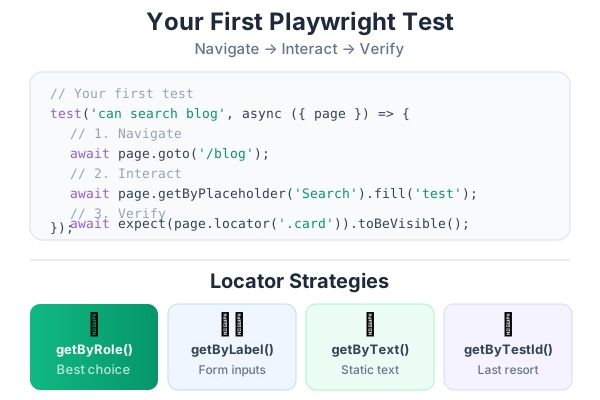
That’s what every automated test looks like:
- Navigate somewhere
- Interact with the page (click, type, select)
- Verify something happened (text appeared, URL changed, element is visible)
Breaking Down the Syntax
Let’s decode each piece:
import { test, expect } from '@playwright/test';This imports Playwright’s tools. test defines a test case. expect creates assertions (checks).
test('has title', async ({ page }) => {This creates a test named “has title”. page is the browser page — your window into the website.
await page.goto('https://playwright.dev/');Navigate to this URL. await means “wait for this to finish before continuing.”
await expect(page).toHaveTitle(/Playwright/);Verify the page title contains “Playwright”. The /Playwright/ is a pattern match (regular expression) — it checks if the word appears anywhere in the title.
await page.getByRole('link', { name: 'Get started' }).click();Find a link whose text includes “Get started” and click it.
await expect(page).toHaveURL(/.*intro/);Verify the URL now contains “intro”.
Step 5: Write Your First Real Test
Let’s write a test for a real website. We’ll test Google’s search page:
// tests/my-first-test.spec.ts
import { test, expect } from '@playwright/test';

test('Google search works', async ({ page }) => {
  // Step 1: Navigate to Google
  await page.goto('https://www.google.com');

  // Step 2: Type a search query
  await page.getByRole('combobox', { name: 'Search' }).fill('Playwright testing');

  // Step 3: Press Enter to search
  await page.keyboard.press('Enter');

  // Step 4: Verify results appear
  await expect(page.getByRole('heading', { name: /Playwright/i })).toBeVisible();
});
Create this file: in VS Code, right-click the tests folder → New File → name it my-first-test.spec.ts → paste the code above.
Run it:
npx playwright test my-first-test.spec.tsStep 6: Understanding Locators
Locators are how you tell Playwright which element to interact with. Think of them as directions: “Click the button that says Submit” or “Type in the search box.”
Playwright has several locator strategies, ranked from best to worst:
The Best: Role-Based Locators
These find elements by their purpose, not their appearance. They’re the most resilient to UI changes:
// Find a button with the text "Submit"
page.getByRole('button', { name: 'Submit' })

// Find a text input with the label "Email"
page.getByRole('textbox', { name: 'Email' })

// Find a link with the text "Learn more"
page.getByRole('link', { name: 'Learn more' })

// Find a heading with specific text
page.getByRole('heading', { name: 'Welcome' })

// Find a checkbox
page.getByRole('checkbox', { name: 'Remember me' })
Why role-based locators are best: Even if the developer changes the button’s CSS class, its color, or its position on the page, the role and text stay the same. Your test survives UI redesigns.
Text-Based Locators
Find elements by their visible text:
// Find any element containing this exact text
page.getByText('Welcome to our app')

// Find elements containing this text (case-insensitive)
page.getByText('welcome', { exact: false })
Placeholder and Label Locators
For form fields:
// Find input by its placeholder text
page.getByPlaceholder('Enter your email')

// Find input by its associated label
page.getByLabel('Password')
Test ID Locators
For elements that are hard to locate by role or text, developers can add test IDs:
<div data-testid="user-profile">...</div>page.getByTestId('user-profile')CSS Selectors (Last Resort)
If nothing else works, use CSS selectors. But these are brittle — they break when CSS classes change:
// ❌ Brittle — breaks if class name changes
page.locator('.btn-primary-submit')

// ❌ Very brittle — breaks if page structure changes
page.locator('#app > div > form > button:nth-child(3)')
Locator Cheat Sheet
| What You Want | Locator | Example |
|---|---|---|
| A button | getByRole('button', { name: 'X' }) | Save, Submit, Cancel |
| A text input | getByRole('textbox', { name: 'X' }) | Email field |
| A link | getByRole('link', { name: 'X' }) | Navigation links |
| A heading | getByRole('heading', { name: 'X' }) | Page titles |
| A checkbox | getByRole('checkbox', { name: 'X' }) | Settings toggles |
| A dropdown | getByRole('combobox', { name: 'X' }) | Select menus |
| Any text | getByText('X') | Labels, messages |
| Form field | getByPlaceholder('X') | Search boxes |
| Test ID | getByTestId('X') | Complex elements |
Step 7: Common Actions
Here are the actions you’ll use most often:
Navigation
// Go to a URL
await page.goto('https://example.com');

// Go back (browser back button)
await page.goBack();

// Reload the page
await page.reload();
Clicking
// Click a button
await page.getByRole('button', { name: 'Submit' }).click();

// Double-click
await page.getByText('Edit').dblclick();

// Right-click
await page.getByText('Options').click({ button: 'right' });
Typing
// Type into a field (replaces existing content)
await page.getByPlaceholder('Search...').fill('test query');

// Type one character at a time (simulates real typing)
await page.getByPlaceholder('Search...').pressSequentially('test query');

// Clear a field
await page.getByPlaceholder('Search...').clear();

// Press a key
await page.keyboard.press('Enter');
await page.keyboard.press('Tab');
await page.keyboard.press('Escape');
Selecting Options
// Select from a dropdown by visible text
await page.getByRole('combobox', { name: 'Country' }).selectOption('Vietnam');

// Select by value
await page.getByRole('combobox', { name: 'Country' }).selectOption({ value: 'VN' });
Checkboxes and Radio Buttons
// Check a checkbox
await page.getByRole('checkbox', { name: 'I agree' }).check();

// Uncheck
await page.getByRole('checkbox', { name: 'Subscribe' }).uncheck();

// Verify checked state
await expect(page.getByRole('checkbox', { name: 'I agree' })).toBeChecked();
Step 8: Assertions (Verification)
Assertions are the checks that determine if your test passes or fails. They’re the “verify” step in your manual test case.
Visibility Assertions
// Element is visible on the page
await expect(page.getByText('Welcome')).toBeVisible();

// Element is NOT visible
await expect(page.getByText('Error')).not.toBeVisible();

// Element is hidden (exists in DOM but not visible)
await expect(page.getByTestId('modal')).toBeHidden();
Text Assertions
// Element contains specific text
await expect(page.locator('h1')).toContainText('Dashboard');

// Element has exact text
await expect(page.locator('.status')).toHaveText('Active');
URL and Title Assertions
// URL matches a pattern
await expect(page).toHaveURL(/\/dashboard/);

// URL is exact
await expect(page).toHaveURL('https://example.com/dashboard');

// Page title
await expect(page).toHaveTitle('Dashboard - My App');
Count Assertions
// Number of elements
await expect(page.locator('.product-card')).toHaveCount(10);

// At least one element
const count = await page.locator('.search-result').count();
expect(count).toBeGreaterThan(0);
Important: Auto-Waiting
Playwright automatically waits for elements to appear before checking them. You don’t need to add manual waits:
// ❌ Bad — unnecessary manual wait
await page.waitForTimeout(3000);
await expect(page.getByText('Loaded')).toBeVisible();

// ✅ Good — Playwright auto-waits up to 5 seconds
await expect(page.getByText('Loaded')).toBeVisible();

// ✅ If you need a longer wait, increase the timeout
await expect(page.getByText('Loaded')).toBeVisible({ timeout: 10000 });
Step 9: Organize Your Tests
As you write more tests, organize them with test.describe() and test.beforeEach():
import { test, expect } from '@playwright/test';

test.describe('Login Page', () => {
  // This runs before EACH test in this group
  test.beforeEach(async ({ page }) => {
    await page.goto('https://your-app.com/login');
  });

  test('shows login form', async ({ page }) => {
    await expect(page.getByRole('heading', { name: 'Sign In' })).toBeVisible();
    await expect(page.getByLabel('Email')).toBeVisible();
    await expect(page.getByLabel('Password')).toBeVisible();
    await expect(page.getByRole('button', { name: 'Sign In' })).toBeVisible();
  });

  test('shows error for invalid credentials', async ({ page }) => {
    await page.getByLabel('Email').fill('wrong@email.com');
    await page.getByLabel('Password').fill('wrongpassword');
    await page.getByRole('button', { name: 'Sign In' }).click();
    await expect(page.getByText('Invalid email or password')).toBeVisible();
  });

  test('redirects to dashboard after successful login', async ({ page }) => {
    await page.getByLabel('Email').fill('valid@email.com');
    await page.getByLabel('Password').fill('correctpassword');
    await page.getByRole('button', { name: 'Sign In' }).click();
    await expect(page).toHaveURL(/\/dashboard/);
  });

  test('shows error for empty form submission', async ({ page }) => {
    await page.getByRole('button', { name: 'Sign In' }).click();
    await expect(page.getByText('Email is required')).toBeVisible();
  });
});
Notice how each test reads like a manual test case:
- “shows login form” → Open login page, verify all elements are visible
- “shows error for invalid credentials” → Enter wrong credentials, click sign in, verify error message
- “redirects to dashboard” → Enter valid credentials, click sign in, verify redirect
Step 10: Running and Debugging Tests
Running Tests
# Run all tests
npx playwright test

# Run a specific test file
npx playwright test tests/my-first-test.spec.ts

# Run tests with a specific name
npx playwright test -g "login"

# Run in headed mode (see the browser)
npx playwright test --headed

# Run in UI mode (best for debugging!)
npx playwright test --ui
UI Mode — Your Best Friend
UI mode is the most powerful debugging tool. Run it:
npx playwright test --uiThis opens a visual interface where you can:
- See all your tests in a list
- Click to run individual tests
- Watch the browser actions in real-time
- See a timeline of every action
- Time-travel through test steps
- Inspect the page at any point
I recommend running --ui mode every time you write or debug a test. It’s the closest thing to manual testing but with automated verification.
When Tests Fail
When a test fails, Playwright tells you exactly what went wrong:
Error: Timed out 5000ms waiting for expect(locator).toBeVisible()

  Locator: getByText('Welcome back')
  Expected: visible
  Received: <element not found>

  Call log:
    - waiting for getByText('Welcome back')
This tells you:
- What was expected: The text “Welcome back” should be visible
- What actually happened: The text wasn’t found on the page
- How long it tried: 5 seconds before giving up
Common causes and fixes:
| Error | Likely Cause | Fix |
|---|---|---|
| ”element not found” | Text changed or element doesn’t exist | Check the actual page text |
| ”Timed out waiting” | Page didn’t load fast enough | Increase timeout or check the URL |
| ”strict mode violation” | Multiple elements match | Make the locator more specific |
| ”Navigation timeout” | Page URL is wrong or server is down | Check the URL and ensure app is running |
Using page.pause() for Debugging
Insert await page.pause() in your test to freeze execution and inspect the page:
test('debug this', async ({ page }) => {
  await page.goto('https://your-app.com');
  await page.pause(); // Execution stops here — you can interact with the page
  await page.getByRole('button', { name: 'Submit' }).click();
});
This opens the Playwright Inspector where you can:
- Click around the page
- See locators for any element
- Step through your test one action at a time
Exercise: Automate a Real Flow
Now it’s your turn. Pick one of these exercises based on your comfort level:
Beginner: Test Wikipedia Search
// tests/wikipedia-search.spec.ts
import { test, expect } from '@playwright/test';

test('Wikipedia search returns results', async ({ page }) => {
  await page.goto('https://en.wikipedia.org');

  // Fill the search box
  await page.getByRole('searchbox', { name: 'Search Wikipedia' }).fill('Playwright');

  // Click search button
  await page.getByRole('button', { name: 'Search' }).click();

  // Verify we're on a results page
  await expect(page.locator('h1')).toContainText('Playwright');
});
Intermediate: Test a Login Flow
Pick your application’s login page and write three tests:
- Valid login succeeds
- Invalid login shows error
- Empty form shows validation
Advanced: Test a Multi-Step Flow
Pick a 3-5 step user journey in your application (e.g., search → view → add to cart) and automate it.
What You’ve Learned
In this post, you’ve:
- ✅ Installed Node.js, VS Code, and Playwright
- ✅ Created a test project from scratch
- ✅ Run your first automated tests
- ✅ Understood test structure (navigate → interact → verify)
- ✅ Learned locator strategies (role, text, placeholder, test ID)
- ✅ Written assertions (visibility, text, URL)
- ✅ Organized tests with
describeandbeforeEach - ✅ Learned to debug with UI mode and
page.pause()
That’s a solid foundation. You can already automate basic regression tests.
Series Navigation
- Part 1: From Manual Tester to Automation Engineer — The Mindset Shift
- Part 2: How to Plan Automation for Any Project — A Practical Framework
- Part 3: Your First Playwright Test — A Step-by-Step Guide for Manual Testers (you are here)
- Part 4: Page Objects, Fixtures, and Real-World Playwright Patterns
- Part 5: BDD with Cucumber and Playwright — Writing Tests in Plain English
- Part 6: Using AI to Write Tests — Claude, GitHub Copilot, and Antigravity
- Part 7: The QC Tester’s Prompt Engineering Playbook
- Part 8: Sharing the Work — How Dev and QC Teams Collaborate on Test Automation
- Part 9: Measuring and Improving Quality — Metrics That Actually Matter
- Part 10: The Complete Best Practices Checklist for Automation, AI, and Quality
In Part 4, we’ll level up your tests with Page Objects, custom fixtures, and real-world patterns that make your test suite scalable and maintainable. No more copy-pasting the same selectors into every test file.