There’s a gap that keeps causing problems on every team I’ve worked with: QC testers know what to test, but they can’t always express it in code. Product owners know what the feature should do, but they can’t read TypeScript. Developers know how to code, but they don’t always know the edge cases.
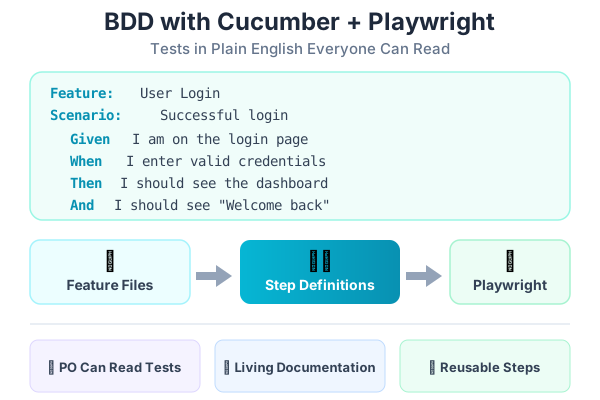
BDD — Behavior-Driven Development — bridges that gap. You write tests in plain English using a format called Gherkin. Anyone can read them. Anyone can contribute. And Cucumber connects those English descriptions to real Playwright automation behind the scenes.
What BDD Actually Means
BDD isn’t about tools. It’s about shared understanding. Before anyone writes code, the team agrees on how a feature should behave, written in a format everyone can read.
Here’s a traditional test case:
Test Case: TC-042
Precondition: User has an account
Steps:
1. Navigate to login page
2. Enter valid email
3. Enter valid password
4. Click Sign In button
Expected: User is redirected to dashboard
Here’s the same test in Gherkin (BDD format):
Feature: User Authentication
  As a registered user
  I want to log into the application
  So that I can access my dashboard

  Scenario: Successful login with valid credentials
    Given I am on the login page
    When I enter "user@example.com" as my email
    And I enter "correctPassword" as my password
    And I click the Sign In button
    Then I should be redirected to the dashboard
    And I should see a welcome message
Notice the difference. The Gherkin version:
- Is readable by anyone — even your project manager
- Describes behavior from the user’s perspective
- Acts as both a test and a specification
- Can be used in meetings to discuss requirements
Setting Up Cucumber with Playwright
Let’s build this from scratch. You need two additional packages:
npm install --save-dev @cucumber/cucumber @playwright/test ts-nodeCreate a Cucumber configuration file:
// cucumber.js
module.exports = {
  default: {
    require: ['tests/steps/**/*.ts'],
    requireModule: ['ts-node/register'],
    format: [
      'progress',
      'html:reports/cucumber-report.html',
    ],
    paths: ['tests/features/**/*.feature'],
    publishQuiet: true,
  },
};
Add a script to your package.json:
{
  "scripts": {
    "test:bdd": "cucumber-js",
    "test:e2e": "playwright test",
    "test": "npm run test:e2e && npm run test:bdd"
  }
}
Your project structure now looks like:
tests/
├── features/              ← Gherkin feature files (plain English)
│   ├── login.feature
│   ├── blog.feature
│   └── search.feature
├── steps/                 ← Step definitions (code that runs)
│   ├── login.steps.ts
│   ├── blog.steps.ts
│   └── common.steps.ts
├── pages/                 ← Page Objects (same as before)
│   ├── LoginPage.ts
│   └── BlogPage.ts
├── e2e/                   ← Regular Playwright tests
│   └── ...
└── support/               ← Shared hooks and utilities
    └── world.ts
Writing Feature Files
Feature files are the heart of BDD. They live in tests/features/ and use the .feature extension.
The Basics: Feature, Scenario, Steps
# tests/features/login.feature
Feature: User Login
  As a registered user
  I want to log into the application
  So that I can access my personalized dashboard

  Scenario: Successful login
    Given I am on the login page
    When I enter "user@example.com" as the email
    And I enter "password123" as the password
    And I click the Sign In button
    Then I should be redirected to the dashboard
    And I should see "Welcome back" on the page

  Scenario: Failed login with wrong password
    Given I am on the login page
    When I enter "user@example.com" as the email
    And I enter "wrongpassword" as the password
    And I click the Sign In button
    Then I should see an error message "Invalid email or password"
    And I should remain on the login page

  Scenario: Empty form submission
    Given I am on the login page
    When I click the Sign In button
    Then I should see an error message "Email is required"
Scenario Outline: Data-Driven BDD
When you want to test the same scenario with different data, use a Scenario Outline:
# tests/features/login.feature (continued)

  Scenario Outline: Login validation
    Given I am on the login page
    When I enter "<email>" as the email
    And I enter "<password>" as the password
    And I click the Sign In button
    Then I should see "<result>"

    Examples:
      | email              | password     | result                      |
      | user@example.com   | correct123   | Welcome back                |
      | user@example.com   | wrong        | Invalid email or password   |
      |                    | password     | Email is required           |
      | not-an-email       | password     | Please enter a valid email  |
      | user@example.com   |              | Password is required        |
This generates five separate tests from one template — each row in the Examples table becomes a test run with those values substituted in.
A More Complex Feature: Blog Search
# tests/features/blog.feature
Feature: Blog Search and Filtering
  As a blog reader
  I want to search and filter blog posts
  So that I can find content relevant to my interests

  Background:
    Given I am on the blog page

  Scenario: Search by keyword
    When I search for "playwright"
    Then I should see blog posts containing "playwright"
    And the result count should be greater than 0

  Scenario: Filter by tag
    When I click the "ai" tag filter
    Then all visible posts should have the "ai" tag
    And the "ai" tag should appear selected

  Scenario: Clear search
    Given I have searched for "testing"
    When I clear the search field
    Then I should see all blog posts

  Scenario: No results found
    When I search for "xyznonexistent123"
    Then I should see a "No posts found" message
    And the search field should still contain "xyznonexistent123"
Notice the Background section — it runs before every scenario in this feature, like beforeEach in Playwright.
Building Step Definitions
Step definitions connect the plain English steps to actual Playwright code. This is where QC testers who know Playwright shine.
The World: Shared Context
First, create a “World” that holds the browser instance and page objects:
// tests/support/world.ts
import { setWorldConstructor, World } from '@cucumber/cucumber';
import { Browser, BrowserContext, Page, chromium } from '@playwright/test';
import { LoginPage } from '../pages/LoginPage';
import { BlogPage } from '../pages/BlogPage';

export class CustomWorld extends World {
  browser!: Browser;
  context!: BrowserContext;
  page!: Page;
  loginPage!: LoginPage;
  blogPage!: BlogPage;

  async openBrowser() {
    this.browser = await chromium.launch({ headless: true });
    this.context = await this.browser.newContext();
    this.page = await this.context.newPage();
    this.loginPage = new LoginPage(this.page);
    this.blogPage = new BlogPage(this.page);
  }

  async closeBrowser() {
    await this.context?.close();
    await this.browser?.close();
  }
}

setWorldConstructor(CustomWorld);
Hooks: Setup and Teardown
// tests/support/hooks.ts
import { Before, After } from '@cucumber/cucumber';
import { CustomWorld } from './world';

Before(async function (this: CustomWorld) {
  await this.openBrowser();
});

After(async function (this: CustomWorld) {
  await this.closeBrowser();
});
Login Step Definitions
// tests/steps/login.steps.ts
import { Given, When, Then } from '@cucumber/cucumber';
import { expect } from '@playwright/test';
import { CustomWorld } from '../support/world';

Given('I am on the login page', async function (this: CustomWorld) {
  await this.loginPage.goto();
});

When('I enter {string} as the email', async function (this: CustomWorld, email: string) {
  await this.loginPage.emailInput.fill(email);
});

When('I enter {string} as the password', async function (this: CustomWorld, password: string) {
  await this.loginPage.passwordInput.fill(password);
});

When('I click the Sign In button', async function (this: CustomWorld) {
  await this.loginPage.signInButton.click();
});

Then('I should be redirected to the dashboard', async function (this: CustomWorld) {
  await expect(this.page).toHaveURL(/\/dashboard/);
});

Then('I should see {string} on the page', async function (this: CustomWorld, text: string) {
  await expect(this.page.getByText(text)).toBeVisible();
});

Then('I should see an error message {string}', async function (this: CustomWorld, errorText: string) {
  await expect(this.loginPage.errorMessage).toContainText(errorText);
});

Then('I should remain on the login page', async function (this: CustomWorld) {
  await expect(this.page).toHaveURL(/\/login/);
});

Then('I should see {string}', async function (this: CustomWorld, text: string) {
  await expect(this.page.getByText(text)).toBeVisible();
});
Blog Step Definitions
// tests/steps/blog.steps.ts
import { Given, When, Then } from '@cucumber/cucumber';
import { expect } from '@playwright/test';
import { CustomWorld } from '../support/world';

Given('I am on the blog page', async function (this: CustomWorld) {
  await this.blogPage.goto();
});

Given('I have searched for {string}', async function (this: CustomWorld, query: string) {
  await this.blogPage.searchFor(query);
});

When('I search for {string}', async function (this: CustomWorld, query: string) {
  await this.blogPage.searchFor(query);
});

When('I click the {string} tag filter', async function (this: CustomWorld, tagName: string) {
  await this.blogPage.filterByTag(tagName);
});

When('I clear the search field', async function (this: CustomWorld) {
  await this.blogPage.searchInput.clear();
});

Then('I should see blog posts containing {string}', async function (this: CustomWorld, keyword: string) {
  const count = await this.blogPage.getVisiblePostCount();
  expect(count).toBeGreaterThan(0);
});

Then('the result count should be greater than {int}', async function (this: CustomWorld, minCount: number) {
  const count = await this.blogPage.getVisiblePostCount();
  expect(count).toBeGreaterThan(minCount);
});

Then('I should see a {string} message', async function (this: CustomWorld, messageText: string) {
  await expect(this.page.getByText(messageText)).toBeVisible();
});

Then('I should see all blog posts', async function (this: CustomWorld) {
  const count = await this.blogPage.getVisiblePostCount();
  expect(count).toBeGreaterThan(5); // Assuming you have at least 5 posts
});
Running BDD Tests
# Run all BDD tests
npm run test:bdd

# Run a specific feature
npx cucumber-js tests/features/login.feature

# Run with tags
npx cucumber-js --tags "@smoke"
Tagging Scenarios
You can tag scenarios for selective execution:
@smoke
Scenario: Successful login
  Given I am on the login page
  ...

@regression
Scenario: Login with expired session
  Given I had a previous session
  ...

@wip
Scenario: Social media login
  Given I am on the login page
  When I click "Login with Google"
  ...
npx cucumber-js --tags "@smoke" # Only smoke tests
npx cucumber-js --tags "not @wip" # Everything except work-in-progress
npx cucumber-js --tags "@smoke and @login" # Smoke tests for login featureLiving Documentation
One of BDD’s greatest strengths is that your feature files serve as documentation. They describe exactly what the system does in plain English.
Generating HTML Reports
With the html format configured, Cucumber generates a beautiful HTML report:
// cucumber.js
format: [
  'progress',
  'html:reports/cucumber-report.html',
],
Share this report with stakeholders. They can read every scenario and understand exactly what’s been tested — without opening a single code file.
Feature Files as Requirements
During sprint planning, use feature files to define acceptance criteria:
Product Owner: “Users should be able to reset their password.”
QC Team writes:
Feature: Password Reset
  As a user who forgot their password
  I want to reset it via email
  So that I can regain access to my account

  Scenario: Request password reset
    Given I am on the login page
    When I click "Forgot password?"
    And I enter my registered email "user@example.com"
    And I click "Send reset link"
    Then I should see "Check your email for a reset link"

  Scenario: Reset link expires after 24 hours
    Given I requested a password reset 25 hours ago
    When I click the reset link from my email
    Then I should see "This reset link has expired"
    And I should see a "Request new link" button

  Scenario: Password must meet requirements
    Given I am on the password reset page
    When I enter "short" as my new password
    Then I should see "Password must be at least 8 characters"
The PO reads it, adds a scenario they forgot (“What about when the email isn’t registered?”), and the developer implements knowing exactly what to build. Everyone speaks the same language.
When BDD Adds Value vs. When It’s Overkill
BDD isn’t always the right choice. Here’s when to use it and when to skip it:
Use BDD When:
- Multiple stakeholders need to understand the tests — POs, BAs, and clients
- Acceptance criteria need formal definition — Feature files become the contract
- Your QC team is stronger in domain knowledge than code — They write feature files, developers write step definitions
- You want living documentation — Feature files auto-generate readable reports
- Cross-team collaboration — Feature files are a shared language
Skip BDD When:
- The team is small and technical — Developers + QC all read TypeScript fine
- Speed matters more than documentation — BDD adds overhead (feature files + step definitions)
- Tests are highly technical — API contract tests, performance tests, database tests
- You’re just starting automation — Learn Playwright first, add Cucumber later
The Hybrid Approach (What I Recommend)
Use BDD for user-facing acceptance tests — the scenarios a product owner cares about. Use regular Playwright tests for everything else:
tests/
├── features/         ← BDD for acceptance tests (login, checkout, core flows)
├── steps/
├── e2e/              ← Regular Playwright for regression, edge cases, visual tests
├── api/              ← API tests (no BDD needed)
└── visual/           ← Visual regression (no BDD needed)
This gives you the best of both worlds: stakeholder-readable tests for critical flows, and fast-to-write Playwright tests for everything else.
Series Navigation
- Part 1: From Manual Tester to Automation Engineer — The Mindset Shift
- Part 2: How to Plan Automation for Any Project — A Practical Framework
- Part 3: Your First Playwright Test — A Step-by-Step Guide for Manual Testers
- Part 4: Page Objects, Fixtures, and Real-World Playwright Patterns
- Part 5: BDD with Cucumber and Playwright — Writing Tests in Plain English (you are here)
- Part 6: Using AI to Write Tests — Claude, GitHub Copilot, and Antigravity
- Part 7: The QC Tester’s Prompt Engineering Playbook
- Part 8: Sharing the Work — How Dev and QC Teams Collaborate on Test Automation
- Part 9: Measuring and Improving Quality — Metrics That Actually Matter
- Part 10: The Complete Best Practices Checklist for Automation, AI, and Quality
In Part 6, we’ll explore the AI tools that can supercharge your test writing — Claude, GitHub Copilot, and Antigravity. You’ll see how each tool approaches the same test scenario and learn when to use which one.