Last month I spent an entire sprint writing Playwright tests by hand. Reading Jira tickets, translating acceptance criteria into Gherkin scenarios, writing step definitions, building page objects, running tests, copying results back into Jira comments. Repeat for 40+ tickets. The actual test logic took maybe 20% of my time — the rest was glue work between tools.
Then I connected four MCP servers to Claude Code and automated the entire pipeline. Now I describe a ticket ID, and the AI reads the acceptance criteria, generates BDD scenarios, writes step definitions with proper Page Object Models, executes tests against a live browser, and posts results back to the ticket. What took a sprint now takes an afternoon.
Here’s exactly how I set it up.
The Architecture: Four MCP Servers, One AI Agent
The core idea is simple: connect your project management tool, your browser automation, and your code repository to a single AI agent via MCP (Model Context Protocol). The AI becomes the orchestration layer.
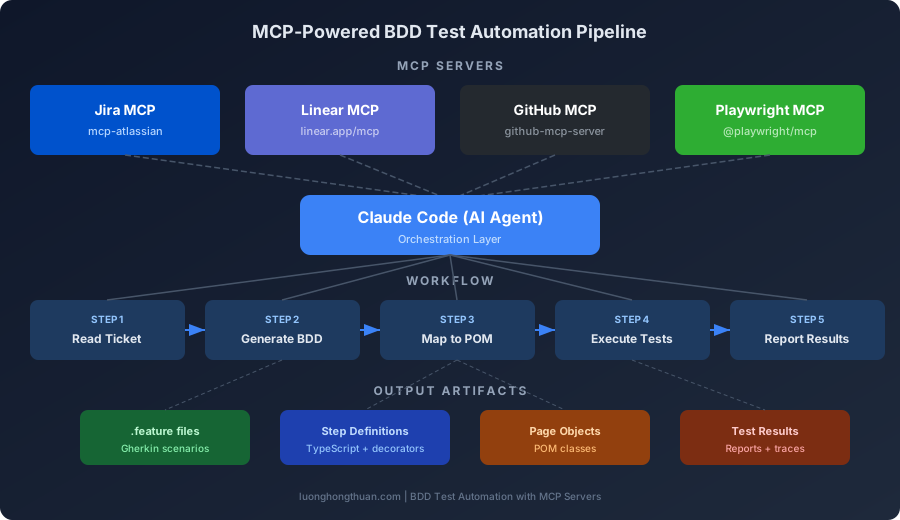
The workflow has five steps:
- Read the ticket and its acceptance criteria via Jira/Linear MCP
- Generate BDD Gherkin scenarios from those criteria
- Map scenarios to step definitions backed by Page Object Models
- Execute tests via Playwright MCP against a live browser
- Report results back to the ticket via Jira/GitHub MCP
Let me walk through each piece.
Setting Up the MCP Servers
Playwright MCP — Browser Automation
Microsoft’s official Playwright MCP server gives the AI agent 26+ tools to control a real browser via the accessibility tree — no screenshots or vision models needed.
claude mcp add playwright -- npx @playwright/mcp@latestOr in your project’s .mcp.json:
{
  "mcpServers": {
    "playwright": {
      "command": "npx",
      "args": ["-y", "@playwright/mcp@latest"]
    }
  }
}
Key tools the AI uses during test execution:
| Tool | Purpose |
|---|---|
browser_navigate | Go to a URL |
browser_snapshot | Get accessibility tree (structured page data) |
browser_click | Click an element by reference |
browser_type | Type text into an input |
browser_wait_for | Wait for a condition |
browser_generate_playwright_test | Auto-generate a test file |
The critical insight: browser_snapshot returns a structured accessibility tree, not pixels. The AI reads roles, labels, and text content, then uses getByRole() and getByText() locators — exactly what Playwright best practices recommend. This makes generated selectors stable across UI changes.
Jira MCP — Reading Tickets and Posting Results
You have two options for Jira. I use the community mcp-atlassian server because it supports both Cloud and Server/Data Center, and has the richest feature set.
Option A: Community Server (Recommended)
{
  "mcpServers": {
    "jira": {
      "command": "uvx",
      "args": ["mcp-atlassian"],
      "env": {
        "JIRA_URL": "https://your-company.atlassian.net",
        "JIRA_USERNAME": "your-email@company.com",
        "JIRA_API_TOKEN": "your-api-token"
      }
    }
  }
}
This gives you powerful read and write operations:
| Read | Write |
|---|---|
jira_search (JQL queries) | jira_create_issue |
jira_get_issue | jira_add_comment |
jira_get_project_issues | jira_update_status |
jira_get_sprint_issues | jira_update_issue |
jira_get_transitions | jira_create_issue_link |
For safety, you can enable READ_ONLY_MODE or use --enabled-tools to limit which tools the AI can call.
Option B: Atlassian’s Official Remote Server (Beta)
Atlassian launched their own remote MCP server in partnership with Anthropic:
{
  "mcpServers": {
    "atlassian": {
      "type": "sse",
      "url": "https://mcp.atlassian.com/v1/sse"
    }
  }
}
This uses OAuth authentication and supports both Jira Cloud and Confluence. The downside: some users report needing to re-authenticate multiple times per day.
Linear MCP — For Teams on Linear
Linear ships an official remote MCP server with 21 tools:
claude mcp add --transport http linear-server https://mcp.linear.app/mcpThen run /mcp in Claude Code to authenticate via OAuth. Key tools include list_issues, get_issue, create_issue, and update_issue. The February 2026 update added support for initiatives, project milestones, and reduced token usage.
If your client doesn’t support native remote MCP yet:
{
  "mcpServers": {
    "linear": {
      "command": "npx",
      "args": ["-y", "mcp-remote", "https://mcp.linear.app/mcp"]
    }
  }
}
GitHub MCP — Code and PR Integration
The official GitHub MCP server provides 51+ tools:
{
  "mcpServers": {
    "github": {
      "command": "docker",
      "args": [
        "run", "-i", "--rm",
        "-e", "GITHUB_PERSONAL_ACCESS_TOKEN",
        "ghcr.io/github/github-mcp-server"
      ],
      "env": {
        "GITHUB_PERSONAL_ACCESS_TOKEN": "ghp_your_token"
      }
    }
  }
}
I primarily use it for:
add_issue_comment— post test results to PRscreate_pull_request— open PRs with generated test codesearch_code— find existing test patterns to follow
You can limit toolsets via GITHUB_TOOLSETS="repos,issues,pull_requests" for security.
The Complete .mcp.json
Here’s my full configuration with all four servers:
{
  "mcpServers": {
    "playwright": {
      "command": "npx",
      "args": ["-y", "@playwright/mcp@latest"]
    },
    "jira": {
      "command": "uvx",
      "args": ["mcp-atlassian"],
      "env": {
        "JIRA_URL": "https://your-company.atlassian.net",
        "JIRA_USERNAME": "your-email@company.com",
        "JIRA_API_TOKEN": "your-api-token"
      }
    },
    "github": {
      "command": "docker",
      "args": [
        "run", "-i", "--rm",
        "-e", "GITHUB_PERSONAL_ACCESS_TOKEN",
        "ghcr.io/github/github-mcp-server"
      ],
      "env": {
        "GITHUB_PERSONAL_ACCESS_TOKEN": "ghp_your_token"
      }
    },
    "linear": {
      "command": "npx",
      "args": ["-y", "mcp-remote", "https://mcp.linear.app/mcp"]
    }
  }
}
Verify everything is connected:
/mcpYou should see all four servers listed with their available tools.
BDD with Playwright: The Framework
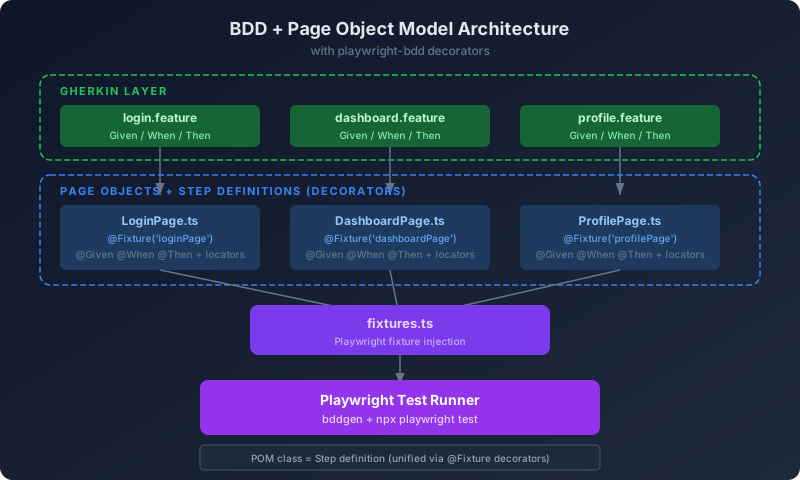
Why playwright-bdd
I chose playwright-bdd over traditional Cucumber.js because it generates tests that run on Playwright’s own test runner. This means you keep parallelism, traces, HTML reports, UI mode, and all other Playwright features. With Cucumber.js as the runner, you lose all of that.
npm i -D @playwright/test playwright-bddProject Structure
tests/
├── features/              # Gherkin .feature files
│   ├── login.feature
│   ├── dashboard.feature
│   └── profile.feature
├── steps/                 # Step definitions
│   ├── login.steps.ts
│   ├── dashboard.steps.ts
│   └── profile.steps.ts
├── pages/                 # Page Object Models
│   ├── LoginPage.ts
│   ├── DashboardPage.ts
│   └── ProfilePage.ts
├── fixtures.ts            # Playwright fixtures for POM
└── playwright.config.ts
Playwright Config for BDD
import { defineConfig } from '@playwright/test';
import { defineBddConfig } from 'playwright-bdd';

const testDir = defineBddConfig({
  importTestFrom: 'tests/fixtures.ts',
  paths: ['tests/features/*.feature'],
  require: ['tests/steps/**/*.ts'],
});

export default defineConfig({
  testDir,
  fullyParallel: true,
  forbidOnly: !!process.env.CI,
  retries: process.env.CI ? 2 : 0,
  reporter: [
    ['html'],
    ['json', { outputFile: 'test-results.json' }],
  ],
  use: {
    baseURL: 'http://localhost:3000',
    trace: 'on-first-retry',
    video: 'retain-on-failure',
  },
});
Page Object Model with BDD Decorators
The playwright-bdd library supports TypeScript v5 decorators that let you define BDD steps directly on Page Object classes. This is the cleanest integration of POM + BDD I’ve found:
// tests/pages/LoginPage.ts
import { Fixture, Given, When, Then } from 'playwright-bdd/decorators';
import { expect } from '@playwright/test';
import type { Page } from '@playwright/test';

@Fixture('loginPage')
export class LoginPage {
  constructor(private page: Page) {}

  @Given('I am on the login page')
  async navigate() {
    await this.page.goto('/login');
  }

  @When('I enter username {string} and password {string}')
  async login(username: string, password: string) {
    await this.page.getByLabel('Email').fill(username);
    await this.page.getByLabel('Password').fill(password);
  }

  @When('I click the sign in button')
  async clickSignIn() {
    await this.page.getByRole('button', { name: 'Sign in' }).click();
  }

  @Then('I should be redirected to the dashboard')
  async verifyDashboard() {
    await expect(this.page).toHaveURL(/.*dashboard/);
  }

  @Then('I should see an error message {string}')
  async verifyError(message: string) {
    await expect(this.page.getByRole('alert')).toContainText(message);
  }
}
The @Fixture decorator registers the class as a Playwright fixture. The @Given, @When, @Then decorators map methods to Gherkin steps. No separate step definition files needed — the POM is the step definition.
Fixtures File
// tests/fixtures.ts
import { test as base } from 'playwright-bdd';
import { LoginPage } from './pages/LoginPage';
import { DashboardPage } from './pages/DashboardPage';
import { ProfilePage } from './pages/ProfilePage';

type Fixtures = {
  loginPage: LoginPage;
  dashboardPage: DashboardPage;
  profilePage: ProfilePage;
};

export const test = base.extend<Fixtures>({
  loginPage: async ({ page }, use) => {
    await use(new LoginPage(page));
  },
  dashboardPage: async ({ page }, use) => {
    await use(new DashboardPage(page));
  },
  profilePage: async ({ page }, use) => {
    await use(new ProfilePage(page));
  },
});
Running BDD Tests
npx bddgen                    # Generate Playwright tests from .feature files
npx playwright test            # Run the generated tests
npx playwright show-report     # View HTML report
The AI Workflow: From Ticket to Test
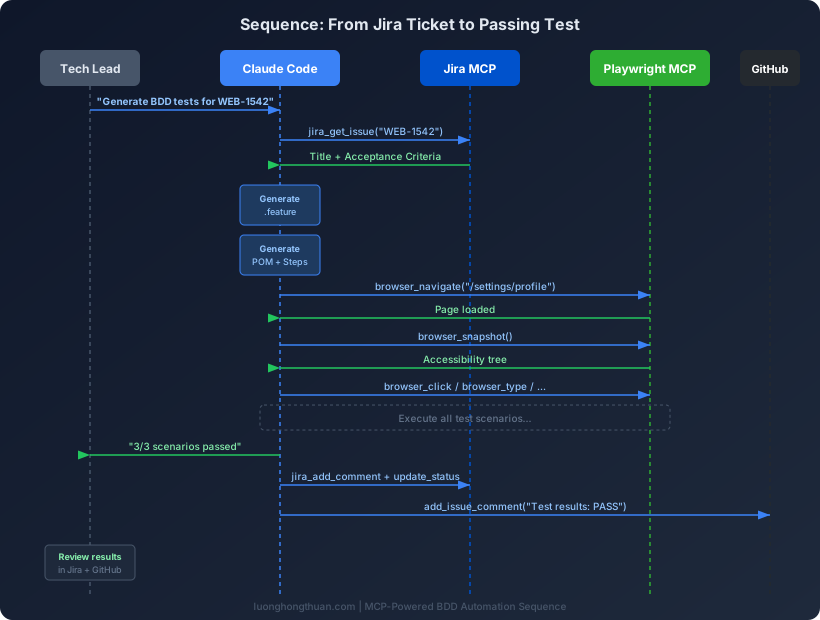
Here’s the actual sequence of events when I tell Claude Code to generate tests from a Jira ticket.
Step 1: Read the Ticket
I type something like:
Read Jira ticket WEB-1542 and generate BDD tests for it.Claude Code calls jira_get_issue("WEB-1542") and gets back:
Title: User Profile Photo Upload
Description: Users should be able to upload a profile photo from their settings page.
Acceptance Criteria:
- User can click "Change Photo" to open file picker
- Supported formats: JPG, PNG, GIF (max 5MB)
- Photo preview updates immediately after selection
- Success toast appears after upload completes
- Error message shows for unsupported formats or oversized files
Step 2: Generate Gherkin Scenarios
The AI parses those acceptance criteria and generates a .feature file:
# tests/features/profile-photo.feature
@WEB-1542
Feature: User Profile Photo Upload

  Background:
    Given I am logged in as "testuser"
    And I am on the profile settings page

  Scenario: Upload valid profile photo
    When I click "Change Photo"
    And I upload file "avatar.jpg"
    Then I should see the photo preview update
    And I should see "Photo updated successfully"

  Scenario: Reject oversized file
    When I click "Change Photo"
    And I upload file "large-image-6mb.png"
    Then I should see an error "File size must be under 5MB"

  Scenario: Reject unsupported format
    When I click "Change Photo"
    And I upload file "document.pdf"
    Then I should see an error "Unsupported file format"
Notice the @WEB-1542 tag — this links every scenario back to the original ticket for traceability.
Step 3: Generate Page Objects and Step Definitions
The AI then uses Playwright MCP to explore the actual page. It calls browser_navigate to go to the profile settings page, takes a browser_snapshot to read the accessibility tree, and generates a POM based on what it finds:
// tests/pages/ProfilePage.ts
import { Fixture, Given, When, Then } from 'playwright-bdd/decorators';
import { expect } from '@playwright/test';
import type { Page } from '@playwright/test';

@Fixture('profilePage')
export class ProfilePage {
  constructor(private page: Page) {}

  @Given('I am on the profile settings page')
  async navigate() {
    await this.page.goto('/settings/profile');
  }

  @When('I click {string}')
  async clickButton(name: string) {
    await this.page.getByRole('button', { name }).click();
  }

  @When('I upload file {string}')
  async uploadFile(filename: string) {
    const fileInput = this.page.locator('input[type="file"]');
    await fileInput.setInputFiles(`tests/fixtures/files/${filename}`);
  }

  @Then('I should see the photo preview update')
  async verifyPreview() {
    const preview = this.page.getByRole('img', { name: /profile/i });
    await expect(preview).toBeVisible();
  }

  @Then('I should see {string}')
  async verifyMessage(text: string) {
    await expect(this.page.getByText(text)).toBeVisible();
  }

  @Then('I should see an error {string}')
  async verifyError(message: string) {
    await expect(this.page.getByRole('alert')).toContainText(message);
  }
}
The key detail: the AI uses the accessibility tree from browser_snapshot to pick locators. It sees role="button" name="Change Photo" in the tree and writes getByRole('button', { name: 'Change Photo' }). These locators are stable because they’re based on semantic HTML, not brittle CSS selectors.
Step 4: Execute Tests
The AI runs the tests:
npx bddgen && npx playwright test --grep @WEB-1542If a test fails, the AI reads the Playwright HTML report, diagnoses the issue, and fixes the step definition or POM. Common fixes include adding waitForLoadState calls for dynamic content or adjusting locators for shadow DOM components.
Step 5: Report Results Back
After tests pass, the AI posts results back to the ticket:
AI calls: jira_add_comment("WEB-1542",
  "✅ Automated BDD tests generated and passing.\n\n
  3/3 scenarios passed:\n
  - Upload valid profile photo ✅\n
  - Reject oversized file ✅\n
  - Reject unsupported format ✅\n\n
  Test files: tests/features/profile-photo.feature")

AI calls: jira_update_status("WEB-1542", "In Review")
It can also open a PR via GitHub MCP with the new test files:
AI calls: create_pull_request(
  title: "test: add BDD tests for WEB-1542 profile photo upload",
  body: "Generated from acceptance criteria in WEB-1542..."
)
Batch Processing: Testing an Entire Sprint
The real power shows up when you process multiple tickets. I use JQL queries to pull all tickets from the current sprint:
Read all tickets from sprint "Sprint 24" in project WEB.
For each ticket that has acceptance criteria, generate BDD tests.
Skip tickets tagged "no-test" or "manual-only".
The AI calls jira_get_sprint_issues and iterates through each ticket, generating .feature files and step definitions. For a typical sprint of 15-20 tickets, this produces 30-50 BDD scenarios in about 20 minutes — work that would take a QA engineer 2-3 days.
The generated tests aren’t perfect. I review every .feature file and POM class before merging. But the AI handles about 80% of the work correctly, and reviewing is much faster than writing from scratch.
What I Learned After Three Weeks
What Works Well
Acceptance criteria map naturally to Gherkin. This is the biggest win. Jira tickets with well-written acceptance criteria (Given/When/Then format) translate almost 1:1 into .feature files. The AI barely needs to transform anything.
Accessibility-tree-based locators are stable. Tests generated from browser_snapshot data use getByRole, getByLabel, and getByText — exactly what Playwright recommends. These survive minor UI redesigns because they’re based on semantics, not CSS structure.
POM + BDD decorators keep code clean. The playwright-bdd decorator pattern means each page has one file that serves as both the Page Object and the step definition. No hunting across three directories to understand a test.
Traceability is built in. Tagging scenarios with @WEB-1542 means every test traces back to a ticket. When a test fails in CI, you know exactly which requirement is broken.
What Doesn’t Work
Context window pressure is real. Connecting 4 MCP servers consumes 15-20% of the AI’s context window before any work begins. With complex tickets, you can hit limits. I mitigate this by processing tickets in batches of 5-7 rather than all at once.
Shadow DOM breaks accessibility snapshots. Components built with Web Components (Lit, Shoelace, etc.) don’t fully expose their internals in the accessibility tree. For these, I fall back to manual locators.
Complex multi-step flows need human guidance. OAuth redirects, payment forms with iframes, and multi-page wizards with conditional logic — the AI struggles with these. I write the high-level Gherkin by hand and let the AI fill in the step definitions.
Token costs at scale. Running AI agents for every test execution has real cost implications. I use AI for test generation (one-time cost) and run the generated tests with standard Playwright (no AI needed) in CI.
The 80/20 Rule
AI handles 80% of the test automation work: reading tickets, generating Gherkin, writing locators, building POM classes, and posting results. The remaining 20% — test strategy, edge case identification, complex flow design, and code review — still needs a human.
That’s a good split. The tedious parts are automated, and I spend my time on the parts that require judgment.
Getting Started: A Minimal Setup
If you want to try this without committing to the full pipeline, start with just two MCP servers:
- Playwright MCP for browser automation
- Jira or Linear MCP for reading tickets
{
  "mcpServers": {
    "playwright": {
      "command": "npx",
      "args": ["-y", "@playwright/mcp@latest"]
    },
    "jira": {
      "command": "uvx",
      "args": ["mcp-atlassian"],
      "env": {
        "JIRA_URL": "https://your-company.atlassian.net",
        "JIRA_USERNAME": "your-email@company.com",
        "JIRA_API_TOKEN": "your-api-token"
      }
    }
  }
}
Install playwright-bdd:
npm i -D @playwright/test playwright-bddThen try it with a single ticket:
Read Jira ticket WEB-100 and generate a BDD test for it using playwright-bdd.
Use the Page Object Model pattern with decorators.
Navigate to the relevant page with Playwright MCP to verify the selectors.
You’ll see the AI read the ticket, explore your app in a real browser, and produce a working .feature file with a POM class. From there, you can add GitHub MCP for PR automation and scale up to sprint-level batch processing.
Tools and Resources
| Tool | Install | Purpose |
|---|---|---|
@playwright/mcp | npx @playwright/mcp@latest | Browser automation via MCP |
mcp-atlassian | uvx mcp-atlassian | Jira + Confluence integration |
| Linear MCP | https://mcp.linear.app/mcp | Linear issue tracking |
| GitHub MCP | ghcr.io/github/github-mcp-server | GitHub operations |
playwright-bdd | npm i -D playwright-bdd | Gherkin + Playwright runner |
@provusinc/stepweaver | npm i @provusinc/stepweaver | Learn from existing Cucumber tests |
The MCP ecosystem for testing is maturing fast. Six months ago, connecting Jira to an AI agent required custom API wrappers. Now it’s a JSON config file. The gap between “I have acceptance criteria” and “I have passing tests” has never been smaller.