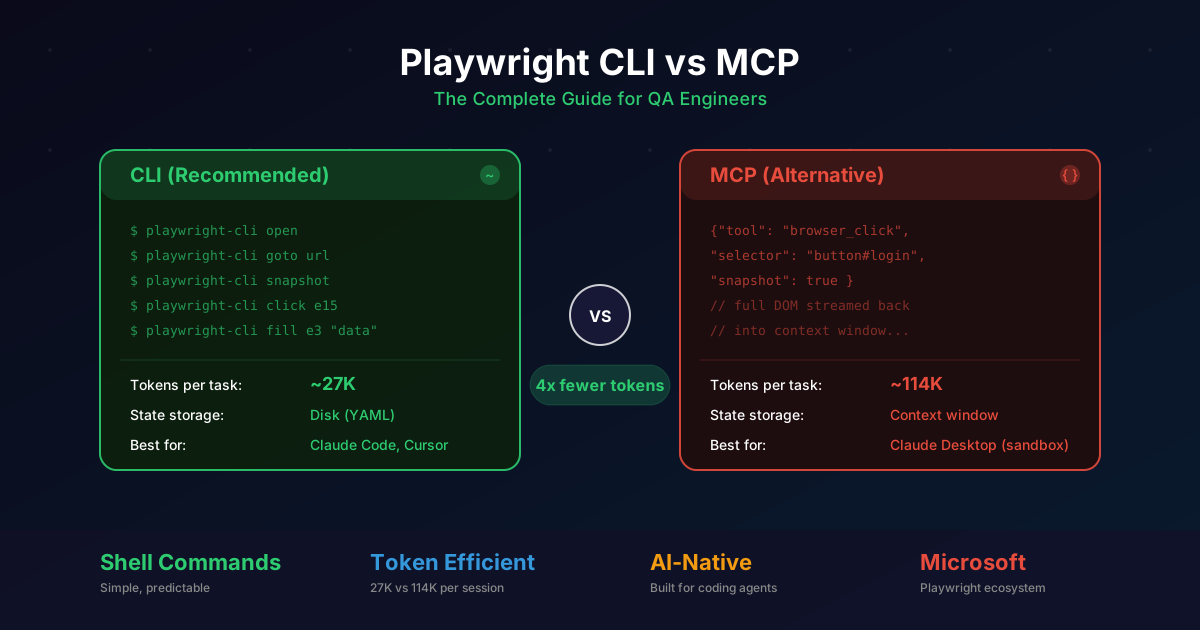
If you are a manual QC tester hearing about Playwright for the first time, or you have seen both “Playwright CLI” and “Playwright MCP” mentioned and wondered which one to use, this guide is for you. We will cover everything from installation to real-world workflows, with a special focus on why the CLI approach is better for most QA work.
1. What is Playwright CLI?
Playwright CLI (@playwright/cli) is Microsoft’s command-line tool designed specifically for AI coding agents to control browsers. Think of it as a remote control for your browser that works through shell commands.
Here is what makes it special:
- Shell commands: You run simple commands like
playwright-cli openorplaywright-cli clickdirectly in your terminal - State saved to disk: Browser state (cookies, sessions, screenshots) is persisted on your filesystem, not held in memory
- Minimal token usage: When used with AI agents, it consumes roughly 4x fewer tokens than the alternative MCP approach
- Persistent sessions: You can name sessions, pause work, and come back later
A simple example looks like this:
# Open a browser and navigate to a page
playwright-cli open https://example.com

# Take a snapshot of the page structure
playwright-cli snapshot

# Fill in a form field
playwright-cli fill "Username" "testuser@example.com"

# Click a button
playwright-cli click "Login"
Each command does one thing, returns a result, and the browser stays open for the next command.
2. What is Playwright MCP?
Playwright MCP is the Model Context Protocol server for Playwright. MCP is a JSON-based protocol that lets AI assistants communicate with external tools through a standardized interface.
Key characteristics:
- JSON protocol: All communication happens via structured JSON messages
- State in context window: The entire browser state gets streamed into the AI’s context window
- Designed for sandboxed environments: Works in places where the AI cannot access a filesystem (like Claude Desktop or ChatGPT plugins)
- Ephemeral sessions: State lives only as long as the conversation lasts
{
  "tool": "browser_navigate",
  "arguments": {
    "url": "https://example.com"
  }
}
MCP is not bad. It exists for a good reason. But for QA testing workflows, the CLI is almost always the better choice.
3. CLI vs MCP: The Detailed Comparison
This is the section the user specifically asked about, so let us be thorough.
The Numbers
For the same testing task (navigating to a page, filling a form, clicking submit, verifying the result):
| Metric | Playwright CLI | Playwright MCP |
|---|---|---|
| Tokens consumed | ~27,000 | ~114,000 |
| Token reduction | 4x fewer | Baseline |
| State storage | Filesystem (disk) | Context window (memory) |
| Session persistence | Persistent (named sessions) | Ephemeral (lost on disconnect) |
| Best environment | Coding agents with filesystem | Sandboxed chat interfaces |
| Setup complexity | npm install + one command | MCP server configuration |
| Browser state | Survives disconnects | Lost when session ends |
Why 4x Fewer Tokens Matters
When an AI agent uses MCP, every browser interaction dumps the full page state into the conversation. A modern web page can produce thousands of tokens of DOM structure. With CLI, that state is written to a file on disk. The AI only reads what it needs.
Over a typical QA session of 20-30 interactions, this difference compounds:
- CLI: 20 interactions x ~1,350 tokens = ~27,000 tokens
- MCP: 20 interactions x ~5,700 tokens = ~114,000 tokens
That is real money saved and faster responses.
Architecture Comparison
graph LR
    subgraph CLI["Playwright CLI Approach"]
        A1[AI Agent] -->|Shell command| B1[playwright-cli]
        B1 -->|Controls| C1[Browser]
        B1 -->|Saves state| D1[Filesystem]
        A1 -->|Reads file| D1
    end

    subgraph MCP["Playwright MCP Approach"]
        A2[AI Chat] -->|JSON message| B2[MCP Server]
        B2 -->|Controls| C2[Browser]
        B2 -->|Streams state| A2
    end
The Decision Tree
The choice is straightforward:
- Does your AI tool have filesystem access? (Claude Code, Cursor, Windsurf, terminal-based agents) —> Use CLI
- Is your AI tool sandboxed with no filesystem? (Claude Desktop app, web-based chat) —> Use MCP
For QA testers working in a development environment, you almost certainly have filesystem access. Use the CLI.
When MCP Still Makes Sense
- You are using Claude Desktop and want to browse the web through the chat interface
- You are building a plugin for a sandboxed AI platform
- You need real-time streaming of browser state to a non-technical user
4. Setup from A to Z
Step 1: Install Node.js
Playwright requires Node.js 18 or later.
# Check if Node.js is installed
node --version

# If not installed, use your package manager
# macOS
brew install node

# Ubuntu/Debian
sudo apt update && sudo apt install nodejs npm

# Windows (download from nodejs.org or use winget)
winget install OpenJS.NodeJS.LTS
Step 2: Initialize Your Test Project
mkdir my-qa-tests
cd my-qa-tests
npm init -y
Step 3: Install Playwright
# Install Playwright as a dev dependency
npm install -D playwright

# Install browser binaries (Chromium, Firefox, WebKit)
npx playwright install
Step 4: Install the Playwright CLI Globally
npm install -g @playwright/cliStep 5: Verify Everything Works
# Check Playwright version
npx playwright --version

# Check CLI is available
playwright-cli --help

# List installed browsers
npx playwright install --dry-run
Step 6: Browser Setup
Playwright supports three browser engines:
| Browser | Engine | Best For |
|---|---|---|
| Chromium | Chrome/Edge | General testing, most common |
| Firefox | Gecko | Cross-browser verification |
| WebKit | Safari | iOS/macOS compatibility |
# Install specific browsers only
npx playwright install chromium
npx playwright install firefox
npx playwright install webkit

# Install all browsers
npx playwright install
5. Core CLI Commands
Here is every command you need to know, with practical examples.
Opening and Navigating
# Open a browser (defaults to Chromium)
playwright-cli open

# Open a specific URL
playwright-cli open https://staging.myapp.com

# Navigate to a different page in an existing session
playwright-cli goto https://staging.myapp.com/login

# Open with a specific browser
playwright-cli open --browser firefox https://example.com
Taking Snapshots
Snapshots show you the page structure as the AI sees it. Each interactive element gets a reference number.
# Get a snapshot of the current page
playwright-cli snapshot
Output looks like this:
[ref=1] link "Home"
[ref=2] link "Products"
[ref=3] textbox "Search..."
[ref=4] button "Search"
[ref=5] heading "Welcome to Our Store"
Interacting with Elements
# Click an element by its reference number
playwright-cli click ref=4

# Fill a text field
playwright-cli fill ref=3 "wireless headphones"

# Type text character by character (useful for autocomplete)
playwright-cli type "search query"

# Hover over an element
playwright-cli hover ref=2

# Select from a dropdown
playwright-cli select ref=7 "Option B"
Screenshots
# Take a full-page screenshot
playwright-cli screenshot

# Screenshot saved to disk, AI reads only the file path
# Much more token-efficient than streaming pixels through MCP
Session Management
This is a major advantage over MCP. Sessions persist on disk.
# Start a named session
playwright-cli open -s=login-test https://myapp.com/login

# List all active sessions
playwright-cli list

# Switch between sessions
playwright-cli goto -s=login-test https://myapp.com/dashboard

# Clean up all sessions
playwright-cli kill-all
Closing
# Close the current session
playwright-cli close

# Close a specific named session
playwright-cli close -s=login-test
6. Real Workflow: Testing a Login Form
Let us walk through a complete, realistic QA test scenario.
The Test Case
Test: Verify that a user can log in with valid credentials and see their dashboard.
# Step 1: Open the application
playwright-cli open -s=login-flow https://staging.myapp.com/login

# Step 2: Take a snapshot to understand the page
playwright-cli snapshot
# Output:
# [ref=1] textbox "Email address"
# [ref=2] textbox "Password"
# [ref=3] button "Sign In"
# [ref=4] link "Forgot password?"

# Step 3: Fill in the email
playwright-cli fill ref=1 "qa-tester@company.com"

# Step 4: Fill in the password
playwright-cli fill ref=2 "TestPassword123"

# Step 5: Click the sign-in button
playwright-cli click ref=3

# Step 6: Take a snapshot of the result page
playwright-cli snapshot
# Output:
# [ref=1] heading "Welcome back, QA Tester"
# [ref=2] link "Dashboard"
# [ref=3] link "Settings"
# ...

# Step 7: Screenshot for evidence
playwright-cli screenshot

# Step 8: Clean up
playwright-cli close -s=login-flow
Workflow Diagram
graph TD
    A[Open Browser] --> B[Navigate to Login Page]
    B --> C[Snapshot: Identify Form Fields]
    C --> D[Fill Email Field]
    D --> E[Fill Password Field]
    E --> F[Click Sign In]
    F --> G{Page Loaded?}
    G -->|Yes| H[Snapshot: Verify Dashboard]
    G -->|No| I[Screenshot: Capture Error]
    H --> J[Screenshot: Save Evidence]
    I --> K[Report Bug]
    J --> L[Close Session]
Each step is one command. Each command returns immediately. The AI agent (or you) decides what to do next based on the result.
7. Standard Playwright Test Commands
Beyond the CLI tool for interactive testing, Playwright has a full test framework. Here are the commands every QA tester should know.
Running Tests
# Run all tests
npx playwright test

# Run a specific test file
npx playwright test tests/login.spec.ts

# Run tests with a specific tag
npx playwright test --grep @smoke

# Run in headed mode (see the browser)
npx playwright test --headed

# Run in a specific browser
npx playwright test --project=firefox
Code Generation (Record and Replay)
This is the best starting point for manual testers:
# Open the code generator
npx playwright codegen https://myapp.com

# This opens a browser AND a recording window
# Every action you perform is recorded as test code
# Copy the generated code into your test files
Viewing Reports
# After running tests, view the HTML report
npx playwright show-report

# Generate different report formats
npx playwright test --reporter=html
npx playwright test --reporter=json
npx playwright test --reporter=list
Debugging
# Run tests in debug mode
npx playwright test --debug

# Use the trace viewer for post-mortem debugging
npx playwright show-trace trace.zip
Updating Snapshots
# Update visual comparison baselines
npx playwright test --update-snapshots
8. Applying to Real Projects
How a QA Team Can Integrate Playwright CLI
graph TD
    A[Manual QC Tester] -->|Describes test in English| B[AI Agent with CLI]
    B -->|Generates| C[Playwright Test Code]
    C --> D[Code Review by QA Lead]
    D -->|Approved| E[Merge to Test Suite]
    E --> F[CI/CD Pipeline Runs Tests]
    F -->|Pass| G[Deploy to Staging]
    F -->|Fail| H[Alert QA Team]
    H --> I[Debug with Trace Viewer]
    I --> A
The Four-Step Integration Process
Step 1: Record — Use npx playwright codegen to record your manual test as code.
Step 2: Generate — Use an AI agent with Playwright CLI to refine and expand the recorded test. Describe edge cases in plain English, and the AI generates the test code.
Step 3: Review — QA lead reviews the generated tests for correctness and coverage.
Step 4: Integrate — Add approved tests to your CI/CD pipeline.
CI/CD Pipeline with Playwright
graph LR
    A[Git Push] --> B[CI Triggered]
    B --> C[Install Dependencies]
    C --> D[Install Browsers]
    D --> E[Run Playwright Tests]
    E --> F{All Passed?}
    F -->|Yes| G[Deploy]
    F -->|No| H[Send Report]
    H --> I[Block Deployment]
A typical CI configuration (GitHub Actions):
name: Playwright Tests
on: [push, pull_request]

jobs:
  test:
    runs-on: ubuntu-latest
    steps:
      - uses: actions/checkout@v4
      - uses: actions/setup-node@v4
        with:
          node-version: 20
      - name: Install dependencies
        run: npm ci
      - name: Install Playwright browsers
        run: npx playwright install --with-deps
      - name: Run tests
        run: npx playwright test
      - name: Upload report
        if: always()
        uses: actions/upload-artifact@v4
        with:
          name: playwright-report
          path: playwright-report/
9. Tips for Manual QC Testers
You do not need to become a developer overnight. Here is a gentle path forward.
Start with Codegen
The code generator is your best friend. It turns your manual clicks into real test code:
npx playwright codegen https://your-app.comJust click through your test case as you normally would. Playwright records everything. Copy the code, save it, done.
Learn Selectors Step by Step
Playwright uses smart selectors. Start with these:
// By text content (easiest)
page.getByText('Submit')

// By role (accessible and stable)
page.getByRole('button', { name: 'Submit' })

// By label (for form fields)
page.getByLabel('Email address')

// By placeholder
page.getByPlaceholder('Enter your email')

// By test ID (most reliable, ask developers to add these)
page.getByTestId('login-button')
Use Snapshot to Understand Page Structure
Before writing any test, run playwright-cli snapshot. It shows you exactly how Playwright sees the page and what reference numbers to use.
Combine with AI for Test Generation
You can describe tests in plain English:
“Test that when a user adds an item to their cart, the cart count increases by 1 and the item appears in the cart sidebar.”
An AI agent with Playwright CLI can turn that description into a working test.
Do Not Abandon Manual Testing Entirely
Automated tests are great for regression. But exploratory testing, usability evaluation, and edge case discovery still benefit from human judgment. Use automation to handle the repetitive work so you can focus on the creative, high-value testing.
10. Performance Optimization
Slow test suites are one of the biggest frustrations for QA teams. Here are proven solutions from the community to make your Playwright tests significantly faster.
Enable Parallel Execution and Sharding
By default, Playwright can run tests in parallel, but you need to enable it explicitly. Sharding lets you split tests across multiple machines.
# Run tests across 4 shards (e.g., in 4 CI jobs)
npx playwright test --shard=1/4
npx playwright test --shard=2/4
npx playwright test --shard=3/4
npx playwright test --shard=4/4
Enable full parallelism in your config:
// playwright.config.ts
export default defineConfig({
  fullyParallel: true,
});
Expected improvement: 50-70% faster execution compared to sequential runs, depending on the number of workers and test independence.
Smart CLI Filtering
Do not run the full test suite every time. Use filtering to focus on what matters:
# Run only smoke tests
npx playwright test --grep @smoke

# Re-run only tests that failed in the last run
npx playwright test --last-failed

# Run tests in a specific directory
npx playwright test tests/checkout/
During active bug fixing, --last-failed is especially valuable. It re-runs only the tests that broke, saving minutes per iteration.
Eliminate Static Waits
Static waits (waitForTimeout()) are one of the most common causes of slow and flaky tests. Playwright has built-in auto-waiting, so you almost never need them.
// Bad: wastes time and still flaky
await page.waitForTimeout(3000);
await page.click('#submit');

// Good: waits only as long as needed
await expect(page.locator('#submit')).toBeVisible();
await page.click('#submit');
Playwright automatically waits for elements to be actionable before interacting with them. Trust the framework.
Reuse Browser Sessions
Starting a new browser for every test is expensive. Reuse authentication state across tests:
# Use named CLI sessions to avoid re-opening browsers
playwright-cli open -s=test1 https://myapp.com
For the test framework, use storageState to save and restore authentication cookies:
// Save auth state after login
await page.context().storageState({ path: 'auth.json' });

// Reuse auth state in other tests (in playwright.config.ts)
export default defineConfig({
  use: {
    storageState: 'auth.json',
  },
});
This avoids running the login flow for every single test.
CI Optimization
Three changes that make the biggest difference in CI:
- Use the official Playwright Docker image — it comes with browsers pre-installed, saving 50-60 seconds of install time per run
- Cache browser binaries — avoid downloading browsers on every CI run
- Use API calls for test data setup — setting up test data through the UI is slow; use API calls in
beforeAllhooks instead
# GitHub Actions with Docker image
jobs:
  test:
    runs-on: ubuntu-latest
    container:
      image: mcr.microsoft.com/playwright:v1.50.0-noble
    steps:
      - uses: actions/checkout@v4
      - run: npm ci
      - run: npx playwright test
Fix Proxy and Network Issues (Enterprise)
In corporate environments, slow BrowserContext.new_page() calls are often caused by proxy auto-configuration (PAC) files. The browser tries to resolve the PAC file synchronously, causing multi-second timeouts.
The fix is simple:
# Bypass proxy resolution
npx playwright test --browser-option="args=['--no-proxy-server']"
Or add it to your config permanently.
Optimized Configuration Example
Here is a config that combines the most impactful optimizations:
// playwright.config.ts -- optimized
export default defineConfig({
  fullyParallel: true,
  workers: process.env.CI ? 4 : undefined,
  retries: process.env.CI ? 2 : 0,
  use: {
    trace: 'on-first-retry',
    launchOptions: {
      args: ['--no-proxy-server']
    }
  }
});
This enables parallel execution, sets a fixed worker count in CI, retries flaky tests, captures traces only on retry (to save disk), and bypasses proxy issues.
11. Custom CLI and Skills System
Playwright CLI does not have a traditional plugin API, but there are effective ways to extend and customize it for your team.
Skills System Overview
The emerging “Skills” system allows AI coding agents (like Claude Code and GitHub Copilot) to auto-discover project-specific testing guidelines. A skill is a local documentation file (SKILL.md) that lives in your repository and tells AI agents how to work with your test setup.
Key benefits:
- AI agents read skills locally, without consuming API tokens
- Skills standardize how the team writes tests
- New team members (and AI) follow the same patterns automatically
How to Install Community Skills
The community has created skill packs with pre-written testing guides:
# Install TestDino's 70+ guides
npx skills add testdino-hq/playwright-skill

# Install specific packs
npx skills add testdino-hq/playwright-skill/core
npx skills add testdino-hq/playwright-skill/playwright-cli
npx skills add testdino-hq/playwright-skill/ci
These install markdown files into your project that AI agents can reference when writing tests.
Creating Your Own Custom Skill
You can create a skill for your project’s specific testing conventions:
File: .claude/skills/my-skill/SKILL.md
# My Project Testing Skill

## Locator Conventions
- Always use data-testid for interactive elements
- Format: data-testid="section-action" (e.g., "login-submit")

## Test Naming
- Files: feature-name.spec.ts
- Tests: "should [expected behavior] when [condition]"

## Common Patterns
- All API tests use the apiContext fixture
- Login is handled via storageState, never in individual tests
When an AI agent opens your project, it reads this file and follows your conventions automatically.
Wrapper Scripts (Custom CLI Commands)
You cannot add commands directly to playwright-cli, but you can create npm scripts that compose CLI commands for common workflows:
{
  "scripts": {
    "test:smoke": "npx playwright test --grep @smoke",
    "test:login": "npx playwright test tests/login/",
    "test:visual": "npx playwright test --update-snapshots",
    "test:ci": "npx playwright test --shard=$SHARD --reporter=html"
  }
}
Then your team runs npm run test:smoke instead of remembering the full command.
Third-party Extensions
Notable community tools that extend the Playwright CLI experience:
- playwright-cli-select: An interactive terminal UI to browse and select specific tests to run, instead of typing file paths manually
- lackeyjb/playwright-skill: A Claude Code skill focused on browser automation patterns and best practices
Guidelines for Team Adoption
To get the most value from skills and custom scripts:
- Create a SKILL.md in your repository that documents your team’s testing patterns, locator conventions, and CI configuration
- Standardize npm scripts so everyone runs tests the same way
- Document locator conventions — agree on whether to use test IDs, roles, or text selectors as the primary strategy
- Keep skills updated — when patterns change, update the SKILL.md so AI agents stay aligned
AI agents will auto-discover and follow these guidelines, which means less code review friction and more consistent tests across the team.
12. Common Issues and Solutions
Browser Not Found
Problem: Error: Browser is not installed
Solution:
npx playwright install
# Or for a specific browser:
npx playwright install chromium
Timeouts
Problem: Tests fail with timeout errors on slow pages.
Solution:
// In playwright.config.ts
export default {
  timeout: 60000, // 60 seconds for each test
  expect: {
    timeout: 10000 // 10 seconds for assertions
  }
};
Or per-test:
test('slow page test', async ({ page }) => {
  test.setTimeout(120000); // 2 minutes
  await page.goto('https://slow-app.com');
});
Selector Changes After UI Update
Problem: Tests break because CSS classes or IDs changed.
Solution: Use stable selectors:
// Fragile (breaks when CSS changes)
page.locator('.btn-primary-v2')

// Stable (survives redesigns)
page.getByRole('button', { name: 'Submit' })
page.getByTestId('submit-btn')
Ask your developers to add data-testid attributes to key elements.
CI Setup Issues
Problem: Tests pass locally but fail in CI.
Solution:
# Install system dependencies for browsers
npx playwright install --with-deps

# Run in headless mode (default in CI)
npx playwright test

# If you see font rendering issues, install fonts
sudo apt-get install fonts-noto
Session Conflicts with CLI
Problem: Old sessions interfere with new tests.
Solution:
# Kill all existing sessions before starting
playwright-cli kill-all

# Always use named sessions to avoid conflicts
playwright-cli open -s=test-run-42 https://myapp.com
13. Summary: Making the Right Choice
For QA testers working in a development environment:
- Use Playwright CLI for interactive testing with AI agents. It is 4x more token-efficient, sessions persist, and it works naturally in any terminal.
- Use standard Playwright tests (
npx playwright test) for your automated test suite in CI/CD. - Use Playwright codegen to record your manual tests as code.
- Use MCP only if you are in a sandboxed environment without filesystem access.
The path from manual QC to automated testing does not have to be intimidating. Start with codegen, learn one command at a time, and let AI agents help you write the test code. The CLI is your bridge between manual clicks and automated scripts.
14. References
- Playwright Official Documentation
- Playwright CLI npm Package
- Playwright MCP GitHub Repository
- Playwright Test Generator (Codegen)
- Playwright Best Practices
- Playwright GitHub Actions Integration
- Node.js Official Downloads
- Playwright Browser Configuration
- Playwright Selectors Guide
- Playwright Trace Viewer
- Playwright Parallelism and Sharding
- Playwright Docker Images
- Playwright Authentication (storageState)
- TestDino Playwright Skills
- playwright-cli-select