
JOURNAL
Bé Vui Học Studio step by step: from topic to adult-reviewed video
Follow source, voice, build and review while respecting child and parent roles.
On this page
Follow source, voice, build and review while respecting child and parent roles.
Enter the correct workspace
Start from the family Studio link rather than treating the public learning page as an editor. The public introduction lives at bevuihoc.luonghongthuan.com, with English at /en. The private workspace lives at studio.luonghongthuan.com/studio behind Cloudflare Access; profile login is under /studio/login. An authorized adult manages access. Do not share family PINs or credentials in an article or screen capture. This walkthrough is based on source behavior, not a claim that an authenticated live session has been independently exercised.
Choose the appropriate profile before working. A child can contribute to creating and editing a lesson, while the parent owns protected production and publication steps. The simplified child interface may not display the adult's full navigation. That is expected. Missing render or upload controls in a child's session should lead to a parent handoff, not an attempt to bypass permissions. The server enforces the same boundary even if someone constructs an API request manually.
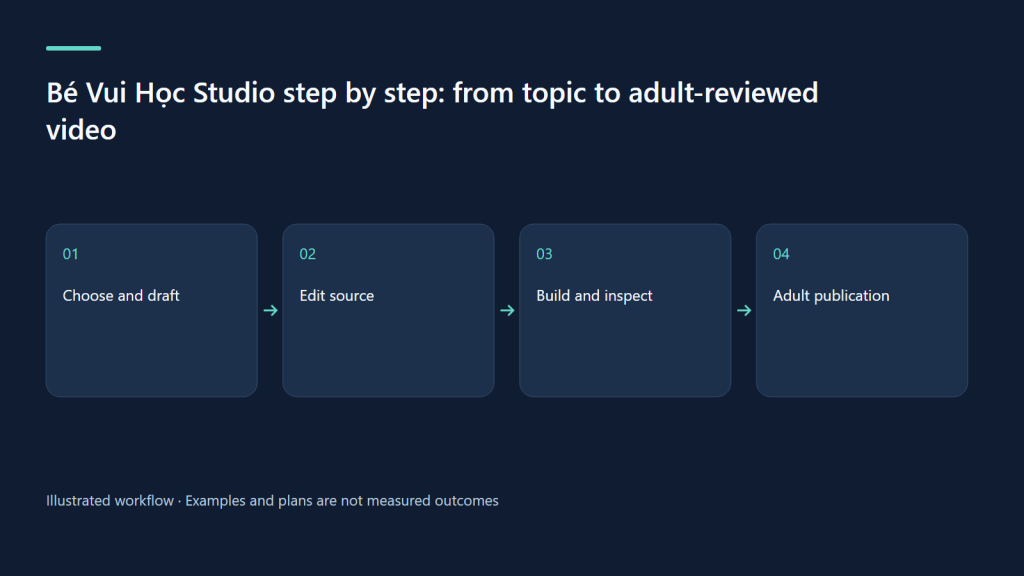
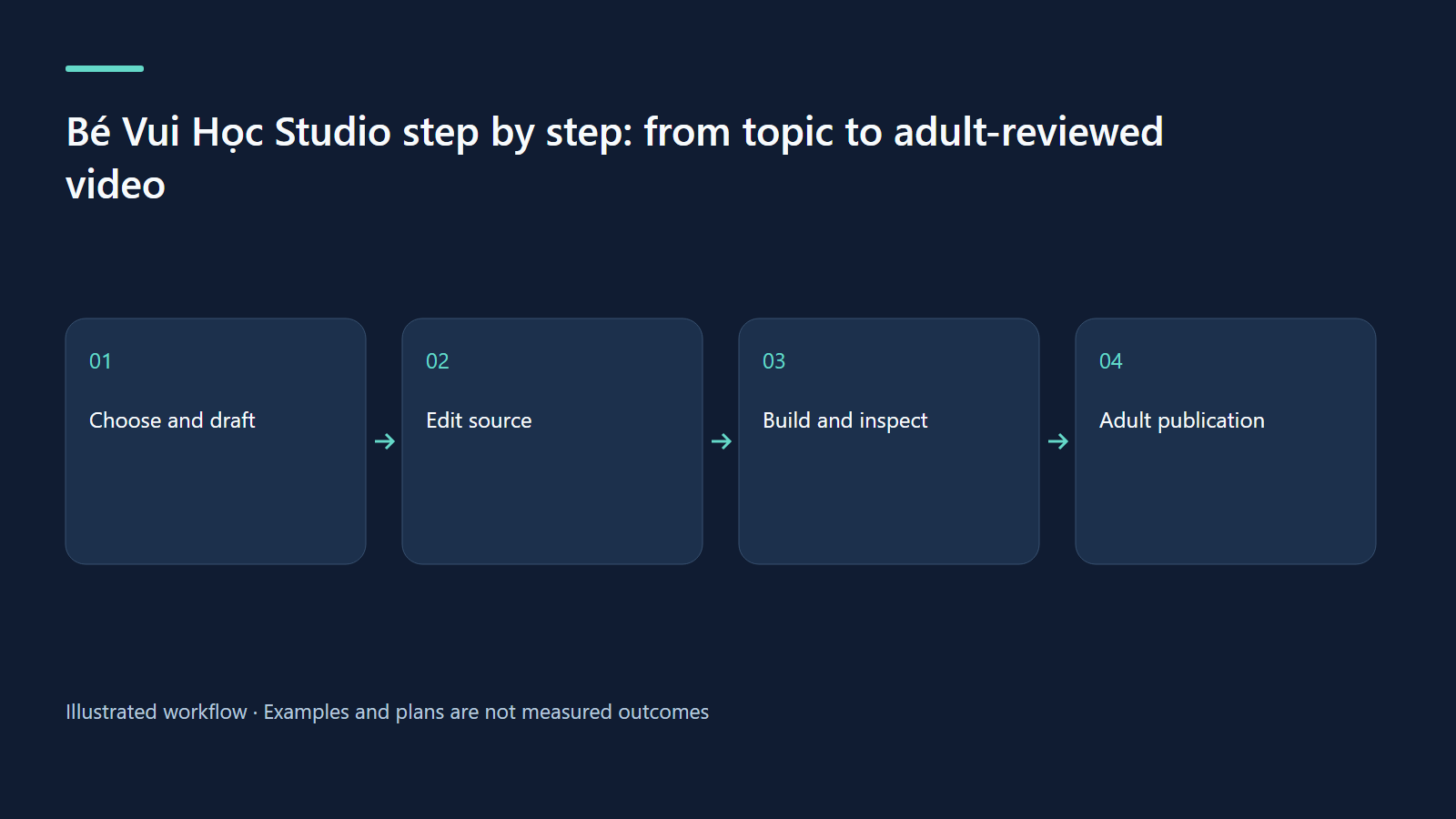
Step one: write a focused topic
Select a small task the viewer can perform after watching. “Find a group of three fish” is stronger than “learn mathematics.” Decide lesson, how-to, story or travel according to the content. A lesson teaches and checks a concept; a how-to explains steps; a story needs meaningful character actions; travel introduces places. Select the age band and languages deliberately. A beginner child may need shorter sentences and fewer items per frame than an older viewer.
In the adult wizard, choose an available AI provider or a blank template. A blank template is useful when the family already has story cards. Current portrait options are restricted: the creation UI offers 9:16 for travel, and the server uses the installed mode's supported formats. Choose landscape for a counting lesson rather than assuming every mode can produce a vertical export. If a separate portrait activity is needed later, plan it as a distinct reviewed adaptation.
Step two: review the draft before saving
Read every scene in sequence. Verify the learning objective, facts, age fit, visual objects and complete language coverage. An AI response is a draft, even when its structure validates. Remove unsupported claims and unnecessary decorative sentences. Check that a quiz has a plausible correct answer and meaningful wrong choices. For a counting task, count the visible objects yourself. The adult should be able to explain why each scene exists before allowing production effort to accumulate.
Save under a clear slug, then open the editor. The paired language inputs help compare meaning; the JSON view gives access to the complete source. Change the durable source, not generated HTML. Scene identifiers make review comments specific. If AI improvement is used, read the proposed change summary before applying it and confirm it preserved the child's central idea. A smaller successful correction is preferable to repeatedly rewriting the entire video without knowing what changed.
Step three: ask for parent review and voice
A child can set “Nhờ bố mẹ” when the draft needs attention. The parent reviews the flagged video and handles protected work. Studio refuses child tts, all, render and upload actions; its queue is also parent-only. Explain the handoff as a practical division of responsibility: children make creative choices while adults manage spending, resource use and external effects. A daily usage display is information for the adult, not a target for the child to consume.
After narration exists, use the language-specific listening buttons to hear actual clips. Check pronunciation and sentence boundaries rather than trusting the written text. In lesson scenes, spoken cues control reveals; a long sentence can put several objects on screen at the wrong time. For a quiz, check both question and answer narration. If wording changes, regenerate affected speech and rebuild. A saved source and an old voice clip can coexist, so explicitly verify that they match.
Step four: build, check and watch
Run the supported build and check stages, then inspect the built player or rendered preview appropriate to the current stage. Read warnings and job logs. A successful command tells you the production step completed; it does not prove teaching quality. Watch the beginning, every instructional scene, the thinking interval and the ending. Review Vietnamese and English separately because their voice duration and phrasing differ. A change that improves one version may need an independent timing adjustment in the other.
Inspect captions and objects at phone size. Confirm that the viewer can see all choices and that the answer is not revealed during the thinking pause. Generate QA material and use its scene sheets to locate issues, but also listen to the full audio. A still sheet cannot reveal rushed speech or an abrupt sound transition. Keep notes tied to scene identifiers, make source corrections, rebuild and inspect the corrected scenes before asking the parent to render the final export.
Step five: export, package and decide publication
The parent runs render after preview approval, then reviews the resulting MP4, QA material and thumbnail. The YouTube SEO panel helps inspect metadata; the adult checks whether its title and description genuinely describe the lesson. Use the upload dry run before an authorized external action. Confirm language, privacy, audience and local scheduled time. TikTok automatic publishing is not implemented in the inspected Studio source; TikTok use requires a separately reviewed export and manual adult publication.
Scheduled or published videos are read-only to child editing. Use duplication for a new revision, preserving the already approved source. After an upload, inspect the actual platform state rather than assuming a queue entry proves availability. Keep the external identifier and source revision together. If only a thumbnail or subtitle extra failed, investigate the existing upload before making another copy. The parent can also decide to keep the film within the family; public release is not required for completion.
Worked example and exercise
Create a landscape lesson called “Find three fish” for ages six to eight in Vietnamese and English. Draft one concept scene, one practice and one quiz. Let the child choose the character and write one kind answer sentence. The parent checks facts and narration, runs protected stages and reviews the export. Before publication, make a handoff card listing slug, languages, last source change, reviewed files and unresolved questions. Practice explaining that card to another adult. If they cannot tell which files are approved, improve the record before uploading.
Troubleshooting a blocked step
If login redirects to Access, use the authorized family access route. If the draft fails validation, inspect its error instead of repeatedly saving. If an action returns a child permission error, ask the parent to continue. If a build looks outdated, compare source and generated artifacts. If semantic search is unavailable, its lexical fallback may still assist browsing. If scheduling looks complete but visibility is uncertain, verify the real YouTube record. Each problem needs evidence from the stage where it occurs.
| Stage | Child contribution | Parent responsibility |
|---|---|---|
| Draft | Topic, scenes and edits | Facts and language coverage |
| Production | Build, check, QA and thumbnail | Voice, all and render |
| Review | Request help and improvements | Approve the exact export |
| Publication | No queue or upload control | Account, dry run and actual verification |
Sources and evidence boundary
- Current Studio specification
- Current deployment routes
- Public learning introduction
- Bé Vui Học cùng Chíp channel
Watch the source-backed local demo
These HyperFrames clips use the actual Studio UI at source commit 238bba2, with repository fixtures. Narration is English; caption tracks provide an English transcript and Vietnamese summary. Cue timing is authored at sentence level. AI, embedding and YouTube services are simulated; no family data or real channel uploads are shown.
Start with a learning goal
MP4 · English transcript · Tóm tắt tiếng Việt
Review both languages together
MP4 · English transcript · Tóm tắt tiếng Việt
Prepare for publication thoughtfully
MP4 · English transcript · Tóm tắt tiếng Việt
What was actually verified
We authenticated a fixture parent profile, opened creation, script, SEO and queue screens, edited paired titles, saved and read the saved source through the local API. Seven UI captures completed without page errors. The videos illustrate this limited workflow; the Studio render pipeline, child workflow and live YouTube upload were not exercised in this capture.
Try the same review exercise
Choose “count three apples” as the objective. Compare both titles and every scene against that objective. Save, reopen, and verify the pair. Before publication, separately check narration, the number of visible objects, quiz answers, audience settings and the final rendered file. A high internal SEO score cannot replace these checks or guarantee discovery.
Related learning paths
Related reading
08 Oct 2026 · 5 min read
AI Video
Publish AI video on YouTube and TikTok with a traceable review process
Match each platform, inspect the publication package, and verify the actual outcome.
Read more
08 Oct 2026 · 5 min read
AI Video
AI video monetization: calculate unit economics before promising income
Count labor, retries and rights, and separate platform eligibility from real earnings.
Read more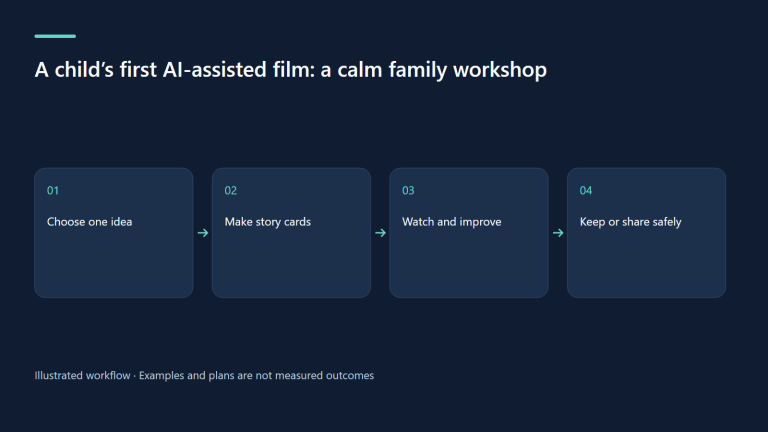
08 Oct 2026 · 5 min read
AI Video
A child’s first AI-assisted film: a calm family workshop
A practical workshop gives children meaningful creative choices while adults own verification, spending and publication.
Read more
Discussion
Comments are reviewed before publication. Your email is kept private.