Mei sent me a Figma screenshot and six bullet points at 9 AM. By 10:30, we had a deployed landing page. Here’s exactly what happened in between — including the 20 minutes I spent fixing what the AI got wrong.
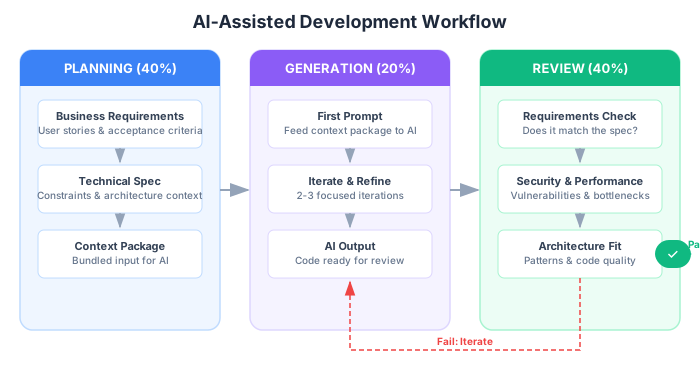
In Part 1, I introduced the 40-40-20 model: spend 40% of your time planning, 20% generating with AI, and 40% reviewing the output. A few people told me the split sounded backwards — why would you spend more time planning and reviewing than actually using the AI? That’s the whole point. The AI is fast. You don’t need to give it more time. You need to give yourself more time to think clearly on either side of it.
Today we’re going to prove it works with the simplest possible project: a landing page. I’ll walk through every step Dan and Mei took building the public face of BuildRight, their project management SaaS for small teams. This isn’t a hypothetical. It’s a reconstruction of a real workflow I’ve used dozens of times — adjusted for the BuildRight story so you can follow along with a clear example.
Let’s get into it.
Why the Landing Page Is the Perfect First Project
If you’re adopting AI-assisted development for the first time, you need a win. Not a theoretical win. Not a “look how much code it generated” win. A real, deployed, stakeholder-approved win. The landing page is that project.
Here’s why it works as a first exercise:
Low risk, visible result. A landing page is not your authentication system. It’s not your database schema. If something goes wrong, nobody’s data gets leaked. The worst case is an ugly page that you fix in an hour. The best case is a polished public presence that your product owner can show to investors by lunchtime.
Fast feedback loop. You write it, you open it in a browser, you see it. No build pipelines, no test environments, no twelve-step deployment process. HTML, CSS, maybe a little JavaScript. Refresh. Done. This tight feedback loop is exactly what you want when you’re learning to work with AI output, because you’ll catch problems immediately instead of discovering them three sprints later.
No translation needed. When Mei says “I want a hero section with our tagline and a signup button,” Dan knows exactly what she means. There’s no ambiguity about what a landing page is supposed to do. Compare that to “I want an event-driven microservice architecture” — suddenly you’re spending half the meeting aligning on vocabulary. Landing pages have a shared understanding across technical and non-technical people.
For BuildRight specifically, a landing page was the first real deliverable. Before building the product, Mei wanted to validate demand. She needed a public page where early adopters could drop their email and join a waitlist. Simple, concrete, urgent.
The 40% — Planning (35 Minutes)
This is where most people skip ahead. They open their AI tool, type “build me a landing page,” and get something mediocre. Then they spend two hours trying to fix it with follow-up prompts, getting increasingly frustrated. The issue was never the AI. The issue was the input.
Dan and Mei spent 35 minutes on planning. Here’s what that looked like.
Mei’s Brief
Mei wrote this up before their morning standup. It took her about 15 minutes. Notice that it’s specific without being technical — that’s the product owner’s job.
LANDING PAGE BRIEF — BuildRight

Company: BuildRight — project management for small teams
Target audience: Startup founders and small team leads (5-20 people)
Key messages: Simple, fast, no learning curve
Tone: Confident but not corporate. Think "smart friend" not "enterprise vendor."

Must-have sections:
  - Hero with tagline and waitlist signup
  - 3 feature highlights (with icons or illustrations)
  - One testimonial from a beta user
  - Final CTA — same waitlist signup, repeated

Design reference: Clean, modern, generous whitespace.
  Similar feel to Linear or Notion landing pages.
  Primary color: deep blue (#1a56db). Accent: warm orange (#f59e0b).

Technical constraints (from Dan):
  - Static HTML/CSS, no framework
  - Must be under 200KB total page weight
  - Mobile-first
Dan’s Technical Translation
Dan took Mei’s brief and added his own layer. This is the part most developers skip — and it’s the part that makes the AI output actually usable.
TECHNICAL SPEC — Landing Page

Structure:
  - Single HTML5 page, semantic markup
  - <header>, <main> with <section> elements, <footer>
  - Nav with logo + 3 links (Features, Testimonial, Signup)

Styling:
  - CSS custom properties for all colors and spacing
  - Mobile-first responsive (breakpoints: 768px, 1024px)
  - No CSS framework. No Tailwind. Plain CSS.
  - CSS Grid for feature cards, Flexbox for nav and hero layout
  - System font stack with fallback to sans-serif

Performance:
  - No images larger than 50KB
  - Inline critical CSS
  - Lazy load anything below the fold
  - Target: Lighthouse 95+ on all four metrics

Accessibility:
  - Skip navigation link
  - All images have alt text
  - Form inputs have associated labels
  - Focus states visible on all interactive elements
  - Color contrast ratio: minimum 4.5:1

Form:
  - Email input + submit button
  - Front-end only (no backend processing yet)
  - Basic HTML5 validation (type="email", required)
The Context Package
Here’s the key practice: Dan combined both documents into a single “Context Package” before touching any AI tool. This isn’t a fancy template. It’s just Mei’s brief followed by Dan’s spec, with a clear instruction at the top:
Build a single-page landing page based on the following brief and
technical specification. Follow all constraints exactly. Do not add
features or sections not listed in the brief. Use semantic HTML5
and CSS custom properties for all colors.

[Mei's brief]

[Dan's technical spec]
This Context Package is the single most important artifact in the entire process. It’s what turns a vague “build me a landing page” into a specific, constrained, reviewable request. The quality of your AI output is directly proportional to the quality of your context input. I’ve seen this pattern hold across every project I’ve worked on in the last two years.
The 35 minutes they spent planning probably saved them two hours of back-and-forth with the AI later.
The 20% — Generation (15 Minutes)
With the Context Package ready, Dan opened his AI assistant and pasted it in. The generation phase took about 15 minutes across three iterations. Let me walk through what happened.
First Pass (5 minutes)
Dan submitted the full Context Package. The AI returned a complete HTML file with inline CSS — roughly 280 lines of code. The structure was solid: proper semantic elements, a hero section, three feature cards in a CSS Grid, a testimonial block, and a footer CTA.
The output was about 80% right. The layout worked. The responsive breakpoints were reasonable. The form had proper HTML5 validation. But the copy was generic placeholder text — “Welcome to BuildRight, the best project management tool” — and the CSS used hard-coded hex values instead of the custom properties Dan had specifically requested.
This is completely normal. The first pass from an AI is almost never production-ready. Expecting it to be is like expecting a first draft of an essay to be publishable. The value is in the scaffolding, not the polish.
Second Pass (5 minutes)
Dan followed up with a refinement prompt. Here’s the pattern:
Prompt pattern: "Refine [specific area]. Current issue: [problem].
Expected: [outcome]"

Example: "Refine the CSS to use custom properties for all colors
and spacing. Current issue: colors are hard-coded as hex values.
Expected: a :root block defining all design tokens, with every
color in the stylesheet referencing a custom property."
He also asked the AI to replace the placeholder copy with specific messaging from Mei’s brief — the “Simple, fast, no learning curve” value proposition, the “smart friend” tone.
The second pass fixed the CSS custom properties issue and improved the copy. It also introduced an unnecessary hamburger menu for mobile, even though there were only three nav items. Dan noted it but moved on.
Third Pass (5 minutes)
The final prompt focused on accessibility:
Prompt pattern: "Review for [concern]. Fix any issues found."

Example: "Review for accessibility. Ensure skip navigation is
present, all form inputs have labels with matching 'for' attributes,
focus states are visible, and ARIA labels are added where semantic
HTML alone is insufficient."
The AI added a skip-nav link, improved the focus states, and added aria-label attributes to the form. It also added role="main" to the <main> element, which is redundant but harmless.
Total time in the AI: 15 minutes, 3 prompts. Dan didn’t try to get everything perfect through prompting. He got it good enough and moved to the review phase. This is a discipline. The temptation is always to keep prompting — “make it better,” “try again,” “one more tweak.” Resist it. After 3 iterations, switch to manual review. You’ll be faster editing code directly than trying to describe the fix in natural language.
The 40% — Review (40 Minutes)
This is where most people cut corners. They get excited by the AI output, do a quick visual check in the browser, and ship it. Then two days later, someone discovers the page doesn’t work on their phone, the form doesn’t have a label, and there’s a !important declaration overriding half the stylesheet.
Dan’s review was systematic. Here’s the breakdown.
Requirements Check (5 minutes)
Dan opened Mei’s brief side by side with the generated page and went line by line.
- Hero with tagline and waitlist signup? Yes.
- Three feature highlights? Yes, with icons. But the icons were emoji characters — acceptable for now.
- One testimonial from a beta user? Present, but the AI had invented a fake quote from a fictional person. Dan flagged this for Mei to provide real content and dropped in a placeholder comment:
<!-- TODO: Replace with real testimonial from Mei --> - Final CTA? Yes, the waitlist form was repeated at the bottom.
- Color scheme matches brief? After the second pass, yes.
One requirement was missed entirely: Mei wanted the page to feel like “a smart friend, not an enterprise vendor.” The AI’s copy was polished but slightly corporate — phrases like “Streamline your workflow” and “Unlock your team’s potential.” Dan rewrote two headlines by hand to sound more natural: “Stop fighting your project tool” and “Built for teams that actually ship.”
That rewrite took four minutes. It mattered more than anything the AI produced in the copy department. AI writes competent copy. Humans write compelling copy. Know the difference and plan your time accordingly.
Responsiveness (10 minutes)
Dan tested on three screen sizes using browser dev tools: 375px (phone), 768px (tablet), and 1440px (desktop).
The desktop and tablet layouts were fine. On mobile, the hero headline was too large — the AI had set it to 3.5rem without adjusting for small screens. A two-line CSS fix:
@media (max-width: 768px) {
  .hero h1 {
    font-size: 2rem;
    line-height: 1.2;
  }
}
Dan also removed the hamburger menu the AI had added. With only three nav links (Features, Testimonial, Sign Up), a simple horizontal layout with gap: 1rem worked fine on mobile. The hamburger was unnecessary complexity — it added JavaScript, introduced a potential accessibility issue with the toggle state, and solved a problem that didn’t exist.
This is a pattern worth remembering: AI tends to over-engineer. It builds for the general case, not your specific case. A hamburger menu is the right pattern for a site with 12 nav items. For 3 items, it’s overhead. The AI doesn’t know the difference unless you tell it explicitly — and even then, it sometimes adds it anyway.
Performance (5 minutes)
Dan ran a Lighthouse audit. Initial score: 92.
The issue was twofold. First, the AI had added CSS animations — a subtle fade-in on each section and a parallax scroll effect on the hero. These looked nice but added about 30KB of CSS and triggered layout recalculations on scroll. Dan removed them entirely. The brief said nothing about animations, and the performance target was 95+.
Second, the AI had used a placeholder image for the hero background that was 180KB. Dan swapped it for a CSS gradient that matched the color scheme — zero additional bytes.
After these changes: Lighthouse 98.
Accessibility (10 minutes)
Dan tested with a screen reader and keyboard navigation.
Issues found:
- The email form’s
<label>element was missing aforattribute that matched the input’sid. The AI had added the label visually but hadn’t wired it up. Fix: 30 seconds. - The skip-nav link existed but wasn’t visible on focus — the AI had set it to
display: noneinstead of using a clip-based hiding technique. Fix: swapped toposition: absolute; left: -9999pxwith a:focusrule to bring it back on screen. - Tab order was correct. All interactive elements were reachable by keyboard.
- Color contrast passed at 4.5:1 minimum.
Code Quality (10 minutes)
Dan read every line of the generated code. This is non-negotiable. If you don’t read the code, you don’t own the code, and you’re going to regret it when something breaks at 2 AM.
Issues found:
!important declarations. The AI had used !important in three places to override its own specificity conflicts. This is a code smell. Dan refactored the selectors to use proper specificity — a more specific class selector in each case. Took about five minutes.
Inline event handlers. The AI had put an onclick attribute directly on the form’s submit button. Dan moved it to an addEventListener call in a <script> block. This is better practice for maintainability and for Content Security Policy headers down the road.
Redundant markup. The AI had wrapped each feature card in a <div> inside an <article> inside another <div>. Dan flattened each to a single <article> element. Cleaner, fewer nodes, easier to style.
None of these issues were catastrophic. The page would have worked fine shipped as-is. But code quality compounds. If you accept sloppy generated code today, you’ll be debugging sloppy generated code six months from now. The 10 minutes Dan spent here saved future-Dan hours of confusion.
What the AI Got Right (and Wrong)
Let me be specific about the AI’s performance, because the nuance matters more than the headline.
What It Got Right
Page structure. The semantic HTML was well-organized: <header>, <main> with descriptive <section> elements, <footer>. The document outline made sense. An AI is very good at producing standard HTML document structures because it has seen thousands of them.
CSS layout. The Grid and Flexbox usage was correct and practical. The feature cards used grid-template-columns: repeat(auto-fit, minmax(280px, 1fr)) — a solid responsive pattern that works without media queries. Dan kept this exactly as generated.
Responsive breakpoints. The breakpoints at 768px and 1024px were appropriate. The AI chose them correctly based on common device widths. The only mobile issue was the oversized headline, which is a sizing problem, not a structural one.
Form markup. The email input with type="email", required, and a submit button was correct. HTML5 validation worked out of the box.
What It Got Wrong
Brand voice. The copy was competent but generic. It sounded like every SaaS landing page ever written. The AI doesn’t know BuildRight’s personality. It knows the statistical average of landing page copy, which is precisely the average you don’t want to be.
Over-engineering. The unnecessary hamburger menu, the complex CSS animations, the nested wrapper divs — all added complexity that served no purpose for this specific page. The AI optimizes for “generally good,” not “specifically right.”
Ignoring explicit constraints. Dan asked for CSS custom properties. The first pass ignored this completely. The second pass implemented them inconsistently. This is a common failure mode: AI tools sometimes nod at your constraints without actually following them. You have to verify.
Invented content. The fake testimonial was a real problem. If Dan hadn’t caught it, they could have shipped a page with a fabricated quote attributed to a person who doesn’t exist. This is the kind of mistake that erodes trust — not in the AI, but in your product.
The key insight here is simple: AI is excellent at structure and boilerplate, mediocre at nuance and brand-specific decisions. Plan your workflow around this reality. Let the AI handle the scaffolding. Handle the soul yourself.
The Definition of Done
Before marking the landing page task as complete, Dan and Mei ran through their checklist. This isn’t bureaucracy — it’s insurance against “I thought it was done” conversations.
- All requirements from Mei’s brief are addressed
- Mobile-first responsive design verified on 3 screen sizes (375px, 768px, 1440px)
- Lighthouse performance score > 95 (achieved: 98)
- Accessibility: keyboard navigation works, screen reader tested
- No console errors or warnings
- Code review: no
!important, no inline event handlers, semantic HTML - Fake testimonial replaced with
<!-- TODO -->comment and flagged for Mei - Mei approved the final visual result
- Deployed and accessible via URL
The whole process — planning, generation, review — took 90 minutes. The page was live before Mei’s 11 AM meeting. She showed it to a potential advisor and collected three waitlist signups before lunch.
That’s the kind of win that makes people believe in the process. Not because the AI did something magical, but because the workflow turned a morning idea into a deployed result.
Your Turn
I want you to try this yourself. Not with BuildRight’s landing page — with your own project. Pick something small: a landing page, a documentation site, an internal tool’s front page. Something you can finish in a single session.
Here’s a template you can copy and fill in before touching any AI tool:
## AI Task Brief

**Project**: [Name]
**Task**: [What you're building]
**Target user**: [Who will use this]

### Requirements
- [Requirement 1]
- [Requirement 2]
- [Requirement 3]

### Technical Constraints
- [Framework/language]
- [Performance targets]
- [Must NOT include]

### Design Reference
- [Link or description of similar work]

### Definition of Done
- [ ] [Criterion 1]
- [ ] [Criterion 2]
- [ ] [Criterion 3]
Fill this out before you open your AI tool. Show it to your product owner or a colleague. Make sure the requirements are specific enough that someone could evaluate the result without knowing anything about the implementation. That’s the bar.
The landing page took 90 minutes total. Without AI, the same page might have taken Dan four to five hours — he’s fast, but scaffolding responsive CSS from scratch takes time regardless of experience. The time savings were real, roughly 60% faster.
But here’s what matters: the savings came from the process, not the tool. Dan didn’t save time because he used a clever AI product. He saved time because he planned clearly, generated efficiently, and reviewed thoroughly. Replace his AI tool with any competent alternative and the result would be nearly identical. Replace his process with “just wing it” and the result would be a mess, regardless of how good the AI is.
That’s the lesson of Part 2. The tool is replaceable. The workflow is not.
In Part 3, we’ll look at what happens when you skip the review phase. Spoiler: it involves SQL injection and a very uncomfortable Friday. Dan learns the hard way that “it works on my machine” is not a security audit — and that the 40% you spend reviewing isn’t optional, it’s the only thing standing between you and a production incident.
See you there.
This is Part 2 of a 13-part series: The AI-Assisted Development Playbook. Start from the beginning with Part 1: Why Workflow Beats Tools.
Series outline:
- Why Workflow Beats Tools — The productivity paradox and the 40-40-20 model (Part 1)
- Your First Quick Win — Landing page in 90 minutes (this post)
- The Review Discipline — What broke when I skipped review (Part 3)
- Planning Before Prompting — The 40% nobody wants to do (Part 4)
- The Architecture Trap — Beautiful code that doesn’t fit (Part 5)
- Testing AI Output — Verifying code you didn’t write (Part 6)
- The Trust Boundary — What to never delegate (Part 7)
- Team Collaboration — Five devs, one codebase, one AI workflow (Part 8)
- Measuring Real Impact — Beyond “we’re faster now” (Part 9)
- What Comes Next — Lessons and the road ahead (Part 10)
- Prompt Patterns — How to talk to AI effectively (Part 11)
- Debugging with AI — When AI code breaks in production (Part 12)
- AI Beyond Code — Requirements, docs, and decisions (Part 13)