This is the technical core of the series. Everything in Part 2 was preparation — inventory, assessment, estimation. This post covers the actual migration mechanics for each version path.
Where you start determines everything about how you get to Umbraco 17.
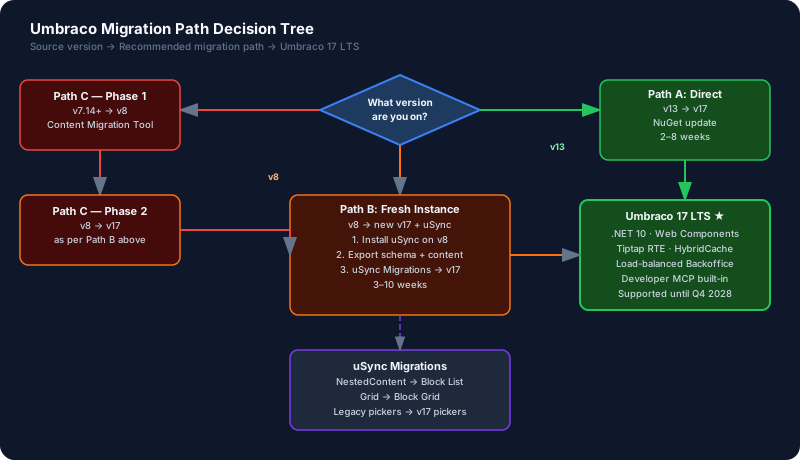
Path A: Umbraco 13 → 17 (Direct Upgrade)
This is the cleanest path. Umbraco 13 and Umbraco 17 are both in the .NET ecosystem, and a direct upgrade is officially supported. You stay in the same solution, update packages, fix breaking changes, and you’re done.
That said, “clean” doesn’t mean “trivial.” The new backoffice architecture (Project Bellissima) introduced breaking changes for any project with custom backoffice extensions.
Step 1: Upgrade to the Latest 13.x Patch
Before upgrading to v17, ensure you’re on the latest Umbraco 13 patch version:
dotnet add package Umbraco.Cms --version 13.*Check the Umbraco version history and upgrade to the highest 13.x.x. Running on the latest patch minimizes the change delta when you upgrade to v17.
Step 2: Update TargetFramework to .NET 10
In your .csproj:
<PropertyGroup>
  <TargetFramework>net10.0</TargetFramework>
</PropertyGroup>
Umbraco 17 requires .NET 10 LTS and Visual Studio 2026 (or later). If you’re still on VS 2022 with .NET 8, you’ll need to update your toolchain.
Step 3: Update All Umbraco NuGet Packages
dotnet add package Umbraco.Cms --version 17.*
dotnet add package Umbraco.Cms.StaticAssets --version 17.*
If you have additional Umbraco packages (forms, deploy, examine):
dotnet add package Umbraco.Forms --version 17.*
dotnet add package Umbraco.Deploy.Core --version 17.*
Important: Third-party packages that depend on Umbraco internals may not yet have v17-compatible versions. Check each package’s NuGet page before upgrading.
Step 4: Address Breaking Changes in Program.cs
Umbraco 17 removes several configuration calls that were deprecated in v14+. Your Program.cs may need cleanup:
// REMOVE — these builder extensions were removed in v14+:
// .AddBackOffice()
// .AddWebsite()
// .AddDeliveryApi()

// USE the combined method:
builder.CreateUmbracoBuilder()
    .AddBackOffice()
    .AddWebsite()
    .AddDeliveryApi()
    .Build();
Check the official v17 breaking changes list for your specific version delta.
Step 5: Regenerate Models via Model Builder
After upgrading packages and running the site, reopen the backoffice and regenerate all strongly-typed models:
Umbraco Backoffice → Settings → Models Builder → Generate ModelsModel Builder output format changed between v13 and v17. Delete any previously generated model files before regenerating.
Step 6: Custom Backoffice Extensions (If Any)
This is the most impactful breaking change for teams that built custom property editors, custom dashboards, or custom backoffice sections for Umbraco 7 or 8.
The old backoffice used AngularJS. The new backoffice uses Web Components and TypeScript with an extension point API.
If your extension was built for v13: You’re on the new backoffice already (introduced in v14). Minor API refinements may be needed, but the architecture is the same.
If your extension was built for v8 or older and is being brought into v17: Full rebuild. The AngularJS controller, directive, and package.manifest pattern is gone. You’ll use the new umbraco-package.json manifest and Web Component-based extension points.
The Umbraco documentation has a Custom Property Editors guide for the new model.
AI assist: Feed your old AngularJS property editor code to Claude or Copilot with this prompt:
This is an Umbraco property editor written for the old AngularJS backoffice.
I need to rewrite it as a modern Umbraco 17 Web Component property editor using
the new extension model with umbraco-package.json.

[paste old property editor JS + HTML + controller]

Please generate:
1. The Web Component (LitElement based)
2. The umbraco-package.json registration
3. Any server-side value converter changes needed
The output won’t be production-ready, but it creates a scaffold that dramatically reduces the rewrite effort.
Step 7: Rich Text Editor (TinyMCE → Tiptap)
Umbraco 17 replaced TinyMCE with Tiptap as the default RTE. For most sites, this is transparent. The HTML content in the database is preserved, and Tiptap renders it correctly.
If you have TinyMCE plugins: These need to be rebuilt as Tiptap extensions. This is a real effort item — include it in your estimate if the assessment found TinyMCE customizations.
If you have TinyMCE-specific styling in CSS: Review and update. Tiptap uses slightly different class names in its output.
Path B: Umbraco 8 → 17 (Fresh Instance Migration)
Because Umbraco 8 targets .NET Framework and Umbraco 17 targets .NET 10, there is no in-place upgrade path. You cannot simply upgrade NuGet packages. You need to create a new Umbraco 17 instance and migrate your content into it.
The recommended toolchain for this is uSync Migrations.
Understanding uSync Migrations
uSync is a community package (by Kevin Jump) that enables Umbraco content and configuration to be exported to disk as files and re-imported. uSync Migrations extends this with transformation capabilities — it can read uSync output from an older Umbraco version, apply transformations (like converting Nested Content to Block List), and produce a format compatible with a newer version.
Install uSync on the source (Umbraco 8) site:
dotnet add package uSync --version 8.*Install uSync Migrations on the target (Umbraco 17) site:
dotnet add package uSync.Migrations --version 17.*Step 1: Export From Umbraco 8
With uSync installed on your v8 site:
- Open backoffice → uSync → Export
- Export: Document Types, Data Types, Templates, Content, and Media
This produces a set of XML files in /uSync/v9/ representing your entire Umbraco schema and content tree.
Step 2: Create Fresh Umbraco 17 Instance
dotnet new umbraco -n MyProject --version 17.0.0Set up the database (SQL Server — see Part 6 for full local dev Docker setup) and run the site installer. You must have a running Umbraco 17 instance before importing.
Step 3: Configure uSync Migrations on the Target
In appsettings.json of your new v17 project, add:
{
  "uSync": {
    "Migrations": {
      "MigrationsFolder": "uSync/v9"
    }
  }
}
Step 4: Run the Migration
Place the uSync export files from Step 1 into the configured folder, then:
Umbraco Backoffice → uSync → Migrations → Run MigrationuSync Migrations will:
- Convert deprecated data type configurations to their v17 equivalents
- Convert Nested Content properties to Block List (using built-in migrators)
- Convert Grid Layout to Block Grid (supported from Aug 2024 build)
- Update legacy picker properties to the current Content/Media Picker API
- Report on any items it couldn’t automatically migrate (requires manual review)
Step 5: Handle Unmigrated Items
uSync Migrations produces a report of items it couldn’t transform automatically. Common causes:
- Custom property editors with non-standard storage format: These need manual migration code. You write a class implementing
ISyncMigrationParserthat handles your specific editor’s data format. - Custom Nested Content implementations: If you extended NestedContent with custom logic, the standard migrator may not capture it correctly. Review the output carefully.
- Complex Grid configurations: Grids with custom cell renderers may produce Block Grid items that need manual layout review.
AI assist for custom migrator:
I have a custom property editor in Umbraco 8 that stores data as JSON in this format:
[paste example JSON from database]

I need to write a uSync Migrations ISyncMigrationParser that reads this format and converts
it to the Umbraco 17 Block List JSON format. The Block List should use document type alias
"myElementType" with these properties: [list properties].

Please generate the C# migration parser class.
Step 6: Migrate Media
Media files don’t migrate through uSync automatically. You need to copy the /media/ folder from the source site to the target site (or reconfigure to point at the same Azure Blob Storage container if using cloud storage).
After copying media, you may need to run a media audit in the backoffice to rebuild the media cache.
Step 7: Rewrite the Codebase
This is the .NET Framework → .NET 10 migration. Everything in the C# codebase needs to be reviewed:
- Surface Controllers →
UmbracoPageController(or ViewComponent pattern) Application_Startin Global.asax →Program.cshosted services +INotificationHandlerUmbraco.Web.UmbracoContext→ injectedIUmbracoContextAccessorApplicationContext→ DI-based services throughoutweb.config→appsettings.json+appsettings.{Environment}.jsonHttpContext.Current→ injectedIHttpContextAccessor
For the boilerplate rewrites, AI is highly effective:
Convert this Umbraco 8 .NET Framework surface controller to Umbraco 17 .NET 10:

[paste controller code]

Use constructor dependency injection, IUmbracoContextAccessor, and the current
IPublishedContentQuery APIs.
Path C: Umbraco 7 → 17 (Multi-Step Migration)
Umbraco 7 requires the most work. The recommended approach for complex sites is:
Phase 1: Umbraco 7 → Umbraco 8 (using the official content migration tool) Phase 2: Umbraco 8 → Umbraco 17 (using Path B above)
For simpler sites with manageable content volumes, you can do a direct content reimport (export from v7, reimport to fresh v17) but this requires more manual schema recreation.
Phase 1: Umbraco 7 → 8
Umbraco 7 to 8 content migration uses the official Umbraco 8 Content Migration tool, which is built into the Umbraco 8 installer.
Prerequisites:
- Your Umbraco 7 site must be on version 7.14.0 or higher. If you’re on an older 7.x, you must upgrade to at least 7.14 first.
- For older v7 sites, upgrade sequentially: 7.3.9 → 7.6.14 → 7.15.x before attempting v8 migration
Process:
- Install Umbraco 8 alongside your v7 site (on a separate database)
- During v8 installer, choose “Migrate” and point it at your v7 database
- The tool handles document type schema migration and content node migration
- Media files must be copied separately (same approach as Path B, Step 6)
What the migration tool doesn’t handle:
- Custom property editors with non-standard data (flagged for review)
- Custom Examine indexes (need to be reconfigured in v8 Examine API)
- Templates (need manual rewrite — Razor syntax changed)
- Code (Surface controllers, custom services — need rewrite)
AI assist for v7 template rewrite:
Convert this Umbraco 7 Razor template to Umbraco 17 syntax.

Key changes to apply:
- Replace @CurrentPage with @Model
- Replace UmbracoHelper API with IPublishedContent extension methods
- Update any ContentService or MediaService static calls to injected services
- Replace any Grid or Macro rendering helpers

[paste v7 template]
Pre-Migration Health Check Package
Before running any v7 migration, install the community Pre-migration health checks for Umbraco 7 package, which identifies common issues before migration:
# Available on our.umbraco.com
# Package: "Pre-migration health checks"
This package scans your v7 site and reports issues that will cause migration failures. Run it, fix the reported issues, then proceed.
The Nested Content → Block List Migration in Detail
Regardless of which path you’re on, if you have Nested Content in your site, the Block List migration deserves dedicated attention.
What Nested Content Stores vs. What Block List Expects
Nested Content stores JSON like this (in the database):
[
  {
    "key": "ccd9a43c-5019-4a55-a87a-e31c0e45a123",
    "ncContentTypeAlias": "myNestedItem",
    "title": "Hello World",
    "bodyText": "<p>Some content</p>"
  }
]
Block List stores JSON like this:
{
  "layout": {
    "Umbraco.BlockList": [
      {
        "contentUdi": "umb://element/ccd9a43c50194a55a87ae31c0e45a123"
      }
    ]
  },
  "contentData": [
    {
      "contentTypeKey": "abc123...",
      "udi": "umb://element/ccd9a43c50194a55a87ae31c0e45a123",
      "title": "Hello World",
      "bodyText": "<p>Some content</p>"
    }
  ],
  "settingsData": []
}
The transformation is non-trivial. uSync Migrations handles this automatically for standard configurations. For custom Nested Content implementations, you write a migration parser.
Using Umbraco Deploy’s Built-in Migrators
If your site uses Umbraco Deploy, it ships with ReplaceNestedContentDataTypeArtifactMigrator. This fires during schema transfer and converts Nested Content data type configurations to Block List automatically.
// This migrator runs automatically during Deploy transfer operations
// No configuration needed — it handles the data type config transformation
// but you still need uSync Migrations for the content data transformation
AI-Assisted Content Transformation Script
For large content migrations, AI can help write a migration runner that processes the database directly:
I need a C# Umbraco migration class (implementing IUmbracoMigration) that:
1. Finds all property values where the property editor alias is "Umbraco.NestedContent"
2. Parses the Nested Content JSON format
3. Converts it to Block List JSON format
4. Updates the database row

The document type alias for the nested items is "myNestedItem" and it has these
properties: title (textstring), bodyText (richtext), image (Umbraco.MediaPicker3).

Generate the migration class.
Review AI output carefully — database migration code is high-risk and requires comprehensive testing before production deployment.
Validation After Migration
After completing any migration path, run these validation checks before declaring success:
# 1. Run Umbraco health check
# Umbraco Backoffice → Health Checks → Run All

# 2. Verify all content renders correctly
# Check a sample of each template type

# 3. Run uSync report in read mode (doesn't apply changes)
# This shows any sync drift between disk and database

# 4. Check Examine indexes are built
# Umbraco Backoffice → Settings → Examine Management → Rebuild All
SQL validation queries:
-- Check for any orphaned property data
SELECT pt.Alias, COUNT(*) as Count
FROM cmsPropertyData pd
JOIN cmsPropertyType pt ON pd.PropertyTypeId = pt.Id
WHERE pd.INTEGER IS NULL AND pd.TEXT IS NULL AND pd.DATETIME IS NULL
  AND pd.DECIMALVALUE IS NULL AND pd.VALUE IS NULL
GROUP BY pt.Alias

-- Check for Nested Content data still in database (should be 0 after migration)
SELECT COUNT(*) FROM cmsPropertyData
WHERE pdValue LIKE '%"ncContentTypeAlias"%'
Part 4 covers what comes after the migration itself — the code modernization, content type restructuring, and template rebuilding that turns a migrated site into a well-architected Umbraco 17 project.
This is Part 3 of 8 in the Umbraco AI-Powered Migration Playbook.
Series outline: