Getting the data across is necessary. Building something you’d actually want to maintain is the goal.
Every legacy Umbraco migration faces the same fork in the road: do you bring the old architecture with you in a minimally changed form, or do you use the migration as an opportunity to restructure? There’s no universal right answer — it depends on budget, timeline, and how long you expect to maintain the result.
But there are patterns in Umbraco 17 that didn’t exist in v7 and v8 that are genuinely better, and adopting them while you’re already touching the codebase costs less than retrofitting them later.
This post covers the code-level migration work: modernizing controllers and services, rebuilding templates with current Umbraco APIs, implementing Block List in place of Nested Content, and applying Clean Architecture principles to an Umbraco project.
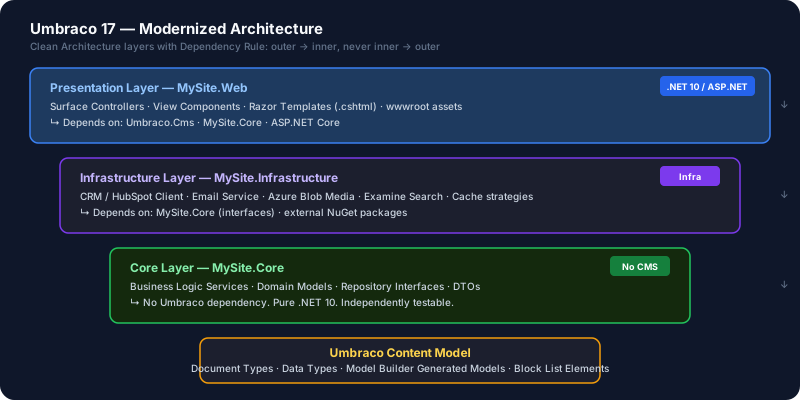
The Umbraco 17 Project Structure
A modern Umbraco 17 project should be structured as SDK-style .NET 10, using the current Umbraco 17 template:
MySite/
├── MySite.Web/                  # Umbraco presentation layer
│   ├── Controllers/             # Surface controllers, API controllers
│   ├── ViewComponents/          # View Components (replace macros)
│   ├── Views/                   # Razor views
│   │   ├── Partials/
│   │   └── {PageType}/default.cshtml
│   ├── wwwroot/                 # Static assets
│   ├── appsettings.json
│   ├── Program.cs
│   └── MySite.Web.csproj
│
├── MySite.Core/                 # Domain logic (no Umbraco dependency)
│   ├── Services/                # Business logic interfaces + implementations
│   ├── Models/                  # Domain models
│   └── MySite.Core.csproj
│
└── MySite.Infrastructure/       # External integrations
    ├── Cache/
    ├── ExternalApis/
    └── MySite.Infrastructure.csproj
The separation of Core from Web is the key Clean Architecture pattern. Business logic that doesn’t need to reference Umbraco APIs lives in Core. Only the presentation layer depends on Umbraco packages.
AI prompt for project scaffolding:
Generate a .NET 10 solution structure for an Umbraco 17 project following Clean Architecture.
The project is a marketing website with:
- Custom contact forms
- External CRM integration (HubSpot)
- Multi-language content (EN, FR, DE)
- Umbraco Members for a resource library with authentication

Generate:
1. Solution file with project references
2. Program.cs for the Web project
3. Core layer interface sketches
4. appsettings.json structure
Modernizing Controllers
Surface Controllers (v7/v8) → Current Pattern
Old (v7/v8 pattern):
// Umbraco 7/8 — .NET Framework
public class ContactController : SurfaceController
{
    public ActionResult Index()
    {
        return CurrentTemplate(new ContactViewModel());
    }

    [HttpPost]
    public ActionResult Submit(ContactViewModel model)
    {
        if (!ModelState.IsValid)
            return CurrentUmbracoPage();

        // Handle form
        return RedirectToCurrentUmbracoPage();
    }
}
Modern (Umbraco 17 / .NET 10):
// Umbraco 17 — .NET 10 with DI
public class ContactController : SurfaceController
{
    private readonly IContactService _contactService;
    private readonly ILogger<ContactController> _logger;

    public ContactController(
        IUmbracoContextAccessor umbracoContextAccessor,
        IUmbracoDatabaseFactory databaseFactory,
        ServiceContext services,
        AppCaches appCaches,
        IProfilingLogger profilingLogger,
        IPublishedUrlProvider publishedUrlProvider,
        IContactService contactService,
        ILogger<ContactController> logger)
        : base(umbracoContextAccessor, databaseFactory, services,
               appCaches, profilingLogger, publishedUrlProvider)
    {
        _contactService = contactService;
        _logger = logger;
    }

    [HttpPost]
    [ValidateAntiForgeryToken]
    public async Task<IActionResult> Submit(ContactViewModel model)
    {
        if (!ModelState.IsValid)
            return CurrentUmbracoPage();

        try
        {
            await _contactService.ProcessContactFormAsync(model);
            TempData["Success"] = true;
            return RedirectToCurrentUmbracoPage();
        }
        catch (Exception ex)
        {
            _logger.LogError(ex, "Contact form submission failed");
            ModelState.AddModelError("", "An error occurred. Please try again.");
            return CurrentUmbracoPage();
        }
    }
}
Key changes:
- Constructor DI instead of property injection
async Task<IActionResult>instead ofActionResult- Injected services instead of static ApplicationContext
- Proper logging via
ILogger<T>
AI conversion prompt:
Convert this Umbraco 7 Surface Controller to Umbraco 17 / .NET 10:

[paste controller]

Apply these changes:
- Full constructor dependency injection
- async/await on service calls
- ILogger<T> instead of LogHelper
- Remove any static ContextAccessor calls
- Use IUmbracoContextAccessor if context is needed
Rebuilding Templates
The IPublishedContent Model
Umbraco’s content model is built around IPublishedContent. The API is consistent across v13 and v17, but changed significantly from v7/v8. Key reference points for migration:
| v7/v8 API | v17 API |
|---|---|
@CurrentPage.GetPropertyValue("title") | @Model.Value<string>("title") |
@CurrentPage.Children | @Model.Children |
@Html.GetGridHtml(Model, "content") | Grid removed — use Block Grid |
@Html.RenderMacro("nav") | Macros removed — use ViewComponent |
UmbracoHelper.TypedContent(id) | IPublishedContentQuery.Content(id) |
Strongly Typed Models (Model Builder)
The preferred approach in Umbraco 17 is strongly typed models generated by Model Builder. This gives you compile-time type safety and IntelliSense.
Enable Model Builder in appsettings.json:
{
  "Umbraco": {
    "CMS": {
      "ModelsBuilder": {
        "ModelsMode": "SourceCodeManual",
        "ModelsDirectory": "~/umbraco/models/"
      }
    }
  }
}
After generation, your templates use the generated types:
// Generated model (don't edit — regenerated on doc type change)
public partial class ArticlePage : PublishedContentModel
{
    public string Title => this.Value<string>("title");
    public string BodyText => this.Value<HtmlEncodedString>("bodyText")?.ToString() ?? "";
    public IPublishedContent? HeroImage => this.Value<IPublishedContent>("heroImage");
    public IEnumerable<ContentBlocks> ContentBlocks =>
        this.Value<IEnumerable<ContentBlocks>>("contentBlocks") ?? Enumerable.Empty<ContentBlocks>();
}
@inherits Umbraco.Cms.Web.Common.Views.UmbracoViewPage<ArticlePage>
@{
Layout = "master.cshtml";
}
<h1>@Model.Title</h1>
<div class="body-text">@Html.Raw(Model.BodyText)</div>
@if (Model.HeroImage != null)
{
<img src="@Model.HeroImage.Url()" alt="@Model.HeroImage.Name" />
}Replacing Macros with View Components
Macros are gone in Umbraco 14+. Every macro in a legacy site needs to be replaced with a View Component or partial view.
Legacy macro (nav.cshtml):
@inherits Umbraco.Web.Macros.PartialViewMacroPage
@{
    var homePage = Model.Content.Site();
    var topNavItems = homePage.Children.Where(x => x.IsVisible());
}
<nav>
    @foreach (var item in topNavItems) {
        <a href="@item.Url()">@item.Name</a>
    }
</nav>
Modern View Component:
// ViewComponents/NavigationViewComponent.cs
public class NavigationViewComponent : ViewComponent
{
    private readonly IPublishedContentQuery _contentQuery;
    private readonly IUmbracoContextAccessor _contextAccessor;

    public NavigationViewComponent(
        IPublishedContentQuery contentQuery,
        IUmbracoContextAccessor contextAccessor)
    {
        _contentQuery = contentQuery;
        _contextAccessor = contextAccessor;
    }

    public IViewComponentResult Invoke()
    {
        var context = _contextAccessor.GetRequiredUmbracoContext();
        var homePage = context.Content?.GetAtRoot()?.FirstOrDefault();
        var navItems = homePage?.Children
            .Where(x => x.IsVisible())
            .ToList() ?? new List<IPublishedContent>();

        return View(navItems);
    }
}
@* Views/Shared/Components/Navigation/Default.cshtml *@
@model IEnumerable<IPublishedContent>
<nav class="site-nav">
@foreach (var item in Model)
{
<a href="@item.Url()" class="@(item.IsCurrentPage() ? "active" : "")">
@item.Name
</a>
}
</nav>@* In your layout template, replace @Html.RenderMacro("nav") with: *@
@await Component.InvokeAsync("Navigation")Block List: Building Real Content Flexibility
Block List is the primary flexible content area tool in Umbraco 17. It replaces both Nested Content (partial content) and Grid Layout (full-width layout builder).
Setting Up a Block List Property
- Create Element Types for each block (element types are document types marked as elements — they’re not published as standalone pages)
- Create a Block List data type in Settings → Data Types
- Configure which element types are allowed as blocks
- Add the Block List property to your document type
Block Types for a typical marketing page:
| Block Alias | Purpose |
|---|---|
heroBlock | Full-width hero with headline, subtitle, CTA |
textBlock | Rich text body block |
imageTextBlock | Image + text two-column layout |
ctaBlock | Call-to-action with button variants |
testimonialBlock | Quote with attribution |
statsBlock | Metric with label, for data callouts |
Rendering Block List in Razor
@using Umbraco.Cms.Core.Models.Blocks

@{
    var contentBlocks = Model.Value<BlockListModel>("contentBlocks");
}

@if (contentBlocks != null)
{
    foreach (var block in contentBlocks)
    {
        var alias = block.Content.ContentType.Alias;
        @await Html.PartialAsync($"~/Views/Partials/Blocks/{alias}.cshtml", block)
    }
}
@* Views/Partials/Blocks/heroBlock.cshtml *@
@model Umbraco.Cms.Core.Models.Blocks.BlockListItem
@{
var title = Model.Content.Value<string>("title");
var subtitle = Model.Content.Value<string>("subtitle");
var ctaText = Model.Content.Value<string>("ctaText");
var ctaLink = Model.Content.Value<Link>("ctaLink");
}
<section class="hero-block">
<h1>@title</h1>
@if (!string.IsNullOrEmpty(subtitle))
{
<p class="subtitle">@subtitle</p>
}
@if (ctaLink != null)
{
<a href="@ctaLink.Url" class="btn btn-primary">@ctaText</a>
}
</section>Block List Settings
Each block can also have a settings element type — a companion element that handles editor-facing configuration (background color, padding, visibility per-device, animation settings) without cluttering the content model.
@* Accessing settings in a block *@
var bgColor = Model.Settings?.Value<string>("backgroundColor") ?? "white";
var fullWidth = Model.Settings?.Value<bool>("fullWidth") ?? false;
Multilingual Content in Umbraco 17
If your site has multiple languages, Umbraco 17 uses ISO culture codes for language variants (this changed from v8 which used custom language aliases).
Key changes from v8:
- Language aliases are now ISO codes:
en-US,fr-FR,de-DE - Fallback behavior uses ISO fallback chains
- Culture-specific content accessed via
Model.Value<string>("title", culture: "fr-FR")
Setting current culture in Razor:
@{
    var culture = Model.GetCultureInfo()?.Name ?? "en-US";
    var title = Model.Value<string>("title", culture: culture);
}
AI-Assisted Code Modernization Workflow
For a real project with 50+ templates and 30+ controllers, manual conversion is the bottleneck. Here’s the workflow that works:
Step 1: Generate an inventory
Here are all the Razor template files from my legacy Umbraco 7 site.
For each template, identify:
1. Which deprecated APIs it uses (GetPropertyValue, CurrentPage, UmbracoHelper static, Grid helpers, Macro calls)
2. Complexity: Simple (< 30min to convert), Medium (30min-2hrs), Complex (> 2hrs)
3. Dependencies on other templates or controllers

[paste full template list with abbreviated content]
Step 2: Batch convert simple templates
Convert these 10 simple Umbraco 7 templates to Umbraco 17 format.
They only use basic property access and should inherit from their
generated Model Builder model.

Rules:
- Replace @CurrentPage with @Model
- Replace GetPropertyValue<T>() with Value<T>()
- Replace deprecated UmbracoHelper calls with IPublishedContentQuery (injected)
- Add proper @inherits with generated model type

[paste templates]
Step 3: Review and fix medium/complex templates manually with AI assistance
For templates with macros, complex grid rendering, or custom helper chains — work through them one at a time with AI providing the converted output, then review before committing.
Step 4: Run tests after each batch
Content rendering tests (see Part 8) should run after each batch to catch regressions early.
This is Part 4 of 8 in the Umbraco AI-Powered Migration Playbook.
Series outline: