I remember spending an entire afternoon writing tests for a product listing page. Five test files, 200 lines of TypeScript, three hours of work. Then I watched a colleague do the same thing with AI in 20 minutes.
That was the moment I realized: AI isn’t here to replace testers — it’s here to handle the boilerplate so you can focus on the interesting parts. The test design, the edge cases, the domain-specific scenarios that no AI can figure out on its own.
This post compares three AI tools for test automation and shows you exactly how to use each one. By the end, you’ll know which tool to reach for in every situation.
The Three AI Tools
| Tool | How It Works | Best For | Cost |
|---|---|---|---|
| Claude Code | Conversational AI that can control a real browser via Playwright MCP | Complex test generation, exploring live apps, debugging | Free tier + API costs |
| GitHub Copilot | Inline code completion inside VS Code | Autocomplete while typing, boilerplate generation | $10/month |
| Antigravity | Autonomous AI agent that reads your codebase and generates code | Large-scale test generation, autonomous workflows | Included with subscription |
Let’s see each in action with the same scenario.
The Test Scenario
We’ll automate this manual test case:
Feature: Blog Search
1. Navigate to the blog page
2. Type "playwright" in the search box
3. Verify results appear
4. Click the first result
5. Verify the post loads with the correct title
6. Go back to the blog page
7. Search for something that doesn't exist
8. Verify the "no results" message appears
Let’s see how each AI tool handles this.
Tool 1: Claude Code with Playwright MCP
Claude Code is a conversational AI assistant that runs in your terminal. When combined with Playwright MCP (Model Context Protocol), it can control a real browser — navigating, clicking, and reading page content through the accessibility tree.
Setting Up Claude Code + Playwright MCP
- Install Claude Code:
npm install -g @anthropic-ai/claude-code- Add the Playwright MCP server:
claude mcp add playwright npx @playwright/mcp@latest- For your entire team, share the config via
.mcp.jsonat the repo root:
{
  "mcpServers": {
    "playwright": {
      "command": "npx",
      "args": [
        "@playwright/mcp@latest",
        "--browser", "chrome",
        "--caps", "testing,tracing"
      ]
    }
  }
}
The Workflow: Explore → Understand → Generate
Here’s the key insight: don’t ask Claude to write tests immediately. First, let it explore the live app.
Step 1: Explore
Use Playwright MCP to navigate to http://localhost:4321/blog.
Explore the page — what elements are there? What's interactive?
Click around, try the search, try the filters.
DO NOT write code yet. Just tell me what you find.
Claude opens a real browser, reads the accessibility tree, and reports:
- “I see a search input with placeholder ‘Search posts and projects…’”
- “There are tag filter buttons: ai, testing, angular, leadership…”
- “Blog posts are displayed as cards with titles and descriptions”
- “There’s keyboard shortcut Ctrl+K for search focus”
Step 2: Generate
Based on what you found, write a Playwright test file at tests/e2e/blog.spec.ts
that covers:
1. Searching for "playwright" and verifying results
2. Clicking the first result and verifying the post loads
3. Searching for something nonexistent and verifying the empty state

Use Page Object Model. Create tests/pages/BlogPage.ts.
Import { test, expect } from '../fixtures/base.fixture'.
Use getByRole() and getByText() locators only.
Claude generates both files with accurate selectors because it actually interacted with the live page.
Step 3: Iterate
Run the tests. Here's the error output:
[paste Playwright error]
Fix the failing test.
Claude reads the error, understands the context, and fixes the issue — usually a timing problem or an incorrect selector.
What Makes Claude + MCP Special
- It sees the real page — No guessing at selectors. It reads the accessibility tree.
- It generates role-based locators —
getByRole('button')instead of.btn-primary - You can iterate — Paste errors back and it fixes them
- It understands your codebase — It can read your existing Page Objects and follow the same patterns
Limitations
- Requires the app to be running locally
- Each MCP session uses tokens (API cost)
- Complex multi-page flows can be slow to explore
Tool 2: GitHub Copilot
GitHub Copilot is an AI code completion tool that lives inside VS Code. It suggests code as you type, based on context from your open files and comments.
Setting Up GitHub Copilot
- Install the GitHub Copilot extension in VS Code
- Sign in with your GitHub account (requires Copilot subscription)
- That’s it — it starts suggesting code immediately
The Workflow: Comment → Accept → Refine
Copilot works best when you write comments that describe what you want, then let it fill in the code.
Step 1: Create the file and write a comment
// tests/e2e/blog-search.spec.ts
import { test, expect } from '@playwright/test';

// Test that blog search returns results for "playwright"
As soon as you press Enter after the comment, Copilot suggests:
test('blog search returns results', async ({ page }) => {
  await page.goto('/blog');
  await page.getByPlaceholder('Search').fill('playwright');
  await expect(page.locator('.post-card')).toHaveCount(3);
});
Press Tab to accept, then refine. The getByPlaceholder('Search') might be wrong — the actual placeholder could be different. Fix it.
Step 2: Keep writing comments
// Test clicking the first search result navigates to the postCopilot suggests:
test('clicking search result navigates to post', async ({ page }) => {
  await page.goto('/blog');
  await page.getByPlaceholder('Search').fill('playwright');
  const firstResult = page.locator('.post-card').first();
  const title = await firstResult.textContent();
  await firstResult.click();
  await expect(page.locator('h1')).toContainText(title);
});
Step 3: Pattern matching
Copilot excels at pattern matching. If you’ve written two tests with a consistent style, it predicts the third:
// Test that searching for nonexistent term shows empty stateIt generates:
test('shows no results for invalid search', async ({ page }) => {
  await page.goto('/blog');
  await page.getByPlaceholder('Search').fill('xyznonexistent');
  await expect(page.getByText('No posts found')).toBeVisible();
});
Pro Tips for Copilot
- Keep related files open — If
BlogPage.tsis open, Copilot uses its locators - Write descriptive comments — More detail = better suggestions
- Accept partially — Press
Ctrl+Rightto accept word by word, not the entire suggestion - Use Copilot Chat — Press
Ctrl+Ito ask questions inline: “Convert this to use Page Object Model”
What Makes Copilot Special
- Zero friction — It’s always there as you type, no context switching
- Pattern aware — Follows your existing code style automatically
- Fast for boilerplate — Imports, setup, repeat patterns generate instantly
- Works offline-ish — Suggestions come fast, feels like autocomplete
Limitations
- Doesn’t see the live app — Selectors might be wrong (it guesses from context)
- No browser interaction — Can’t explore pages or verify selectors
- Hallucination risk — May suggest non-existent API methods or wrong locators
- Line-by-line — Better at completing what you started than generating from scratch
Tool 3: Antigravity
Antigravity is an agentic AI coding assistant that reads your entire codebase, understands the project structure, and can autonomously generate, run, and debug tests.
The Workflow: Describe → Review → Iterate
Antigravity works at a higher level than Copilot. Instead of autocompleting lines, it reads your project, understands patterns, and generates complete files.
Step 1: Describe what you need
Write Playwright tests for the blog search flow.
Look at the existing Page Objects in tests/pages/ and follow the same patterns.
Create tests that cover:
1. Searching for "playwright" and verifying results
2. Clicking a search result
3. Empty state for nonexistent search
4. Tag filtering
Follow the test structure in tests/e2e/auth.spec.ts
Step 2: Review the output
Antigravity generates:
tests/pages/BlogPage.ts— following patterns from existing Page Objectstests/e2e/blog.spec.ts— following patterns fromauth.spec.ts- Uses
getByRole()locators,test.describe()blocks, proper fixtures
Step 3: Iterate
The search placeholder is actually "Search posts and projects...",
not "Search...". Also add a test for clearing the search filter.
Antigravity updates both files, fixing the placeholder and adding the new test.
What Makes Antigravity Special
- Codebase-aware — Reads your project structure and follows existing patterns
- Autonomous — Can generate entire test files, not just lines
- Context-rich — Understands relationships between files (fixtures, Page Objects, config)
- Iterative — You can refine through conversation
Limitations
- Doesn’t interact with the live app directly (unlike Claude + MCP)
- Requires clear instructions for best results
- May need manual verification of selectors
Side-by-Side Comparison
Here’s the same test generated by each tool:
Claude Code + MCP:
// Generated after exploring the live app
test('blog search returns relevant results', async ({ blogPage }) => {
  await blogPage.goto();
  await blogPage.searchFor('playwright');

  const count = await blogPage.getVisiblePostCount();
  expect(count).toBeGreaterThan(0);

  // Verify the first result contains the search term
  const firstTitle = await blogPage.postCards.first().textContent();
  expect(firstTitle?.toLowerCase()).toContain('playwright');
});
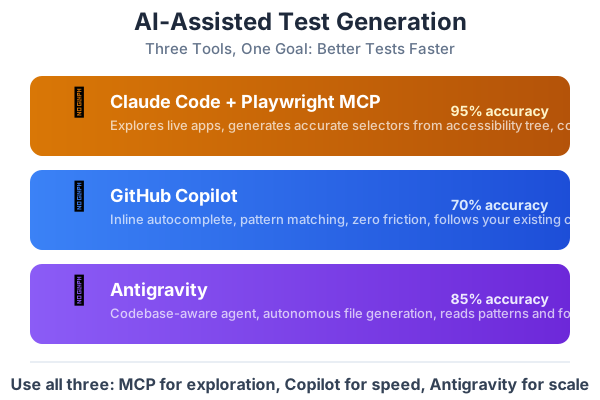
Accuracy: 95% — Selectors are verified against the live page.
GitHub Copilot:
// Generated from comments and open file context
test('blog search returns results', async ({ page }) => {
  await page.goto('/blog');
  await page.getByPlaceholder('Search posts...').fill('playwright');
  await expect(page.locator('.card-link')).not.toHaveCount(0);
});
Accuracy: 70% — Placeholder text and selector might be wrong.
Antigravity:
// Generated from codebase analysis
test('search filters posts by keyword', async ({ blogPage }) => {
  await blogPage.goto();
  await blogPage.searchFor('playwright');

  const count = await blogPage.getVisiblePostCount();
  expect(count).toBeGreaterThan(0);
});
Accuracy: 85% — Follows existing patterns but selectors need validation.
Decision Matrix: When to Use Which Tool
| Scenario | Best Tool | Why |
|---|---|---|
| Generate tests for a new page | Claude + MCP | It explores the live page and gets accurate selectors |
| Writing tests quickly while coding | Copilot | Zero friction, instant suggestions |
| Generate a complete test suite | Antigravity | Reads your codebase and generates multiple files |
| Debug a failing test | Claude Code | Paste the error, it understands context and fixes |
| Add a test to an existing file | Copilot | Pattern matching, follows existing style |
| Create Page Objects from scratch | Claude + MCP | Live page exploration gives accurate locators |
| Write BDD feature files | Antigravity | Understands domain and generates Gherkin |
| Quick data-driven test generation | Copilot | Suggest test data arrays from patterns |
The Combined Workflow I Use Daily
Here’s my actual daily workflow combining all three tools:
Morning — New tests with Claude + MCP:
- Start the dev server
- Open Claude Code
- “Use Playwright MCP to explore
/dashboardand write E2E tests” - Review, refine, commit
During coding — Copilot fills in the gaps:
- Create a new test file
- Write comments describing test scenarios
- Copilot generates the code
- Accept, refine, commit
End of sprint — Antigravity for coverage gaps:
- “Look at the test coverage report. Which pages have no tests?”
- Antigravity generates tests for uncovered pages
- Review, run, fix, commit
Debug time — Claude for fast fixes:
- Copy the test failure from CI
- Paste into Claude: “Fix this Playwright test failure”
- Claude understands the error and suggests the fix
Setting Up All Three for Your Team
Team Setup Checklist
## AI Test Generation Setup

### Claude Code + Playwright MCP
- [ ] Install Claude Code (`npm install -g @anthropic-ai/claude-code`)
- [ ] Add `.mcp.json` to repo root (shared config)
- [ ] Each team member runs `claude mcp add playwright`
- [ ] Test with: "Navigate to http://localhost:3000 and describe the page"

### GitHub Copilot
- [ ] Subscribe to GitHub Copilot ($10/month per developer)
- [ ] Install VS Code extension
- [ ] Enable Copilot for TypeScript files
- [ ] Recommended: Enable Copilot Chat for inline Q&A

### Antigravity (via Gemini)
- [ ] Ensure Antigravity extension is installed
- [ ] Verify codebase access and indexing
- [ ] Test with: "Generate a Playwright test for the login page"
Tips for Getting the Best AI Output
Regardless of which tool you use, these principles apply:
- Provide context — Tell the AI about your existing patterns, Page Objects, and conventions
- Be specific — “Write a test for the login page” < “Write a Playwright test using LoginPage POM that tests login with invalid credentials and verifies the error message”
- Iterate — First drafts need refinement. Feed errors back to the AI.
- Review everything — AI-generated tests are drafts, not finished products
- Run the tests — Never commit untested AI-generated code
In Part 7, we’ll dive deep into prompt engineering — the specific patterns, templates, and techniques for getting consistently high-quality test code from AI tools.
Series Navigation
- Part 1: From Manual Tester to Automation Engineer — The Mindset Shift
- Part 2: How to Plan Automation for Any Project — A Practical Framework
- Part 3: Your First Playwright Test — A Step-by-Step Guide for Manual Testers
- Part 4: Page Objects, Fixtures, and Real-World Playwright Patterns
- Part 5: BDD with Cucumber and Playwright — Writing Tests in Plain English
- Part 6: Using AI to Write Tests — Claude, GitHub Copilot, and Antigravity (you are here)
- Part 7: The QC Tester’s Prompt Engineering Playbook
- Part 8: Sharing the Work — How Dev and QC Teams Collaborate on Test Automation
- Part 9: Measuring and Improving Quality — Metrics That Actually Matter
- Part 10: The Complete Best Practices Checklist for Automation, AI, and Quality