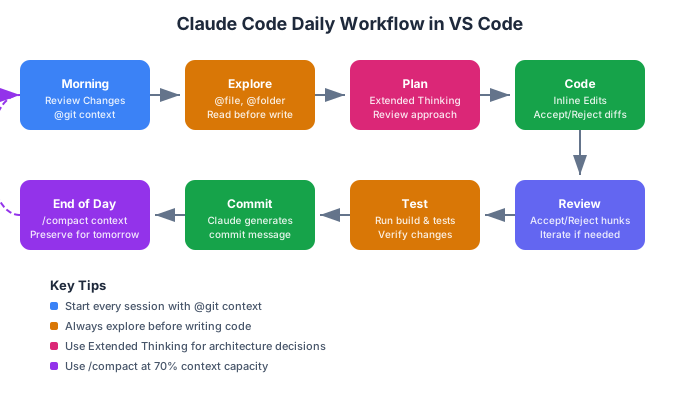
Monday morning. I pulled the latest from main, opened VS Code, and stared at 47 changed files from a weekend sprint by two teammates. The old workflow: open the PR, read the diff file by file, grep for patterns I didn’t recognize, open three Stack Overflow tabs for unfamiliar APIs, and spend 45 minutes building a mental model of what changed.
The new workflow: I typed “summarize what changed since Friday, focusing on breaking changes and new patterns” into Claude Code. Thirty seconds later, I had a structured walkthrough — which services were refactored, which APIs changed signatures, which new dependencies were added, and two potential issues the authors might have missed. I reviewed the flagged areas, left comments, and moved on to my own work.
That shift — from reading code to conversing with code — is what Claude Code in VS Code enables. In Part 1, we set up CLAUDE.md and taught Claude about our codebase. Now we’ll build the daily workflow that makes it all worthwhile.
Extension Setup and First Configuration
The Claude Code VS Code extension is separate from the CLI tool, though they share the same authentication. Install it from the Extensions panel:
- Open VS Code
- Press
Ctrl+Shift+X(Windows/Linux) orCmd+Shift+X(Mac) - Search “Claude Code”
- Install the official extension from Anthropic
- Click the spark icon in the sidebar to open the Claude Code panel
The extension requires VS Code 1.98.0 or higher. If you’ve already authenticated the CLI (claude auth), the extension picks up your credentials automatically.
Settings Worth Changing Immediately
Open VS Code settings (Ctrl+,) and search for “Claude Code”. Here are the settings I change on every machine:
Keyboard shortcut: I bind Ctrl+Shift+L to open the Claude Code panel. The default sidebar click works, but a keyboard shortcut is faster when you’re in the flow.
Auto-accept mode: Off by default — leave it off until you trust the workflow. We’ll discuss when to enable it later.
Notification level: Set to “errors only”. You don’t need a notification for every successful tool call.
CLI vs Extension — When to Use Each
The extension and CLI serve different purposes in my workflow:
| Use Case | Tool | Why |
|---|---|---|
| Code editing, refactoring | VS Code Extension | Inline diffs, visual review |
| Git operations, commits | CLI in terminal | Faster, direct output |
| Quick questions | Either | Whichever is open |
| File creation, scaffolding | VS Code Extension | See file tree update instantly |
| Build/test debugging | CLI in terminal | Full terminal output |
| Architecture planning | VS Code Extension | Extended Thinking + edit flow |
I keep the VS Code extension open in the sidebar and a terminal tab with the CLI ready. They don’t share conversation context, which is actually a feature — it means my architecture discussion in the extension doesn’t pollute my git workflow in the terminal.
The Chat Panel — Your Primary Interface
The Claude Code panel in VS Code is a chat interface, but it’s more capable than it looks. Here’s what each part does:
The input field supports multi-line prompts. Press Shift+Enter for new lines, Enter to submit (after running /terminal-setup).
The conversation thread shows your prompts, Claude’s responses, tool calls (file reads, edits, terminal commands), and inline diffs. Everything is transparent — you can see exactly what Claude read and what it changed.
The model selector lets you switch between Claude Sonnet (faster, cheaper) and Claude Opus (more capable). I use Sonnet for routine tasks and Opus for complex refactors or architecture decisions.
The Extended Thinking toggle (bottom-right) enables longer reasoning chains before Claude responds. More on this later.
@-Mentions — Giving Claude Context Without Copy-Pasting
This is the feature that changed my workflow the most. Instead of copy-pasting code snippets into prompts, you reference files, symbols, and context directly with @ mentions.
@file — Reference Specific Files
@src/components/BlogCard.astro Update this component to support
a "featured" badge when the post has featured: true in frontmatter.
Claude reads the entire file, understands its structure, and generates an edit that matches the existing patterns. No copy-pasting, no “here’s my component code” preambles.
You can reference multiple files:
@src/components/BlogCard.astro @src/styles/global.css
Update BlogCard to use the --color-accent-secondary variable
for the featured badge background.
@folder — Directory Context
@src/content/blog/ How many blog posts are tagged with "ai"?
List them with their publication dates.
Claude scans the directory, reads the frontmatter of each file, and gives you a structured answer. This is incredibly useful for content audits and codebase exploration.
@git — Commit History and Diffs
@git What changed in the last 3 commits? Any breaking changes?@git Show me the diff for the most recent commit that touched
the authentication module.This is what powers my Monday morning review. @git gives Claude access to your commit history, diffs, and branch information without you having to run git log and paste the output.
@terminal — Recent Command Output
@terminal The build just failed. What's wrong and how do I fix it?Claude reads the recent terminal output — including error messages, stack traces, and command results — and uses it as context. No more copying error messages.
@web — Documentation Lookups
@web What's the correct way to use Astro content collections
with custom Zod schemas in Astro 5?
Claude searches for current documentation and uses it to answer with up-to-date information. Useful when you’re working with recently released frameworks or APIs.
The Context Budget
Here’s something that took me a while to learn: more @-mentions isn’t always better. Each reference consumes context window tokens. If you reference 20 files, Claude has less room for reasoning and output.
My rule: reference the minimum files needed for the task. For editing a component, that’s usually the component file plus its stylesheet. For a cross-cutting change, it might be 3-5 files. If you need more than 5-7 file references, consider breaking the task into smaller pieces.
Inline Diffs — The Review Loop
When Claude suggests code changes, they appear as inline diffs directly in your editor. This is the killer feature of the VS Code extension over the CLI.
Each change shows:
- Red lines: code being removed
- Green lines: code being added
- Context lines: surrounding unchanged code
You can:
- Accept a change (click the checkmark or use the keyboard shortcut)
- Reject a change (click the X)
- Accept all changes in the file
- Reject all changes in the file
The workflow becomes a tight loop:
- Prompt: describe what you want
- Review: Claude shows inline diffs
- Accept/Reject: approve or deny each change
- Iterate: if something’s wrong, describe the issue and Claude adjusts
This is fundamentally different from copy-pasting AI output into your editor. You’re reviewing changes in context, with the full file visible, with syntax highlighting, with git diff integration. It’s closer to reviewing a pull request than pasting from ChatGPT.
Auto-Accept Mode
For certain tasks, reviewing every diff is overhead. Auto-accept mode tells Claude to apply changes immediately without waiting for your approval.
When I enable auto-accept:
- Generating boilerplate (test files, configuration, scaffolding)
- Repetitive mechanical changes (renaming across files, updating imports)
- Tasks where I’ve already reviewed Claude’s plan and trust the approach
When I keep it off:
- Business logic changes
- Security-sensitive code (authentication, authorization, data validation)
- Anything touching production infrastructure
- First time working on an unfamiliar part of the codebase
The safety net: even with auto-accept on, every change is tracked in git. A single git checkout -- . undoes everything. I always work on a branch when using auto-accept.
Multi-Tab Conversations
You can open multiple Claude Code panels — each maintains its own conversation context. I typically keep three:
Tab 1 — Feature Work: The main conversation for whatever feature I’m building. This has the full context of the current task, the files I’ve discussed, the decisions I’ve made.
Tab 2 — Debugging/Investigation: When I hit a bug or need to investigate something tangential, I open a new tab. This keeps the debugging context separate from my feature context, so neither pollutes the other.
Tab 3 — Documentation/Questions: Quick questions, API lookups, “how does this work” explorations. These conversations are short-lived and disposable.
The key insight: changes made in one tab are visible to other tabs via the filesystem. If Tab 1 edits a file, Tab 2 will see the updated file when it reads it next. But the conversation context is isolated — Tab 2 doesn’t know why Tab 1 made that change.
This isolation is a feature. It prevents context pollution between unrelated tasks.
Extended Thinking Toggle
Extended Thinking is a mode where Claude spends more time reasoning before responding. You toggle it with the button in the bottom-right of the chat panel.
What It Does
Normally, Claude starts generating a response immediately. With Extended Thinking, it first works through the problem internally — considering approaches, identifying edge cases, evaluating tradeoffs — before writing any output.
When to Enable It
Architecture decisions: “How should I structure the authentication system for this app?” Extended Thinking considers multiple approaches and picks the most suitable one for your specific context.
Complex refactors: “Refactor this 500-line component into smaller composable pieces.” Extended Thinking plans the decomposition before making the first cut.
Debugging race conditions: “Users report intermittent 500 errors on the checkout endpoint.” Extended Thinking traces through async flows and identifies timing-dependent paths.
Multi-file changes: “Update all API endpoints to use the new error response format.” Extended Thinking maps out which files need changes and in what order.
When to Skip It
Simple questions: “What does this function do?” — Claude can answer immediately.
Boilerplate generation: “Create a new test file for the UserService.” — Pattern matching, not deep reasoning.
Single-file edits: “Add a loading spinner to this component.” — Straightforward implementation.
The tradeoff is speed and cost. Extended Thinking takes longer and uses more tokens. For routine tasks, it’s overhead. For decisions that matter, it’s worth every second.
Daily Habits That Stuck
After six months of daily use, these are the habits that survived my workflow:
Morning: “What Changed Since Yesterday?”
Every morning, before reading any code:
@git Summarize all changes since yesterday. Focus on:
1. New files or deleted files
2. Modified APIs or interfaces
3. Anything that might break my current branch
This takes 30 seconds and replaces 15 minutes of manual PR review. I still review the actual code for critical changes, but I know what to focus on.
During Development: “Explore, Then Act”
Before writing any code, I ask Claude to read first:
@src/components/ I need to add a table of contents component
for blog posts. Before writing anything, analyze the existing
components and tell me:
1. What patterns they follow
2. Where the new component should live
3. What existing utilities I can reuse
This “explore first” pattern prevents Claude from generating code that doesn’t match your project’s conventions. It also surfaces existing utilities you might have forgotten about.
Code Review Assist
When reviewing a colleague’s PR:
@git Show me the diff for the last PR merged into main.
Review it for:
1. Potential bugs or edge cases
2. Missing error handling
3. Inconsistency with existing patterns
4. Security concerns
Claude doesn’t replace human review, but it catches mechanical issues that are easy to miss — unchecked null values, missing error boundaries, inconsistent naming.
End of Day: Preserve Context
When I’m stopping for the day but plan to continue tomorrow:
/compactThis summarizes the current conversation — what we discussed, what decisions were made, what files were changed — and compresses it into a concise context. Tomorrow, I can resume with the context preserved instead of rebuilding it from scratch.
If I’m switching to a completely different task, I use /clear instead to start fresh.
The 70% Rule
I monitor the context usage indicator. When it hits roughly 70% capacity, I either:
/compactif I’m continuing the same task- Start a new tab if I’m switching tasks
/clearif the current context is no longer useful
Waiting until 100% is too late — Claude’s responses degrade before you hit the hard limit. The 70% rule keeps the quality consistent.
Putting It Together: A Real Editing Session
Here’s a typical 15-minute session that demonstrates the full workflow. I needed to add reading time estimates to my blog cards:
Step 1 — Explore:
@src/components/BlogCard.astro @src/pages/blog/index.astro
I want to add reading time estimates to blog cards.
How is the blog listing currently working?
What data does BlogCard receive?
Claude reads both files, explains the data flow, and identifies that BlogCard receives props but doesn’t currently have a readingTime prop.
Step 2 — Plan (Extended Thinking on):
Plan the implementation. Where should reading time be calculated?
In the listing page or in the card? What's the formula?
Claude proposes calculating it in the listing page (where the post body is available) and passing it as a prop. Formula: Math.ceil(wordCount / 250).
Step 3 — Execute:
Implement it. Update both files.Claude generates inline diffs for both files. I review them, accept both, and the changes are applied.
Step 4 — Verify:
Run the build to make sure this compiles.Claude runs npm run build, it succeeds, and the feature is done. Four prompts, 15 minutes, zero Stack Overflow tabs.
What’s Next
In Part 3, we’ll connect Claude Code to external tools using MCP servers — GitHub for PR management, Playwright for testing, databases for querying, and more. The VS Code workflow from this post is your daily driver; MCP servers are the turbo.
This is Part 2 of a 5-part series on mastering Claude Code. Read the companion post on AI coding tools for broader context on AI-assisted development.
Series outline:
- CLAUDE.md & Project Setup — Installation, CLAUDE.md anatomy, memory architecture (Part 1)
- VS Code Integration — Extension setup, inline diffs, @-mentions, daily habits (this post)
- MCP Servers — Configuration, top servers by category, the 2-3 server rule (Part 3)
- Skills & GitHub — Custom skills, GitHub PR automation, team workflows (Part 4)
- Advanced Patterns — Plan-before-code, subagents, debugging, 6-month lessons (Part 5)