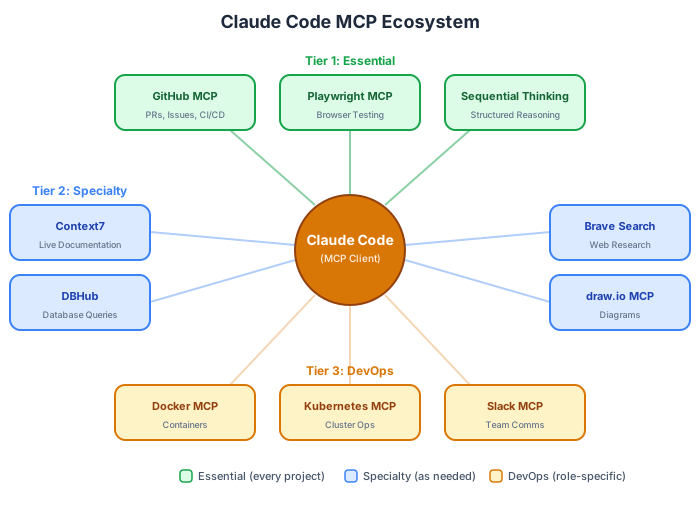
I discovered MCP servers and did what any developer does with a new tool: I went overboard.
GitHub MCP for PR management. Playwright MCP for browser testing. Context7 for documentation lookups. DBHub for database queries. Brave Search for web research. Docker MCP for container management. Slack MCP for team notifications. Figma MCP for design tokens. I configured twelve servers in my .mcp.json and felt like I’d built the ultimate development cockpit.
Then I tried to use it. Claude Code took 45 seconds to start — each server needed to initialize, register its tools, and negotiate capabilities. When I asked Claude to “review the latest PR,” it used the Slack MCP to search for PR discussions instead of the GitHub MCP to read the actual diff. With 80+ tools registered, Claude was overwhelmed by options and kept picking the wrong one.
I rolled back to three servers. Startup dropped to under 5 seconds. Tool selection became precise. My actual productivity tripled compared to the 12-server setup.
The lesson: MCP is about precision, not quantity. In Part 1 we configured CLAUDE.md, in Part 2 we built a VS Code workflow. Now we’ll connect Claude Code to the outside world — carefully.
What MCP Actually Is
MCP — Model Context Protocol — is an open standard created by Anthropic for connecting AI systems to external tools and data sources. Think of it as USB for AI: a universal interface that lets Claude Code plug into any service that implements the protocol.
The architecture is client-server:
- Claude Code is the MCP client. It discovers available tools, sends requests, and processes results.
- MCP servers are lightweight processes that expose tools. Each server specializes in one domain — GitHub, databases, web browsers, file systems, etc.
- The protocol is JSON-RPC over stdio. When Claude decides to use a tool, it sends a request to the appropriate server, which executes the action and returns the result.
Here’s what the handshake looks like under the hood:
// Claude Code asks: "What tools do you offer?"
{
  "method": "tools/list",
  "params": {}
}

// GitHub MCP Server responds:
{
  "tools": [
    {
      "name": "get_pull_request",
      "description": "Get details of a pull request",
      "inputSchema": {
        "type": "object",
        "properties": {
          "owner": { "type": "string" },
          "repo": { "type": "string" },
          "pull_number": { "type": "integer" }
        }
      }
    },
    // ... more tools
  ]
}
The key distinction from traditional plugins or API integrations: Claude decides when and how to use MCP tools based on your prompt. You don’t call specific tools — you describe what you want, and Claude picks the right tool from its available set. This is powerful when the tool set is curated. It’s chaotic when 80 tools compete for attention.
You can check which servers are connected and what tools are available with:
# Inside Claude Code
/mcp
Configuration: .mcp.json and the CLI
There are two ways to configure MCP servers, and you should use both.
Project-Level Config (.mcp.json)
The .mcp.json file lives at your repository root and defines MCP servers for the project. This file is committed to git, so your entire team shares the same tool configuration.
{
  "mcpServers": {
    "drawio": {
      "command": "npx",
      "args": ["@drawio/mcp"]
    }
  }
}
That’s the actual configuration from this blog’s repository. The draw.io MCP server lets Claude generate architecture diagrams — every diagram in this series was created with it.
The claude mcp add Command
For quick setup, use the CLI:
# Add a project-scoped server
claude mcp add --scope project github -- npx -y @modelcontextprotocol/server-github

# Add a user-scoped server (personal, all projects)
claude mcp add --scope user brave-search -- npx -y @anthropic-ai/mcp-server-brave

# Add with environment variables
claude mcp add --scope project postgres -- npx -y @anthropic-ai/mcp-server-postgres \
  --env POSTGRES_CONNECTION_STRING=postgresql://localhost:5432/mydb
Scope matters: --scope project writes to .mcp.json (shared with team). --scope user writes to ~/.claude/ (personal). Use project scope for tools the whole team needs. Use user scope for personal research tools.
A Real Multi-Server Config
Here’s a .mcp.json I use for a full-stack web application:
{
  "mcpServers": {
    "github": {
      "command": "npx",
      "args": ["-y", "@modelcontextprotocol/server-github"],
      "env": {
        "GITHUB_PERSONAL_ACCESS_TOKEN": "${GITHUB_TOKEN}"
      }
    },
    "playwright": {
      "command": "npx",
      "args": ["-y", "@anthropic-ai/mcp-server-playwright"]
    },
    "context7": {
      "command": "npx",
      "args": ["-y", "@anthropic-ai/mcp-server-context7"]
    }
  }
}
Three servers. GitHub for repository operations, Playwright for browser automation and testing, Context7 for real-time documentation lookups. That’s it. And it covers 90% of what I need day-to-day.
Tier 1: The Essential Servers
These are the servers I’d install on any project. They provide the highest return on the smallest setup cost.
GitHub MCP Server
What it does: Full GitHub integration — read repos, manage PRs, create issues, analyze CI/CD, search code across repositories.
Setup:
claude mcp add --scope project github -- \
  npx -y @modelcontextprotocol/server-github
You’ll need a GitHub Personal Access Token with repo scope. Set it as an environment variable:
export GITHUB_TOKEN=ghp_your_token_hereHow I actually use it:
Review the latest PR on this repo. Check for:
1. Any potential bugs
2. Missing test coverage
3. Style inconsistencies with the existing codebase
Claude reads the PR diff, compares it against patterns in the repository, and generates a structured review. It catches things like unchecked null values, inconsistent error handling, and missing edge cases.
Create an issue titled "Add dark mode support to dashboard"
with labels "enhancement" and "frontend". Include a checklist
of components that need updating based on the current codebase.
Claude scans the codebase, identifies all components with hardcoded colors, and creates an issue with a detailed implementation checklist. This alone saves me 20 minutes per feature request.
Why it’s Tier 1: Every project lives on GitHub (or similar). Having Claude interact directly with PRs and issues eliminates the constant context-switching between your editor and the browser.
Playwright MCP Server
What it does: Browser automation for testing. Claude can navigate websites, interact with elements, take screenshots, and verify behavior.
Setup:
claude mcp add --scope project playwright -- \
  npx -y @anthropic-ai/mcp-server-playwright
How I actually use it:
Navigate to http://localhost:4321/blog and verify:
1. The blog listing page loads without errors
2. All blog cards display a title, date, and tags
3. Clicking a tag filters the list correctly
4. The page is responsive at 375px, 768px, and 1440px widths
Claude launches a browser, navigates to the URL, inspects the page, clicks through interactions, and reports what it finds. It can even identify accessibility issues by reading the DOM structure.
I covered Playwright MCP in depth in my AI Test Automation series. The short version: it turns Claude Code into a QA engineer that never gets bored of regression testing.
Why it’s Tier 1: Testing is the area where AI saves the most time. Playwright MCP lets Claude verify your changes actually work, not just that they compile.
Sequential Thinking MCP Server
What it does: Structured, step-by-step reasoning for complex problems. Instead of Claude jumping straight to a solution, Sequential Thinking forces a methodical approach — define the problem, explore approaches, evaluate tradeoffs, then recommend.
Setup:
claude mcp add --scope user sequential-thinking -- \
  npx -y @modelcontextprotocol/server-sequential-thinking
How I actually use it:
I need to migrate our authentication from session-based to JWT
tokens. We have 40 API endpoints, a React frontend with stored
session cookies, and a mobile app using the same API.
Think through this step by step.
Without Sequential Thinking, Claude might jump straight to implementation. With it, Claude first maps out the migration path — which endpoints to change first, how to handle the transition period where both session and JWT auth need to work, what to do about the mobile app’s stored sessions, and what rollback plan to have if things go wrong.
Why it’s Tier 1: Complex architectural decisions benefit enormously from structured reasoning. This server makes Claude think before it acts — which is exactly what you want for high-stakes changes.
Tier 2: High-Value Specialty Servers
These servers aren’t for every project, but when you need them, they’re transformative.
Context7 — Real-Time Documentation
What it does: Fetches current documentation for any library or framework directly from the source. When Claude suggests using an API, Context7 verifies it against the latest docs.
Setup:
claude mcp add --scope user context7 -- \
  npx -y @anthropic-ai/mcp-server-context7
When it shines: Working with newly released frameworks or APIs where Claude’s training data might be outdated. I used it heavily when migrating to Astro 5 — the content collections API had changed significantly from v4, and Context7 kept Claude’s suggestions current.
DBHub — Universal Database Access
What it does: Query PostgreSQL, MySQL, SQLite, SQL Server, and MariaDB directly through Claude. Schema exploration, query writing, performance analysis.
Setup:
claude mcp add --scope project dbhub -- \
  npx -y @bytebase/dbhub \
  --env DATABASE_URL=postgresql://localhost:5432/mydb
When it shines: Debugging data issues, writing complex queries, or understanding an unfamiliar database schema. “Show me all users who signed up in the last 30 days but never completed onboarding” becomes a natural language query that Claude translates to SQL, executes, and formats the results.
Brave Search — Web Research
What it does: Web search during development. Claude can look up error messages, find library alternatives, research best practices.
Setup:
claude mcp add --scope user brave-search -- \
  npx -y @anthropic-ai/mcp-server-brave \
  --env BRAVE_API_KEY=your_api_key
When it shines: Debugging obscure errors. “Search for ‘ECONNREFUSED 127.0.0.1:5432 Astro build’ and tell me the most common solutions” is faster than opening a browser and sifting through results yourself.
draw.io MCP — Diagram Generation
What it does: Creates architecture diagrams, flowcharts, and visual documentation from Mermaid syntax or draw.io XML.
Setup:
claude mcp add --scope project drawio -- npx @drawio/mcpWhen it shines: This entire blog series was written with draw.io MCP generating the architecture diagrams. Every time I describe a system architecture in a blog post, Claude generates a visual representation. For documentation-heavy projects, it’s indispensable.
I have this configured in my portfolio project’s .mcp.json — it’s how every SVG diagram in my blog posts gets created.
Tier 3: Cloud and DevOps Servers
These make sense for DevOps engineers and infrastructure-heavy roles. For day-to-day application development, they’re usually overkill.
Docker MCP
What it does: Container management — build images, run containers, inspect logs, generate Dockerfiles.
When to use: If you’re building, debugging, or managing Docker containers regularly. If you just run docker compose up once a day, you don’t need this.
Kubernetes MCP
What it does: Cluster operations — deploy applications, troubleshoot pods, manage services.
When to use: Active Kubernetes development and operations. The containers/kubernetes-mcp-server on GitHub supports both Kubernetes and OpenShift.
Slack MCP
What it does: Search channels, read messages, send notifications.
When to use: Workflow automation that involves team communication. For example, “When the build fails, send a summary of the error to #engineering.”
AWS/Azure MCP Servers
What it does: Cloud resource management through natural language.
When to use: Infrastructure provisioning and debugging. Useful for SRE/DevOps roles, not typically needed for application development.
The “2-3 Servers Per Project” Rule
This is the single most important lesson from my MCP experimentation: fewer servers produce better results.
Why More Servers Hurt
Context window consumption: Each server registers its tools in Claude’s context. A server with 15 tools adds ~500 tokens just for tool descriptions. Twelve servers can eat 6,000+ tokens before you’ve even asked a question.
Tool confusion: With 80+ tools available, Claude sometimes picks the wrong one. I watched it use the Slack MCP to “search for PR comments” when the GitHub MCP had a dedicated tool for that. More choices means more opportunity for misselection.
Startup time: Each server is a separate process that needs to start, connect, and register. More servers = slower startup.
Debugging complexity: When something doesn’t work, you need to figure out which server caused the issue. With 12 servers, that’s a lot of possibilities.
The Decision Matrix
Choose your servers based on your project type:
| Project Type | Essential | Specialty | Optional |
|---|---|---|---|
| Web frontend | GitHub | Playwright | Context7 |
| API backend | GitHub | DBHub | Docker |
| Full-stack app | GitHub | Playwright | DBHub |
| Static blog | draw.io | Context7 | - |
| Data pipeline | DBHub | Sequential Thinking | - |
| DevOps/Infra | GitHub | Docker or K8s | AWS/Azure |
For this portfolio blog, I use exactly two: draw.io for diagrams and GitHub for PR management. That’s it. And the workflow is smooth, fast, and predictable.
Three Project-Specific Configs
Web application (.mcp.json):
{
  "mcpServers": {
    "github": {
      "command": "npx",
      "args": ["-y", "@modelcontextprotocol/server-github"],
      "env": { "GITHUB_PERSONAL_ACCESS_TOKEN": "${GITHUB_TOKEN}" }
    },
    "playwright": {
      "command": "npx",
      "args": ["-y", "@anthropic-ai/mcp-server-playwright"]
    }
  }
}
API backend (.mcp.json):
{
  "mcpServers": {
    "github": {
      "command": "npx",
      "args": ["-y", "@modelcontextprotocol/server-github"],
      "env": { "GITHUB_PERSONAL_ACCESS_TOKEN": "${GITHUB_TOKEN}" }
    },
    "dbhub": {
      "command": "npx",
      "args": ["-y", "@bytebase/dbhub"],
      "env": { "DATABASE_URL": "${DATABASE_URL}" }
    }
  }
}
Data pipeline (.mcp.json):
{
  "mcpServers": {
    "dbhub": {
      "command": "npx",
      "args": ["-y", "@bytebase/dbhub"],
      "env": { "DATABASE_URL": "${DATABASE_URL}" }
    },
    "sequential-thinking": {
      "command": "npx",
      "args": ["-y", "@modelcontextprotocol/server-sequential-thinking"]
    }
  }
}
Finding More Servers
The MCP ecosystem is growing fast. Here’s where to discover new servers:
Official repository: The modelcontextprotocol/servers repo on GitHub maintains the reference implementations. These are the most stable and well-documented.
Community curated lists:
- wong2/awesome-mcp-servers — the largest community list
- punkpeye/awesome-mcp-servers — another comprehensive collection
- mcpservers.org — searchable web directory with categories
Evaluation checklist: Before adding any server, I check:
- Stars and activity — Is it actively maintained?
- Tool count — Servers with 5-15 tools are manageable. 50+ tools will pollute your context.
- Security — Does it need credentials? What permissions does it request? Review the source code for anything suspicious.
- Overlap — Does it duplicate tools from a server you already have?
Troubleshooting MCP Issues
A few problems I’ve hit and how to fix them:
Server won’t start: Usually a missing environment variable. Check the server’s README for required env vars and make sure they’re set before launching Claude Code.
# Check if your env vars are set
echo $GITHUB_TOKEN
echo $DATABASE_URL
Wrong tool selection: Claude picks the wrong MCP tool for a task. Fix: be more specific in your prompt. Instead of “search for this issue,” try “use the GitHub MCP to search for issue #42 in this repository.”
Slow startup: Too many servers. Remove servers you’re not actively using. You can always add them back when you need them.
Server crashes mid-conversation: Some servers (especially community ones) aren’t battle-tested. Check the server’s output for error messages:
# Restart Claude Code with verbose MCP logging
claude --mcp-debug
What’s Next
In Part 4, we’ll build custom skills that automate your team’s specific workflows — changelog generation, security reviews, TDD scaffolding — and wire Claude Code into GitHub Actions for automated PR reviews. MCP servers connect Claude to external tools; skills teach it your team’s playbook.
This is Part 3 of a 5-part series on mastering Claude Code. Read the companion post on AI coding tools for broader context on AI-assisted development.
Series outline:
- CLAUDE.md & Project Setup — Installation, CLAUDE.md anatomy, memory architecture (Part 1)
- VS Code Integration — Extension setup, inline diffs, @-mentions, daily habits (Part 2)
- MCP Servers — Configuration, top servers by category, the 2-3 server rule (this post)
- Skills & GitHub — Custom skills, GitHub PR automation, team workflows (Part 4)
- Advanced Patterns — Plan-before-code, subagents, debugging, 6-month lessons (Part 5)