Three months ago, I opened Claude Code on a legacy .NET monolith at work and asked it to “add a health check endpoint.” It generated a beautiful ASP.NET Core controller — with IHealthCheck, proper dependency injection, even a custom DbContextHealthCheck. One problem: the project was running .NET Framework 4.8 with Web API 2. No ASP.NET Core. No built-in DI container. The generated code wouldn’t even parse, let alone compile.
I was annoyed. Not at Claude — at myself. I’d given it zero context about the project. No framework version. No architectural conventions. No folder structure. I’d asked a brilliant pair programmer to write code for a codebase it had never seen, and then got frustrated when it guessed wrong.
That afternoon, I spent 15 minutes writing a CLAUDE.md file. I described the framework, the folder structure, the naming conventions, and the three commands you need to build and test the project. The next prompt — the exact same “add a health check endpoint” request — produced a Web API 2 controller with a custom ApiController base class, matching the project’s existing patterns exactly.
That was the moment I understood: Claude Code is only as good as the context you give it. And the single most impactful thing you can do is write a CLAUDE.md file.
This is Part 1 of a 5-part series on mastering Claude Code. We’ll cover everything from initial setup to advanced workflow patterns. By the end of this post, you’ll have Claude Code installed, configured, and genuinely aware of your codebase.
Installing Claude Code
Claude Code runs as a CLI tool and as a VS Code extension. I use both — the CLI for quick terminal tasks and the extension for anything involving code editing. Here’s the setup:
# Install globally via npm
npm install -g @anthropic-ai/claude-code

# Verify installation
claude --version

# Authenticate (opens browser for API key setup)
claude auth
For VS Code, open the Extensions panel (Ctrl+Shift+X), search “Claude Code”, and install the official extension from Anthropic. It requires VS Code 1.98.0 or higher.
Once installed, you can launch Claude Code from the terminal with claude or from VS Code by clicking the spark icon in the sidebar. First launch will walk you through authentication.
One tip I wish I’d known earlier: run /terminal-setup inside Claude Code to configure Shift+Enter for multi-line prompts. Without this, you’ll keep accidentally submitting half-finished prompts.
# Inside Claude Code
/terminal-setup
That’s the basics. You can start using Claude Code right now — it works out of the box. But “works” and “works well” are very different things. The difference is context.
The /init Command — Your Starting Point
Before writing a CLAUDE.md from scratch, try /init. This command scans your repository and generates a starter CLAUDE.md by analyzing your file structure, package.json, framework choices, and common patterns.
# Navigate to your project root
cd /path/to/your/project

# Launch Claude Code
claude

# Generate starter CLAUDE.md
/init
For my Astro portfolio blog, /init produced something like this:
# Project Overview
Astro-based static site with TypeScript.

## Commands
- npm run dev: Start development server
- npm run build: Build for production

## Structure
- src/pages/: Route pages
- src/components/: Reusable components
- src/content/: Content collections
It’s a decent start. It identified the framework, found the npm scripts, and mapped the directory structure. But it’s also generic — it doesn’t know my coding conventions, my content schemas, how I handle theming, or that this is a Cloudflare Pages deployment with server-side functions in a separate functions/ directory.
This is where manual refinement makes the difference.
Anatomy of an Effective CLAUDE.md
A good CLAUDE.md answers five questions that Claude Code will have about every project:
- What is this? — Framework, language, purpose
- How do I run it? — Build, test, dev commands
- Where is everything? — Directory structure with context
- What are the rules? — Naming conventions, patterns, constraints
- What should I watch out for? — Gotchas, deployment considerations, common mistakes
Here’s the CLAUDE.md I use for this portfolio site — the one you’re reading right now:
# CLAUDE.md — AI Agent Guidelines for porfolio-thuan

## Project Overview
Personal portfolio & blog for Luong Hong Thuan (Technical Lead, 15+ years).
Built with **Astro 5** as a static site, deployed on **Cloudflare Pages**.

## Tech Stack
- **Framework**: Astro 5.17+ (static output mode)
- **Integrations**: MDX, Sitemap, RSS
- **Language**: TypeScript (strict mode)
- **Styling**: Scoped CSS in `.astro` files, CSS variables for theming
- **Hosting**: Cloudflare Pages + Pages Functions
- **Content**: Markdown/MDX collections with Zod schemas

## Commands
npm run dev       # Dev server at http://localhost:4321
npm run build     # Production build → ./dist
npm run preview   # Preview built site

## Project Structure
src/
├── components/        # PascalCase .astro components
├── content/
│   ├── blog/          # Markdown blog posts
│   └── projects/      # Markdown project entries
├── layouts/
│   └── BaseLayout.astro
├── pages/             # File-based routing
├── styles/
│   └── global.css     # CSS variables, theme definitions
└── content.config.ts  # Zod schemas for collections
functions/
└── api/contact.ts     # Cloudflare Pages Function

## Coding Conventions
- Components: PascalCase filenames (BlogCard.astro)
- Pages: lowercase/kebab-case (blog/index.astro)
- Indentation: 2 spaces
- CSS: Scoped <style> in each component, use CSS variables
- Props: Define with interface Props {} in component frontmatter

## Key Reminders
- This is a static site — no SSR
- Server-side logic goes in functions/ (Cloudflare Pages Functions)
- Blog posts with draft: true are excluded from builds
- Theme toggle persists via localStorage
Notice what’s in there and what isn’t. I include the content schema structure (so Claude knows the frontmatter format for blog posts), the deployment target (so it doesn’t suggest server-side rendering), and the CSS convention (so it uses CSS variables instead of hardcoded colors). I don’t include every file path or every config option — that would be noise.
The Three Anti-Patterns
After helping my team adopt CLAUDE.md across six projects, I’ve seen three mistakes repeatedly:
1. Too Generic
# Bad
- Write clean, maintainable code
- Follow best practices
- Use proper error handling
This tells Claude nothing it doesn’t already know. Be specific: “Use Result<T> pattern for error handling, never throw exceptions from service methods.”
2. Too Verbose
# Bad — don't paste your entire tsconfig
{
  "compilerOptions": {
    "target": "ES2022",
    "module": "ESNext",
    "moduleResolution": "bundler",
    // ... 40 more lines
  }
}
Claude can read your tsconfig.json directly. Only mention config details that are surprising or important: “TypeScript strict mode is enabled. Path aliases: @/ maps to src/.”
3. Too Prescriptive
# Bad — step-by-step instructions for every task
To add a new API endpoint:
1. Create a file in src/routes/api/
2. Import the Router from express
3. Define the handler function
4. Export the router
5. Register in src/routes/index.ts
This is documentation, not guidelines. Claude can figure out the steps by reading existing endpoints. Instead, tell it the pattern: “API routes follow RESTful conventions. See src/routes/api/users.ts as the reference implementation.”
CLAUDE.md for Different Tech Stacks
The structure adapts to your stack. Here are three examples I’ve used in production:
For a .NET Microservice:
## Tech Stack
- .NET 10, C# 14, Minimal APIs
- EF Core 10 + PostgreSQL
- MediatR for CQRS
- FluentValidation for request validation

## Architecture
Clean Architecture with 4 layers: Domain, Application, Infrastructure, Api
See /docs/architecture.md for detailed layer rules.

## Testing
- xUnit + FluentAssertions + NSubstitute
- Run: dotnet test --no-build
- Integration tests use Testcontainers (Docker required)

## Key Rules
- Domain layer has ZERO NuGet dependencies
- All commands/queries go through MediatR pipeline
- No business logic in controllers
For a Next.js Frontend:
## Tech Stack
- Next.js 15 (App Router), React 19, TypeScript
- Tailwind CSS v4
- Zustand for client state, TanStack Query for server state

## Conventions
- Components: src/components/{feature}/{ComponentName}.tsx
- Server Components by default, 'use client' only when needed
- API routes in src/app/api/ (Route Handlers)

## Key Rules
- Never import server-only code in client components
- All data fetching in Server Components or Route Handlers
- Use Tailwind classes, no CSS modules or styled-components
For a Python Data Pipeline:
## Tech Stack
- Python 3.13, Poetry for dependency management
- Polars for data processing (NOT pandas)
- SQLAlchemy 2.0 + Alembic for database migrations
- Pydantic v2 for data validation

## Commands
poetry run pytest           # Run tests
poetry run alembic upgrade head  # Apply migrations
poetry run python -m app    # Run pipeline

## Key Rules
- Type hints on ALL function signatures
- Polars LazyFrames preferred over eager DataFrames
- Every pipeline step must be idempotent
Memory Architecture — How Claude Code Remembers
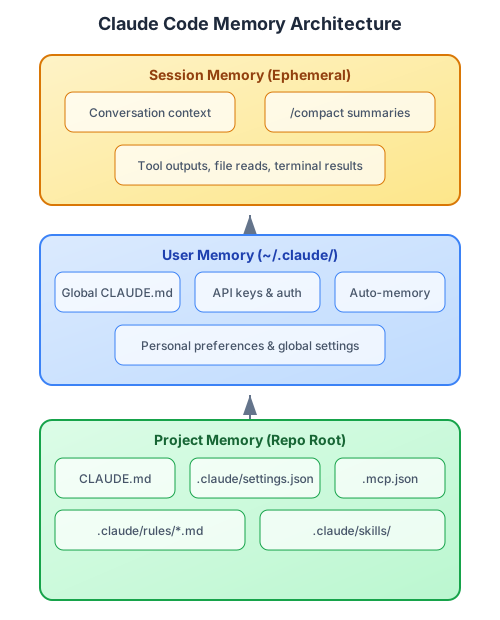
Claude Code has three tiers of memory, and understanding them changed how I work with it.
Tier 1: Project Memory (CLAUDE.md + .claude/)
This is the foundation. When Claude Code launches in a directory, it looks for:
CLAUDE.mdat the repository root — loaded automatically into every conversation.claude/settings.json— project-level configuration (shared with team via git).claude/settings.local.json— personal project settings (gitignored).mcp.json— MCP server configuration (we’ll cover this in Part 3)
The CLAUDE.md content becomes part of Claude’s system prompt. It’s always there, always active. This is why keeping it concise matters — every line consumes context window space.
your-project/
├── CLAUDE.md                    # Project guidelines (git tracked)
├── .claude/
│   ├── settings.json            # Shared project settings
│   ├── settings.local.json      # Personal settings (gitignored)
│   └── skills/                  # Custom skills (Part 4)
├── .mcp.json                    # MCP server config (Part 3)
└── src/
    └── ...
Tier 2: User Memory (~/.claude/)
Your personal configuration lives in ~/.claude/ in your home directory. This includes:
- Global CLAUDE.md — preferences that apply to ALL projects (your coding style, preferred languages, workflow habits)
- API credentials and authentication state
- Auto-memory — notes Claude Code saves automatically when you tell it to “remember this”
I keep my global CLAUDE.md minimal:
## Personal Preferences
- Prefer explicit types over inference when the type isn't obvious
- Use descriptive variable names, not abbreviations
- When generating git commit messages, use conventional commits format
Tier 3: Session Memory (Ephemeral)
Each conversation has its own context window — the running memory of everything discussed, every file read, every tool output. This is where the magic happens, but it’s also finite.
Key commands for managing session memory:
# Summarize and compress the current conversation
# Use when context is getting full (~70% capacity)
/compact

# Nuclear reset — clear everything and start fresh
/clear
When to use /compact: After completing a major milestone. You’ve just finished implementing a feature and want to move on to the next one. /compact summarizes what was done and frees up context space.
When to use /clear: When switching to a completely unrelated task. Debugging a CSS issue while your context is full of database migration details? /clear and start fresh.
My rule of thumb: If Claude starts “forgetting” decisions from earlier in the conversation — repeating questions, contradicting itself, or losing track of file changes — it’s time to /compact or start a new session.
Multi-Level CLAUDE.md — The Hidden Power Feature
Here’s something most people miss: CLAUDE.md files can exist at multiple levels.
monorepo/
├── CLAUDE.md                      # Root: monorepo-wide conventions
├── packages/
│   ├── api/
│   │   └── CLAUDE.md              # API-specific: .NET conventions, API patterns
│   ├── web/
│   │   └── CLAUDE.md              # Web-specific: React conventions, component patterns
│   └── shared/
│       └── CLAUDE.md              # Shared: library publishing rules, versioning
The root CLAUDE.md loads automatically. Subdirectory CLAUDE.md files load on-demand when Claude reads files in that directory. This means you can have:
- Root: shared build commands, CI/CD conventions, code review standards
- API package: endpoint naming, authentication patterns, database migration rules
- Web package: component structure, state management patterns, styling conventions
For a monorepo with different tech stacks per package, this is essential. The root CLAUDE.md stays lean (general conventions), while each package has its own detailed context.
Rules Files — Modular Project Instructions
Beyond CLAUDE.md, you can create modular rule files in .claude/rules/:
.claude/
├── rules/
│   ├── testing.md          # Testing conventions and patterns
│   ├── security.md         # Security requirements and checks
│   ├── api-design.md       # REST API design guidelines
│   └── code-review.md      # What to check in code reviews
Rules files are like CLAUDE.md fragments — they let you organize project instructions by topic without bloating a single file. Claude loads them as needed based on the task context.
This is particularly useful for teams. Each rule file can be owned by a different team member:
- The security lead maintains
security.md - The QA lead maintains
testing.md - The architect maintains
api-design.md
Everyone contributes to the AI’s knowledge without stepping on each other’s changes.
Putting It All Together
Let me show you the practical impact. Here’s what happens when I ask Claude Code to “add a new blog post about Docker” in this portfolio project — with and without proper setup.
Without CLAUDE.md:
# Prompt: "Add a new blog post about Docker basics"

# Claude generates:
# - A file at src/pages/blog/docker-basics.md (wrong location)
# - With frontmatter fields that don't match the schema
# - Using styled-components for code highlighting (not in the project)
# - Missing tags, missing description format
With CLAUDE.md:
# Same prompt: "Add a new blog post about Docker basics"

# Claude generates:
# - A file at src/content/blog/docker-basics.md (correct collection)
# - With proper frontmatter: title, description, pubDate, tags
# - Using the project's markdown format with proper code blocks
# - Tags in lowercase: ["docker", "devops", "self-hosted"]
# - Matching the conversational, first-person writing tone
The difference isn’t intelligence — it’s context. The same model, the same capabilities, dramatically different results.
Your First 15 Minutes
Here’s what I recommend for any project:
- Install Claude Code (
npm install -g @anthropic-ai/claude-code) - Run
/initin your project root to generate a starter CLAUDE.md - Refine the generated file — add your conventions, remove the generic advice
- Add your build/test commands — these are the most referenced sections
- Commit the CLAUDE.md — it’s a project artifact, version-controlled like any other config
That’s 15 minutes. The payoff starts immediately — every interaction with Claude Code will be more accurate, more consistent, and more aligned with your project’s actual patterns.
In Part 2, we’ll set up the VS Code extension and build a daily workflow that replaces manual code reviews, Stack Overflow searches, and half your debugging sessions. The setup from this post is the foundation — everything in the next four parts builds on having a well-configured project.
This is Part 1 of a 5-part series on mastering Claude Code. Read the companion post on AI coding tools for broader context on AI-assisted development.
Series outline:
- CLAUDE.md & Project Setup — Installation, CLAUDE.md anatomy, memory architecture (this post)
- VS Code Integration — Extension setup, inline diffs, @-mentions, daily habits (Part 2)
- MCP Servers — Configuration, top servers by category, the 2-3 server rule (Part 3)
- Skills & GitHub — Custom skills, GitHub PR automation, team workflows (Part 4)
- Advanced Patterns — Plan-before-code, subagents, debugging, 6-month lessons (Part 5)