I’ll be honest: when I started the .NET Framework 4.6 → .NET 10 migration, I expected the AI to handle most of the mechanical work and for the interesting problems to be architectural. That was half right.
The AI was excellent at the mechanical work. But the interesting problems weren’t architectural — they were the legacy code that the original developers never bothered to document, the System.Web dependencies buried three layers deep, and the stored procedures that encoded 10-year-old business decisions that nobody alive on the current team could explain.
This post covers the full technical journey: what you’ll encounter, what AI can and cannot do, and the specific prompt patterns we used at each step.
The Starting Line: Assess Before You Migrate
Before touching any code, I want to reinforce one thing: read Part 2 and complete Phase 1 (Assessment) fully before starting this post’s steps. Everything here assumes you have:
- The .NET Portability Analyzer output for your solution
- A dependency map of all your projects and their relationships
- The Hidden Logic Register started for your high-risk components
- Your AI Context Document templates ready
If you don’t have those, stop here. Going straight to migration without assessment is how you get beautiful-looking migrated code that silently breaks financial calculations.
With that said — let’s migrate.
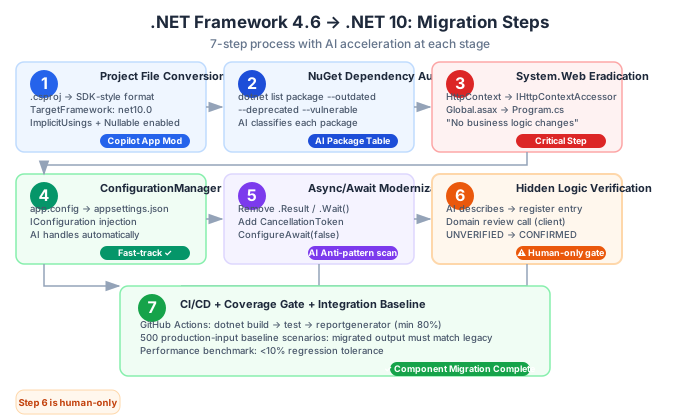
Step 1: The Project File Conversion
The first mechanical step: convert old-style .csproj files to the modern SDK-style format. This is where GitHub Copilot App Modernization (available in Visual Studio 2022 17.14+) shines brightest.
The old format (your legacy files look like this):
<?xml version="1.0" encoding="utf-8"?>
<Project ToolsVersion="15.0" xmlns="http://schemas.microsoft.com/developer/msbuild/2003">
  <Import Project="$(MSBuildExtensionsPath)\$(MSBuildToolsVersion)\Microsoft.CSharp.targets" />
  <PropertyGroup>
    <Configuration Condition=" '$(Configuration)' == '' ">Debug</Configuration>
    <Platform Condition=" '$(Platform)' == '' ">AnyCPU</Platform>
    <ProjectGuid>{A4F1D7C2-1234-5678-ABCD-000000000001}</ProjectGuid>
    <OutputType>Library</OutputType>
    <AppDesignerFolder>Properties</AppDesignerFolder>
    <RootNamespace>LegacyApp.Services</RootNamespace>
    <AssemblyName>LegacyApp.Services</AssemblyName>
    <TargetFrameworkVersion>v4.6</TargetFrameworkVersion>
    <FileAlignment>512</FileAlignment>
    <AutoGenerateBindingRedirects>true</AutoGenerateBindingRedirects>
  </PropertyGroup>
  <!-- ... hundreds more lines ... -->
</Project>
The new SDK-style format:
<Project Sdk="Microsoft.NET.Sdk">
  <PropertyGroup>
    <TargetFramework>net10.0</TargetFramework>
    <RootNamespace>LegacyApp.Services</RootNamespace>
    <ImplicitUsings>enable</ImplicitUsings>
    <Nullable>enable</Nullable>
  </PropertyGroup>
  <ItemGroup>
    <PackageReference Include="Dapper" Version="2.1.35" />
  </ItemGroup>
</Project>
AI prompt for project file conversion:
Convert this .NET Framework 4.6 .csproj file to the modern SDK-style format
for .NET 10. Rules:
- Target framework: net10.0
- Enable ImplicitUsings and Nullable
- Convert all PackageReference entries, looking up the latest stable
  .NET-compatible version for each package
- Remove: assembly file includes (*.cs files are auto-included in SDK style)
- Remove: imports to Microsoft.CSharp.targets and similar
- Flag any package that has no .NET 10 compatible version with a TODO comment
- Do NOT include ProjectGuid — SDK-style projects don't need it

Here is the file:
[paste .csproj]
For most class library projects, this conversion is 95% complete from AI output. The remaining 5% is usually a package or two that AI doesn’t know the latest version of, or a custom build target that needs manual inspection.
What to watch for after conversion:
Run dotnet build immediately after conversion. The errors you get are your migration roadmap. Don’t try to fix everything at once — address them category by category.
Step 2: The NuGet Dependency Audit
After project file conversion, you have a list of everyone who is actually installed. Run:
dotnet list package --outdated
dotnet list package --deprecated
dotnet list package --vulnerable
The --deprecated and --vulnerable flags reveal packages that won’t just fail to compile — they’ll compile fine but put you at security risk. Treat deprecated packages as migration blockers, not optional cleanup.
AI prompt for package migration planning:
Here is my current package list from a .NET Framework 4.6 application
I'm migrating to .NET 10:

[paste package list with versions]

For each package, tell me:
1. Is there a .NET 10 compatible version? If so, what version?
2. Is this package deprecated? If so, what's the recommended replacement?
3. Is there a better modern alternative? (e.g., if using packages that
   have been superseded by .NET built-ins)
4. Migration complexity: Auto (just update version) / Simple (minor code
   changes) / Complex (significant refactoring)

Format as a table.
Common outcomes from this audit:
| Old Package | Migration Path |
|---|---|
Newtonsoft.Json | Works on .NET 10, but consider migrating to System.Text.Json for better performance |
log4net | Still works, but Microsoft.Extensions.Logging is the modern .NET standard |
AutoMapper | Works on .NET 10 — but evaluate if you need it or can use C# 14 extension members |
Unity / Ninject | Replace with Microsoft.Extensions.DependencyInjection (built-in) |
LINQ2SQL | Not supported in .NET 10 — requires full rewrite to EF Core or Dapper |
System.Web.* | Does not exist in .NET — major migration work needed |
Step 3: The System.Web Eradication
This is where most migrations get painful. System.Web is the .NET Framework’s web infrastructure — and it doesn’t exist in .NET 10. If your application was built on ASP.NET Web Forms, MVC, or Web API for .NET Framework, every dependency on System.Web is a required rewrite.
Common System.Web patterns and their .NET 10 equivalents:
// OLD: System.Web.HttpContext
var user = System.Web.HttpContext.Current.User;
var session = System.Web.HttpContext.Current.Session["key"];
var request = System.Web.HttpContext.Current.Request;

// NEW: IHttpContextAccessor (injected via DI)
public class MyService(IHttpContextAccessor httpContextAccessor)
{
    private readonly IHttpContextAccessor _http = httpContextAccessor;

    public async Task DoSomething()
    {
        var user = _http.HttpContext?.User;
        // Sessions need explicit configuration in .NET 10
        // Request access through endpoint handlers, not static context
    }
}
// OLD: Global.asax Application_Start
protected void Application_Start()
{
FilterConfig.RegisterGlobalFilters(GlobalFilters.Filters);
RouteConfig.RegisterRoutes(RouteTable.Routes);
}
// NEW: Program.cs (Minimal API style)
var builder = WebApplication.CreateBuilder(args);
builder.Services.AddControllers(); // or Minimal API endpoints
// No Global.asax — everything is in Program.cs
var app = builder.Build();
app.UseAuthentication();
app.UseAuthorization();
app.MapControllers();
app.Run();AI prompt for System.Web migration:
I'm migrating this class from .NET Framework 4.6 to .NET 10. It currently
depends on System.Web for [describe what it does].

Architecture context:
- Target: ASP.NET Core Minimal API with .NET 10
- Session management: handled by distributed cache (Redis)
- Authentication: JWT Bearer tokens via IHttpContextAccessor
- HTTP context: injected via constructor, not static access

Here is the class:
[paste class]

Please:
1. Identify every System.Web dependency
2. Rewrite using .NET 10 patterns per the architecture above
3. Mark any business logic you can't be certain about with TODO comments
4. Don't change business logic — only change the infrastructure patterns
That last instruction — “don’t change business logic, only infrastructure patterns” — is crucial. AI will sometimes helpfully “improve” your business logic while migrating infrastructure code. You don’t want that. Any business logic change requires domain verification, and silently changing it is how hidden logic bugs are introduced.
Step 4: The ConfigurationManager Migration
Every .NET Framework app has a System.Configuration.ConfigurationManager usage buried somewhere. In .NET 10, you use Microsoft.Extensions.Configuration instead.
// OLD:
var connectionString = ConfigurationManager.ConnectionStrings["LegacyDB"].ConnectionString;
var timeout = int.Parse(ConfigurationManager.AppSettings["RequestTimeout"]);

// NEW (inject IConfiguration):
public class DataService(IConfiguration config)
{
    private readonly string _connectionString = config.GetConnectionString("LegacyDB")
        ?? throw new InvalidOperationException("LegacyDB connection string not found");
    private readonly int _timeout = config.GetValue<int>("AppSettings:RequestTimeout", 30);
}
Your app.config or web.config becomes appsettings.json:
{
  "ConnectionStrings": {
    "LegacyDB": "Server=...;Database=...;Trusted_Connection=true;"
  },
  "AppSettings": {
    "RequestTimeout": 30,
    "MaxRetries": 3
  }
}
AI handles this pattern extremely well — it’s well-documented and follows a consistent pattern. Fast-track this migration category.
Step 5: Async/Await Modernization
.NET Framework 4.6 had async/await, but many legacy codebases either didn’t use it or used it incorrectly (e.g., .Result and .Wait() calls that cause deadlocks in certain hosting contexts).
// OLD: Synchronous, or fake-async with blocking calls
public string GetCustomerName(int id)
{
    return _repository.GetCustomerAsync(id).Result.Name; // ← Deadlock risk!
}

// Also old: Task without ConfigureAwait
public async Task<string> GetCustomerName(int id)
{
    var customer = await _repository.GetCustomerAsync(id); // ← Missing ConfigureAwait
    return customer.Name;
}

// NEW: Proper async all the way down
public async Task<string> GetCustomerNameAsync(int id, CancellationToken ct = default)
{
    var customer = await _repository.GetCustomerAsync(id, ct).ConfigureAwait(false);
    return customer.Name;
}
AI prompt for async modernization:
Review this class and identify all async anti-patterns:
- .Result or .Wait() calls on Tasks
- Synchronous wrappers around async methods
- Missing CancellationToken parameters
- Missing ConfigureAwait(false) on library code

For each issue:
1. Explain why it's a problem
2. Provide the corrected code

Important rules:
- Add CancellationToken ct = default to ALL async methods
- Use ConfigureAwait(false) on ALL awaits in non-UI library code
- Propagate cancellation token through all async calls

[paste class]
Step 6: The Hidden Logic Problem — What AI Cannot Do
Here’s the hard truth: for every legacy codebase we’ve seen, there’s a method like this:
public decimal CalculatePremium(Policy policy, Customer customer)
{
    decimal base = policy.BaseAmount;

    if (policy.Type == "C" && customer.Region == "HCM" && policy.Year < 2019)
        base = base * 1.12m; // ← What is this?

    if (customer.LoyaltyYears > 5 && policy.Type != "B")
        base = base * 0.95m; // ← And this?

    // Added by Tran Minh, 2017-03-14
    if (policy.Channel == "BROKER" && base > 50_000_000)
        base = base - (base * 0.03m); // ← This comment is not helpful

    return base;
}
AI can describe what this code does — it applies a 12% surcharge in certain conditions, a 5% loyalty discount in others, and a 3% broker commission reduction for large policies. But AI cannot tell you if these rules are correct, still applicable, or accidentally inverted from the original intent.
This is where your Hidden Logic Register is non-negotiable.
Our process for hidden logic:
- AI analyzes: “What does this method do?” → We get a plain-English description
- We add it to the Hidden Logic Register with an “UNVERIFIED” status
- We schedule a domain verification conversation with the client or anyone who might remember why this rule exists
- Only after verification do we mark it “CONFIRMED” and allow migration to proceed
- The test for this method is written from the confirmed specification, not from the code
For our project, we had 23 hidden logic entries. 19 were confirmed as-is. 3 needed modification (rules that had changed but were never updated in code). 1 turned out to be a bug that had been in production for 8 years — migrating it faithfully would have migrated the bug.
Finding that bug paid for our entire assessment phase.
Step 7: Build Configuration and CI/CD
Once your core migrations are complete, update your CI/CD pipeline to use the .NET 10 SDK:
# GitHub Actions example
- name: Setup .NET 10
  uses: actions/setup-dotnet@v4
  with:
    dotnet-version: '10.0.x'

- name: Restore dependencies
  run: dotnet restore

- name: Build
  run: dotnet build --no-restore --configuration Release

- name: Test with coverage
  run: |
    dotnet test --no-build --configuration Release \
      --collect:"XPlat Code Coverage" \
      --results-directory ./coverage

- name: Coverage report
  uses: codecov/codecov-action@v4
  with:
    directory: ./coverage
For the 80% coverage requirement, add a coverage threshold failure:
<!-- in your .runsettings file -->
<RunSettings>
  <DataCollectionRunSettings>
    <DataCollectors>
      <DataCollector friendlyName="XPlat Code Coverage">
        <Configuration>
          <Exclude>[*.Tests]*</Exclude>
        </Configuration>
      </DataCollector>
    </DataCollectors>
  </DataCollectionRunSettings>
  <RunConfiguration>
    <MaxCpuCount>0</MaxCpuCount>
  </RunConfiguration>
</RunSettings>
And in CI, use reportgenerator to enforce the threshold:
- name: Check coverage threshold
  run: |
    dotnet tool install -g dotnet-reportgenerator-globaltool
    reportgenerator \
      -reports:./coverage/**/coverage.cobertura.xml \
      -targetdir:./coverage-report \
      -reporttypes:Html \
      -minimumcoveragepercentage:80
If coverage falls below 80%, the build fails. The client sees a green build and knows the threshold is maintained.
Handling the “Everything Compiles But Nothing Works” Problem
This is the most demoralizing migration failure mode: your code compiles, all your unit tests pass, CI is green, and then you find out in testing that the migrated application produces different results than the legacy version for specific inputs.
Usually this happens because:
1. The unit tests tested the wrong things. They verified that CalculatePremium returns a number. They didn’t verify that it returns the correct number for the edge case that happens every third month.
2. The AI replaced a pattern with a similar-but-not-identical one. For example, DateTime.Now → DateTime.UtcNow is often recommended as a modernization. But if your legacy system stored local times and your queries filter by date, you’ve now changed time zone behavior.
3. Behavioral differences in serialization. Newtonsoft.Json and System.Text.Json have different defaults: case sensitivity, null handling, enum serialization. If you migrated JSON serialization without checking every output contract, you may have broken downstream consumers.
The integration baseline test is your safety net:
// Before migration: capture outputs
var legacyResults = legacy.GetPremiumCalculations(testInputs);
File.WriteAllText("legacy_baseline.json", JsonSerializer.Serialize(legacyResults));

// After migration: compare against baseline
var newResults = migrated.GetPremiumCalculations(testInputs);
var expected = JsonSerializer.Deserialize<PremiumResult[]>(File.ReadAllText("legacy_baseline.json"));

Assert.Equal(expected, newResults, new PremiumResultComparer());
Run your legacy application against a representative set of production inputs, capture the outputs, and then run your migrated application against the same inputs and diff the results. Any difference is a migration regression.
We generated 500 test cases from production data (anonymized) for our baseline. Found 7 regressions. Fixed all 7. Shipped with confidence.
The Completed Migration Checklist
Before declaring any component “migrated”:
- Project file converted to SDK-style, targeting
net10.0 - All NuGet packages updated to .NET-compatible versions
- No
System.Webreferences remaining - No
ConfigurationManagerusage - No
.Resultor.Wait()on async calls -
CancellationTokenpropagated through async methods - All hidden logic entries in this component verified with client
- Unit test coverage ≥ 80% for this component
- Integration baseline tests pass (output matches legacy for test input set)
- Performance benchmarks run — no regression > 10%
- Feature flag implemented for production rollout
This is Part 3 of a 7-part series: The AI-Powered Migration Playbook.
Series outline: