The most expensive mistake I’ve made in CMS projects isn’t a bad database query or a memory leak. It’s a bad content model.
On one client project, I created a single “Page” document type with a Rich Text Editor body field and called it flexible. The marketer could put anything in there, right? Six weeks later, the SEO specialist couldn’t figure out why structured data wasn’t working (there were no discrete fields for the data), the developer building the mobile app couldn’t parse the hero section from the body HTML, and the marketer was copying and pasting HTML tables from one page to another because there was no “Pricing Table” component.
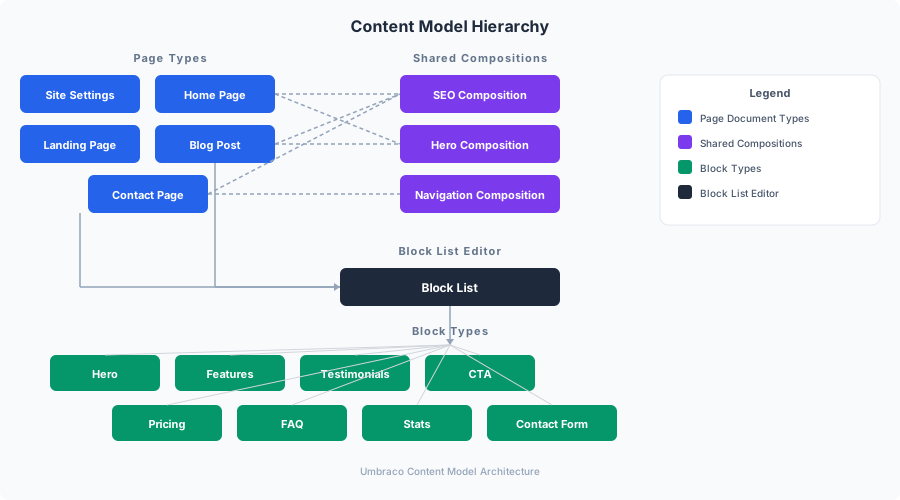
A good content model isn’t about what developers think content looks like. It’s about what content is — structured, typed, reusable, and queryable. In Umbraco, that means document types with compositions, and Block List editors that give marketers a page builder without giving them a way to break the design.
In Part 1, we set up the MarketingOS architecture and got the development stack running. Now we’re going to build the content model that makes this template reusable across clients — without rebuilding the content structure for every new site.
Document Types: The Content Blueprint
A document type in Umbraco defines the fields (properties) available when creating content. Think of it as a TypeScript interface for your content — it defines the shape, and editors fill in the values.
For MarketingOS, we need a hierarchy of document types that covers every page a typical marketing website needs, while keeping each type focused and composable.
The Page Hierarchy
Site Settings (not a page — global configuration)
├── Home Page
├── Landing Page (the workhorse — block-based)
├── Blog Listing
│   └── Blog Post
├── Contact Page
├── About Page
└── Generic Content Page (fallback)
Each document type inherits properties from shared compositions (more on those in a moment). Here’s how the most important one — the Landing Page — is structured:
// This is conceptual — in practice you create document types
// through the Umbraco backoffice or via code-first approach

// Landing Page document type
// Alias: landingPage
// Compositions: SEO, Hero, Navigation, OpenGraph
// Properties (in addition to compositions):
//   - blocks: Block List (the page builder)
//   - ctaText: Textstring
//   - ctaUrl: URL Picker
In Umbraco 17, you can create document types through the backoffice UI or programmatically. For MarketingOS, I use the backoffice for initial design (so I can iterate with real content), then export the configuration for version control.
The Home Page
The Home Page is the only page that uses a fixed layout rather than free-form blocks. Marketing home pages have a predictable structure, and constraining it prevents editors from accidentally turning the home page into a landing page.
Properties:
| Property | Alias | Type | Tab |
|---|---|---|---|
| Hero Heading | heroHeading | Textstring | Hero |
| Hero Subheading | heroSubheading | Textarea | Hero |
| Hero CTA Text | heroCtaText | Textstring | Hero |
| Hero CTA URL | heroCtaUrl | URL Picker | Hero |
| Hero Background | heroBackground | Media Picker | Hero |
| Featured Blocks | featuredBlocks | Block List | Content |
| Testimonials | testimonials | Block List (Testimonial only) | Social Proof |
| Partners/Logos | partnerLogos | Media Picker (multiple) | Social Proof |
| Bottom CTA Heading | bottomCtaHeading | Textstring | CTA |
| Bottom CTA Text | bottomCtaText | Textarea | CTA |
| Bottom CTA URL | bottomCtaUrl | URL Picker | CTA |
The Landing Page
This is the most important document type. It’s a blank canvas powered by blocks. Marketers build pages by stacking blocks — Hero, Feature Grid, Testimonials, Pricing, FAQ, CTA — in any order they want. No developer needed.
Properties:
| Property | Alias | Type | Tab |
|---|---|---|---|
| Page Blocks | pageBlocks | Block List | Content |
That’s it. One property. The Block List does all the work. Every other field comes from compositions.
Blog Post
Properties:
  - title (from composition)
  - content: Rich Text Editor
  - excerpt: Textarea (max 300 chars)
  - featuredImage: Media Picker
  - author: Content Picker (Team Member)
  - category: Tags
  - publishDate: Date Picker
  - readingTime: Numeric (auto-calculated via custom property editor)
Contact Page
Properties:
  - introHeading: Textstring
  - introText: Rich Text Editor
  - formBlocks: Block List (Contact Form block only)
  - officeLocations: Block List (Location block)
  - mapEmbed: Textarea (for Google Maps embed code)
Compositions: Reusable Property Groups
Compositions are Umbraco’s answer to multiple inheritance for content types. Instead of duplicating SEO fields on every document type, you create a composition once and attach it to any document type that needs it.
MarketingOS uses four compositions:
SEO Composition
Every page on a marketing website needs SEO control. This composition adds meta fields that the Next.js frontend uses for generateMetadata.
Composition: SEO Settings
Alias: seoSettings

Properties:
  - metaTitle: Textstring (placeholder: "Defaults to page name")
  - metaDescription: Textarea (max 160 chars, with character counter)
  - canonicalUrl: URL Picker (optional — only set for cross-domain canonical)
  - noIndex: True/False (default: false)
  - noFollow: True/False (default: false)
  - focusKeyword: Textstring (for internal SEO tracking, not rendered)
The metaTitle defaults to the page name if left empty. The metaDescription has a 160-character limit enforced in the property editor — no more truncated descriptions in search results because an editor wrote a paragraph.
Open Graph Composition
Social sharing metadata deserves its own composition because not every document type needs it (e.g., Site Settings).
Composition: Open Graph
Alias: openGraph

Properties:
  - ogTitle: Textstring (placeholder: "Defaults to meta title")
  - ogDescription: Textarea (placeholder: "Defaults to meta description")
  - ogImage: Media Picker (recommended: 1200x630px)
  - ogType: Dropdown (website, article, product)
  - twitterCard: Dropdown (summary, summary_large_image)
Hero Composition
Most page types (except Blog Post and Site Settings) need a hero section. The composition provides consistent hero fields while allowing each page type to override or extend them.
Composition: Hero Settings
Alias: heroSettings

Properties:
  - heroHeading: Textstring
  - heroSubheading: Textarea
  - heroCtaText: Textstring
  - heroCtaUrl: URL Picker
  - heroImage: Media Picker
  - heroImageAlt: Textstring
  - heroOverlayOpacity: Slider (0-100, default: 40)
Navigation Composition
Controls how each page appears in the site navigation.
Composition: Navigation
Alias: navigationSettings

Properties:
  - showInMainNav: True/False (default: true)
  - showInFooterNav: True/False (default: false)
  - navLabel: Textstring (placeholder: "Defaults to page name")
  - navOrder: Numeric (default: 0)
  - navIcon: Textstring (Lucide icon name, e.g., "home", "briefcase")
The Block-Based Page Builder
This is where MarketingOS becomes powerful. The Block List editor in Umbraco lets you define a catalog of content blocks that editors can stack to build pages. Each block has its own fields, its own preview in the backoffice, and maps to a specific React component in the Next.js frontend.
Block Catalog
Here are the blocks MarketingOS ships with:
1. Hero Block
The primary attention-grabber at the top of landing pages.
Element Type: heroBlock
Properties:
  - heading: Textstring (required)
  - subheading: Textarea
  - ctaText: Textstring
  - ctaUrl: URL Picker
  - secondaryCtaText: Textstring
  - secondaryCtaUrl: URL Picker
  - backgroundImage: Media Picker
  - backgroundVideo: Media Picker (MP4)
  - overlayColor: Color Picker (default: #000000)
  - overlayOpacity: Slider (0-100, default: 40)
  - alignment: Dropdown (left, center, right)
  - height: Dropdown (full, large, medium)
The Hero Block supports both image and video backgrounds, dual CTAs (primary + secondary), and configurable overlay for text readability. These are decisions that would otherwise require a developer for each variation.
2. Feature Grid Block
Displays features/services in a grid layout with icons.
Element Type: featureGridBlock
Properties:
  - heading: Textstring
  - subheading: Textarea
  - features: Block List (nested — Feature Item blocks)
  - columns: Dropdown (2, 3, 4)
  - style: Dropdown (cards, minimal, icons-only)

Element Type: featureItem (nested)
Properties:
  - icon: Textstring (Lucide icon name)
  - title: Textstring (required)
  - description: Textarea (required)
  - linkUrl: URL Picker
  - linkText: Textstring
3. Testimonial Block
Social proof carousel or grid.
Element Type: testimonialBlock
Properties:
  - heading: Textstring
  - testimonials: Block List (nested — Testimonial Item)
  - layout: Dropdown (carousel, grid, single-featured)
  - showRating: True/False (default: true)

Element Type: testimonialItem (nested)
Properties:
  - quote: Textarea (required)
  - authorName: Textstring (required)
  - authorTitle: Textstring
  - authorCompany: Textstring
  - authorImage: Media Picker
  - rating: Slider (1-5)
4. CTA Section Block
Full-width call-to-action section.
Element Type: ctaSectionBlock
Properties:
  - heading: Textstring (required)
  - description: Textarea
  - ctaText: Textstring (required)
  - ctaUrl: URL Picker (required)
  - secondaryCtaText: Textstring
  - secondaryCtaUrl: URL Picker
  - backgroundColor: Color Picker
  - backgroundImage: Media Picker
  - style: Dropdown (centered, split-with-image, banner)
5. Pricing Table Block
Displays pricing tiers with feature comparison.
Element Type: pricingBlock
Properties:
  - heading: Textstring
  - subheading: Textarea
  - showToggle: True/False (monthly/annual toggle)
  - plans: Block List (nested — Pricing Plan)

Element Type: pricingPlan (nested)
Properties:
  - name: Textstring (required)
  - monthlyPrice: Textstring (required, e.g., "$29")
  - annualPrice: Textstring (e.g., "$24")
  - description: Textarea
  - features: Repeatable Textstrings
  - ctaText: Textstring (default: "Get Started")
  - ctaUrl: URL Picker
  - highlighted: True/False (marks the "recommended" plan)
  - badge: Textstring (e.g., "Most Popular")
6. FAQ Accordion Block
SEO-friendly FAQ section with schema.org markup.
Element Type: faqBlock
Properties:
  - heading: Textstring
  - subheading: Textarea
  - questions: Block List (nested — FAQ Item)
  - generateSchema: True/False (default: true, enables JSON-LD FAQ schema)

Element Type: faqItem (nested)
Properties:
  - question: Textstring (required)
  - answer: Rich Text Editor (required)
The generateSchema toggle is important — when enabled, the Next.js frontend generates JSON-LD FAQ structured data automatically. This gives pages a chance at FAQ rich snippets in Google search results. We’ll cover the JSON-LD implementation in Part 4.
7. Statistics Counter Block
Animated numbers for social proof (e.g., “10,000+ customers”).
Element Type: statsBlock
Properties:
  - heading: Textstring
  - stats: Block List (nested — Stat Item)
  - backgroundColor: Color Picker

Element Type: statItem (nested)
Properties:
  - number: Textstring (required, e.g., "10,000+")
  - label: Textstring (required, e.g., "Happy Customers")
  - icon: Textstring (Lucide icon name)
  - prefix: Textstring (e.g., "$")
  - suffix: Textstring (e.g., "+", "%")
8. Contact Form Block
Configurable contact form with field selection.
Element Type: contactFormBlock
Properties:
  - heading: Textstring
  - description: Textarea
  - fields: Block List (nested — Form Field)
  - submitText: Textstring (default: "Send Message")
  - successMessage: Textarea
  - recipientEmail: Email

Element Type: formField (nested)
Properties:
  - label: Textstring (required)
  - fieldType: Dropdown (text, email, phone, textarea, select)
  - placeholder: Textstring
  - required: True/False (default: false)
  - options: Textarea (for select fields, one option per line)
Block List Configuration
In the Umbraco backoffice, the Landing Page’s pageBlocks property uses a Block List editor configured to allow all eight block types. The configuration controls:
- Allowed blocks: Which element types can be added
- Min/Max items: Optional limits (we set no minimum, no maximum)
- Label template: Custom labels in the editor, e.g.,
{{heading}}shows the block’s heading in the content tree - Custom stylesheet: Backoffice-only CSS for block previews
{
  "blockListConfiguration": {
    "blocks": [
      {
        "contentElementTypeKey": "hero-block-guid",
        "label": "Hero: {{heading}}",
        "editorSize": "large",
        "forceHideContentEditorInOverlay": false
      },
      {
        "contentElementTypeKey": "feature-grid-block-guid",
        "label": "Features: {{heading}}",
        "editorSize": "medium"
      },
      {
        "contentElementTypeKey": "testimonial-block-guid",
        "label": "Testimonials: {{heading}}",
        "editorSize": "medium"
      },
      {
        "contentElementTypeKey": "cta-section-block-guid",
        "label": "CTA: {{heading}}",
        "editorSize": "small"
      },
      {
        "contentElementTypeKey": "pricing-block-guid",
        "label": "Pricing: {{heading}}",
        "editorSize": "large"
      },
      {
        "contentElementTypeKey": "faq-block-guid",
        "label": "FAQ: {{heading}}",
        "editorSize": "medium"
      },
      {
        "contentElementTypeKey": "stats-block-guid",
        "label": "Stats: {{heading}}",
        "editorSize": "small"
      },
      {
        "contentElementTypeKey": "contact-form-block-guid",
        "label": "Contact Form: {{heading}}",
        "editorSize": "medium"
      }
    ],
    "validationLimit": {
      "min": null,
      "max": null
    },
    "useLiveEditing": true
  }
}
The useLiveEditing: true setting enables inline editing in Umbraco’s backoffice — editors see a live preview of the block while editing its properties. This is a significant UX improvement for non-technical users.
Block Grid vs Block List: When to Use Which
Umbraco offers both Block List (vertical stack of blocks) and Block Grid (two-dimensional grid layout). Here’s my take:
Block List is the default choice for MarketingOS. Marketing pages are fundamentally vertical — hero, then features, then testimonials, then CTA. Each block handles its own internal layout (the Feature Grid has columns, the Pricing Table has columns). Block List is simpler to configure, simpler to render, and harder for editors to break.
Block Grid makes sense when you need side-by-side content at the page level — for example, a two-column layout with text on the left and an image on the right. We don’t include this in the base template because:
- It adds complexity to the content model
- Responsive behavior for arbitrary grid layouts is harder to get right
- Most marketing page layouts don’t need page-level grids — they need full-width sections with internal layouts
If a client needs it, Block Grid can be added as an extension. But the base template ships with Block List only.
Site Settings: Global Configuration
Not every piece of content belongs on a page. Site-wide settings like company name, logo, social media links, and default SEO values live in a dedicated Site Settings document type that’s a single node at the content root.
Document Type: Site Settings
Alias: siteSettings
Is Element: false
Allowed at root: true
Max instances: 1

Properties:
  Tab: General
    - siteName: Textstring (required)
    - logo: Media Picker
    - logoDark: Media Picker (for dark mode)
    - favicon: Media Picker
    - primaryColor: Color Picker
    - accentColor: Color Picker

  Tab: Contact
    - companyName: Textstring
    - email: Email
    - phone: Textstring
    - address: Textarea
    - googleMapsUrl: URL Picker

  Tab: Social Media
    - facebookUrl: URL Picker
    - twitterUrl: URL Picker
    - linkedinUrl: URL Picker
    - instagramUrl: URL Picker
    - youtubeUrl: URL Picker

  Tab: SEO Defaults
    - defaultMetaTitle: Textstring
    - defaultMetaDescription: Textarea
    - defaultOgImage: Media Picker
    - googleSiteVerification: Textstring
    - googleAnalyticsId: Textstring
    - gtmContainerId: Textstring

  Tab: Footer
    - footerText: Rich Text Editor
    - copyrightText: Textstring (default: "© {year} {siteName}")
    - footerColumns: Block List (Footer Column blocks)

  Tab: AI Content
    - enableAiContent: True/False (default: false)
    - geminiModel: Dropdown (gemini-2.0-flash, gemini-2.5-pro)
    - defaultTone: Dropdown (professional, casual, technical, friendly)
    - brandVoiceGuidelines: Textarea
    - enabledLanguages: Tags
The Site Settings node is queried once and cached. The Next.js frontend fetches it at build time and includes it in the layout. Updates to Site Settings trigger a full site revalidation (not just individual pages).
Content Delivery API Deep Dive
With the content model defined, let’s look at how the Content Delivery API exposes it to the Next.js frontend.
Enabling and Configuring
We already enabled the API in Part 1. Here’s the full configuration:
{
  "Umbraco": {
    "CMS": {
      "DeliveryApi": {
        "Enabled": true,
        "PublicAccess": true,
        "ApiKey": "your-secret-api-key-for-preview",
        "RichTextOutputAsJson": true,
        "Media": {
          "Enabled": true
        },
        "MemberAuthorization": {
          "Enabled": false
        },
        "OutputCache": {
          "Enabled": true,
          "ContentDuration": "00:05:00",
          "MediaDuration": "00:30:00"
        }
      }
    }
  }
}
Key settings:
RichTextOutputAsJson: true— Returns Rich Text Editor content as structured JSON instead of raw HTML. This lets the frontend render it with proper styling.OutputCache— Server-side cache for API responses. 5 minutes for content, 30 minutes for media. Reduces database queries under load.ApiKey— Only needed for preview mode (accessing unpublished content). Published content is publicly accessible.
Querying Content
The Content Delivery API exposes several endpoints:
# Get content by route (the primary endpoint for page rendering)
GET /umbraco/delivery/api/v2/content/item/{route}

# Get the homepage
GET /umbraco/delivery/api/v2/content/item/

# Get a landing page
GET /umbraco/delivery/api/v2/content/item/services

# Query content with filters
GET /umbraco/delivery/api/v2/content?filter=contentType:blogPost&sort=createDate:desc&skip=0&take=10

# Get content by ID
GET /umbraco/delivery/api/v2/content/item/{id}

# Get media
GET /umbraco/delivery/api/v2/media/{id}
What a Landing Page Response Looks Like
Here’s a real API response for a Landing Page with blocks:
{
  "name": "Our Services",
  "createDate": "2026-02-20T10:30:00Z",
  "updateDate": "2026-02-24T14:15:00Z",
  "route": {
    "path": "/services",
    "startItem": {
      "id": "site-root-guid",
      "path": "home"
    }
  },
  "id": "page-guid-here",
  "contentType": "landingPage",
  "properties": {
    "seoSettings": {
      "metaTitle": "Our Services | Agency Name",
      "metaDescription": "Discover our full range of digital marketing services designed to grow your business.",
      "canonicalUrl": null,
      "noIndex": false,
      "noFollow": false,
      "focusKeyword": "digital marketing services"
    },
    "openGraph": {
      "ogTitle": "",
      "ogDescription": "",
      "ogImage": {
        "url": "/media/og-services.jpg",
        "width": 1200,
        "height": 630
      },
      "ogType": "website",
      "twitterCard": "summary_large_image"
    },
    "navigationSettings": {
      "showInMainNav": true,
      "showInFooterNav": true,
      "navLabel": "Services",
      "navOrder": 2,
      "navIcon": "briefcase"
    },
    "pageBlocks": {
      "items": [
        {
          "content": {
            "contentType": "heroBlock",
            "properties": {
              "heading": "Digital Marketing That Delivers Results",
              "subheading": "We help businesses grow with data-driven strategies and creative execution.",
              "ctaText": "Get a Free Consultation",
              "ctaUrl": "/contact",
              "backgroundImage": {
                "url": "/media/hero-services.jpg",
                "focalPoint": { "left": 0.5, "top": 0.3 },
                "width": 1920,
                "height": 1080
              },
              "overlayColor": "#1a1a2e",
              "overlayOpacity": 50,
              "alignment": "left",
              "height": "large"
            }
          }
        },
        {
          "content": {
            "contentType": "featureGridBlock",
            "properties": {
              "heading": "What We Do",
              "subheading": "Comprehensive digital marketing solutions",
              "columns": 3,
              "style": "cards",
              "features": {
                "items": [
                  {
                    "content": {
                      "contentType": "featureItem",
                      "properties": {
                        "icon": "search",
                        "title": "SEO Optimization",
                        "description": "Rank higher on Google with our proven SEO strategies.",
                        "linkUrl": "/services/seo",
                        "linkText": "Learn more"
                      }
                    }
                  },
                  {
                    "content": {
                      "contentType": "featureItem",
                      "properties": {
                        "icon": "megaphone",
                        "title": "Social Media Marketing",
                        "description": "Build your brand presence across all social platforms.",
                        "linkUrl": "/services/social-media",
                        "linkText": "Learn more"
                      }
                    }
                  },
                  {
                    "content": {
                      "contentType": "featureItem",
                      "properties": {
                        "icon": "bar-chart-3",
                        "title": "Analytics & Reporting",
                        "description": "Data-driven insights to optimize your marketing ROI.",
                        "linkUrl": "/services/analytics",
                        "linkText": "Learn more"
                      }
                    }
                  }
                ]
              }
            }
          }
        },
        {
          "content": {
            "contentType": "faqBlock",
            "properties": {
              "heading": "Frequently Asked Questions",
              "subheading": null,
              "generateSchema": true,
              "questions": {
                "items": [
                  {
                    "content": {
                      "contentType": "faqItem",
                      "properties": {
                        "question": "How long does SEO take to show results?",
                        "answer": "<p>Typically 3-6 months for significant improvements in organic rankings, depending on your industry's competitiveness and your current domain authority.</p>"
                      }
                    }
                  }
                ]
              }
            }
          }
        }
      ]
    }
  }
}
This is the shape our Next.js frontend will consume. Every block has a contentType that maps to a React component, and properties that become component props.
Media Delivery
Umbraco serves media (images, documents) through its own media system. The Content Delivery API includes media URLs in content responses. For the Next.js frontend, we need to configure next/image to allow Umbraco’s media domain:
// Already configured in next.config.ts from Part 1
images: {
  remotePatterns: [
    {
      protocol: 'https',
      hostname: process.env.UMBRACO_HOST || 'localhost',
      port: '',
      pathname: '/media/**',
    },
  ],
}
Umbraco’s Image Cropper property editor supports focal points and predefined crop sizes. The API returns these with the image:
{
  "url": "/media/hero-services.jpg",
  "focalPoint": { "left": 0.5, "top": 0.3 },
  "width": 1920,
  "height": 1080,
  "crops": [
    { "alias": "thumbnail", "width": 300, "height": 300 },
    { "alias": "hero", "width": 1920, "height": 600 },
    { "alias": "og", "width": 1200, "height": 630 }
  ]
}
We can use the crop URLs directly with next/image for optimized, responsive images:
// Utility to build Umbraco image URLs with crops
export function getUmbracoImageUrl(
  media: UmbracoMedia,
  crop?: string
): string {
  const baseUrl = process.env.UMBRACO_URL || '';

  if (crop) {
    const cropData = media.crops?.find(c => c.alias === crop);
    if (cropData) {
      return `${baseUrl}${media.url}?rmode=crop&width=${cropData.width}&height=${cropData.height}&rxy=${media.focalPoint.left},${media.focalPoint.top}`;
    }
  }

  return `${baseUrl}${media.url}`;
}
TypeScript Types from Umbraco
One of the biggest pain points in headless CMS development is type safety. The API returns JSON, and without types, every property access is a guess. MarketingOS solves this with auto-generated TypeScript types.
The OpenAPI Spec
Umbraco 17’s Content Delivery API publishes an OpenAPI (Swagger) specification at:
GET /umbraco/swagger/delivery/swagger.jsonThis spec describes every content type, property, and API endpoint. We use openapi-typescript to generate TypeScript types from it:
# Generate types from Umbraco's OpenAPI spec
npx openapi-typescript http://localhost:5000/umbraco/swagger/delivery/swagger.json \
    -o src/lib/umbraco/generated-types.ts
This generates types like:
// Auto-generated — do not edit manually
export interface components {
  schemas: {
    LandingPageContentModel: {
      name: string;
      createDate: string;
      updateDate: string;
      route: {
        path: string;
        startItem: { id: string; path: string };
      };
      id: string;
      contentType: 'landingPage';
      properties: {
        seoSettings: SeoSettingsModel;
        openGraph: OpenGraphModel;
        navigationSettings: NavigationModel;
        pageBlocks: BlockListModel;
      };
    };
    // ... more types
  };
}
Hand-Written Types for Better DX
The auto-generated types are verbose. For the integration layer, I write cleaner types that wrap the generated ones:
// frontend/src/lib/umbraco/types.ts

// Base types
export interface UmbracoMedia {
  url: string;
  focalPoint: { left: number; top: number };
  width: number;
  height: number;
  crops?: Array<{
    alias: string;
    width: number;
    height: number;
  }>;
}

export interface UmbracoLink {
  url: string;
  title: string;
  target: string;
  type: 'content' | 'media' | 'external';
}

// Composition types
export interface SeoProperties {
  metaTitle: string | null;
  metaDescription: string | null;
  canonicalUrl: string | null;
  noIndex: boolean;
  noFollow: boolean;
  focusKeyword: string | null;
}

export interface OpenGraphProperties {
  ogTitle: string | null;
  ogDescription: string | null;
  ogImage: UmbracoMedia | null;
  ogType: 'website' | 'article' | 'product';
  twitterCard: 'summary' | 'summary_large_image';
}

export interface NavigationProperties {
  showInMainNav: boolean;
  showInFooterNav: boolean;
  navLabel: string | null;
  navOrder: number;
  navIcon: string | null;
}

// Block types
export interface HeroBlockProps {
  heading: string;
  subheading: string | null;
  ctaText: string | null;
  ctaUrl: string | null;
  secondaryCtaText: string | null;
  secondaryCtaUrl: string | null;
  backgroundImage: UmbracoMedia | null;
  backgroundVideo: UmbracoMedia | null;
  overlayColor: string;
  overlayOpacity: number;
  alignment: 'left' | 'center' | 'right';
  height: 'full' | 'large' | 'medium';
}

export interface FeatureItem {
  icon: string;
  title: string;
  description: string;
  linkUrl: string | null;
  linkText: string | null;
}

export interface FeatureGridBlockProps {
  heading: string | null;
  subheading: string | null;
  features: FeatureItem[];
  columns: 2 | 3 | 4;
  style: 'cards' | 'minimal' | 'icons-only';
}

export interface TestimonialItem {
  quote: string;
  authorName: string;
  authorTitle: string | null;
  authorCompany: string | null;
  authorImage: UmbracoMedia | null;
  rating: number;
}

export interface TestimonialBlockProps {
  heading: string | null;
  testimonials: TestimonialItem[];
  layout: 'carousel' | 'grid' | 'single-featured';
  showRating: boolean;
}

export interface FaqItem {
  question: string;
  answer: string;
}

export interface FaqBlockProps {
  heading: string | null;
  subheading: string | null;
  questions: FaqItem[];
  generateSchema: boolean;
}

export interface PricingPlan {
  name: string;
  monthlyPrice: string;
  annualPrice: string | null;
  description: string | null;
  features: string[];
  ctaText: string;
  ctaUrl: string | null;
  highlighted: boolean;
  badge: string | null;
}

export interface PricingBlockProps {
  heading: string | null;
  subheading: string | null;
  showToggle: boolean;
  plans: PricingPlan[];
}

export interface CtaSectionBlockProps {
  heading: string;
  description: string | null;
  ctaText: string;
  ctaUrl: string;
  secondaryCtaText: string | null;
  secondaryCtaUrl: string | null;
  backgroundColor: string | null;
  backgroundImage: UmbracoMedia | null;
  style: 'centered' | 'split-with-image' | 'banner';
}

export interface StatItem {
  number: string;
  label: string;
  icon: string | null;
  prefix: string | null;
  suffix: string | null;
}

export interface StatsBlockProps {
  heading: string | null;
  stats: StatItem[];
  backgroundColor: string | null;
}

export interface FormField {
  label: string;
  fieldType: 'text' | 'email' | 'phone' | 'textarea' | 'select';
  placeholder: string | null;
  required: boolean;
  options: string | null;
}

export interface ContactFormBlockProps {
  heading: string | null;
  description: string | null;
  fields: FormField[];
  submitText: string;
  successMessage: string | null;
  recipientEmail: string;
}

// Block union type
export type BlockContent =
  | { contentType: 'heroBlock'; properties: HeroBlockProps }
  | { contentType: 'featureGridBlock'; properties: FeatureGridBlockProps }
  | { contentType: 'testimonialBlock'; properties: TestimonialBlockProps }
  | { contentType: 'ctaSectionBlock'; properties: CtaSectionBlockProps }
  | { contentType: 'pricingBlock'; properties: PricingBlockProps }
  | { contentType: 'faqBlock'; properties: FaqBlockProps }
  | { contentType: 'statsBlock'; properties: StatsBlockProps }
  | { contentType: 'contactFormBlock'; properties: ContactFormBlockProps };

// Page types
export interface UmbracoPage {
  name: string;
  createDate: string;
  updateDate: string;
  route: { path: string };
  id: string;
  contentType: string;
  properties: {
    seoSettings?: SeoProperties;
    openGraph?: OpenGraphProperties;
    navigationSettings?: NavigationProperties;
    pageBlocks?: { items: Array<{ content: BlockContent }> };
    [key: string]: unknown;
  };
}

export interface UmbracoPagedResult<T> {
  total: number;
  items: T[];
}
The BlockContent discriminated union is the key type. When the block renderer receives a block, TypeScript can narrow the type based on contentType, giving us full type safety:
function renderBlock(block: BlockContent) {
  switch (block.contentType) {
    case 'heroBlock':
      // block.properties is HeroBlockProps — fully typed
      return <HeroBlock {...block.properties} />;
    case 'featureGridBlock':
      // block.properties is FeatureGridBlockProps
      return <FeatureGridBlock {...block.properties} />;
    // ... etc
  }
}
Keeping Types in Sync
Types go stale when the content model changes. MarketingOS solves this with a CI check:
# In CI pipeline — fail if types are out of date
npx openapi-typescript http://umbraco:5000/umbraco/swagger/delivery/swagger.json \
    -o /tmp/generated-types.ts

diff /tmp/generated-types.ts src/lib/umbraco/generated-types.ts || {
    echo "ERROR: Umbraco types are out of date. Run 'npm run generate-types'"
    exit 1
}
We’ll wire this into the GitHub Actions pipeline in Part 7.
Content Validation: Protecting the Template
A reusable template only works if editors can’t break the design. Umbraco’s property validation handles the basics (required fields, character limits), but MarketingOS adds custom validation for template-specific rules.
// MarketingOS.Web/Validators/LandingPageValidator.cs
using Umbraco.Cms.Core.Events;
using Umbraco.Cms.Core.Notifications;

namespace MarketingOS.Web.Validators;

public class LandingPageValidator : INotificationHandler<ContentSavingNotification>
{
    public void Handle(ContentSavingNotification notification)
    {
        foreach (var content in notification.SavedEntities)
        {
            if (content.ContentType.Alias != "landingPage") continue;

            // Validate SEO: meta description should be 50-160 chars
            var metaDesc = content.GetValue<string>("metaDescription");
            if (!string.IsNullOrEmpty(metaDesc) && metaDesc.Length > 160)
            {
                notification.Messages.Add(new EventMessage(
                    "Validation",
                    "Meta description should be 160 characters or fewer for optimal SEO display.",
                    EventMessageType.Warning));
            }

            // Validate: at least one block required
            var blocks = content.GetValue<string>("pageBlocks");
            if (string.IsNullOrWhiteSpace(blocks))
            {
                notification.CancelOperation(new EventMessage(
                    "Validation",
                    "Landing pages must have at least one content block.",
                    EventMessageType.Error));
            }
        }
    }
}
What’s Next
We’ve designed a complete content model for marketing websites — document types with compositions for SEO, Open Graph, Hero, and Navigation, a Block List page builder with eight reusable blocks, and typed API responses that the Next.js frontend can consume safely.
The content model is the foundation. But a JSON response isn’t a website. In Part 3, we’ll build the Next.js rendering layer: a catch-all route with ISR that maps any Umbraco page to the right template, a block renderer that dynamically resolves block components, on-demand revalidation via webhooks so content updates appear in seconds, and the multi-tenant theming system that lets one codebase serve multiple client brands.
We’ll also build the marketing component library — the actual React components that turn Block List JSON into beautiful, responsive HTML.
This is Part 2 of a 9-part series on building a reusable marketing website template with Umbraco 17 and Next.js. The series follows the development of MarketingOS, a template that reduces marketing website delivery from weeks to under an hour.
Series outline:
- Architecture & Setup — Why this stack, ADRs, solution structure, Docker Compose
- Content Modeling — Document types, compositions, Block List page builder, Content Delivery API (this post)
- Next.js Rendering — Server Components, ISR, block renderer, component library, multi-tenant
- SEO & Performance — Metadata, JSON-LD, sitemaps, Core Web Vitals optimization
- AI Content with Gemini — Content generation, translation, SEO optimization, review workflow
- Testing — xUnit, Jest, Playwright, Pact contract tests, visual regression
- Docker & CI/CD — Multi-stage builds, GitHub Actions, environment promotion
- Infrastructure — Self-hosted Ubuntu, AWS, Azure, Terraform, monitoring
- Template & Retrospective — Onboarding automation, cost analysis, lessons learned