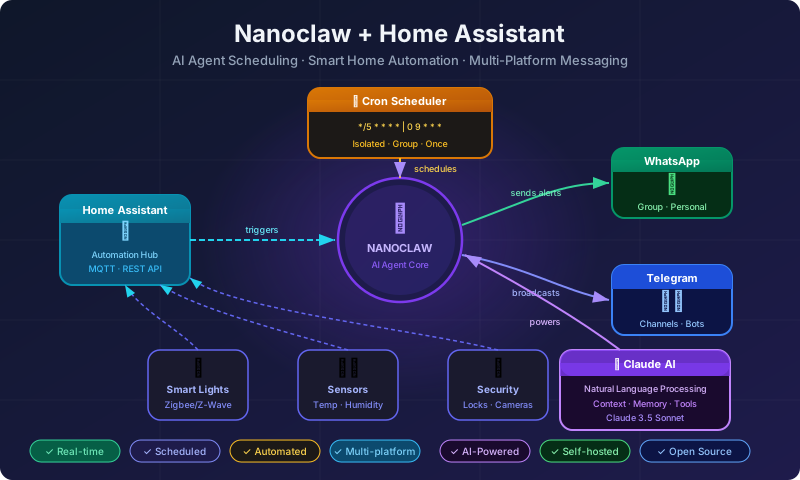
Your AI-powered assistant that lives in your favorite messaging app — available 24/7.
What is Nanoclaw?
Nanoclaw is a powerful AI agent platform that lets you run Claude-powered assistants directly inside your everyday messaging apps — WhatsApp, Telegram, and Discord. Think of it as having a personal AI butler that you can ping at any time, from anywhere.
Unlike traditional smart home hubs that require dedicated apps and hardware, Nanoclaw works where you already are. No new apps to install. No dashboards to learn. Just message it and it gets things done.
Why Use Nanoclaw as a Home Assistant?
| Feature | Nanoclaw | Traditional Assistant |
|---|---|---|
| Works in messaging apps | ✅ | ❌ |
| Schedules recurring tasks | ✅ | ⚠️ Limited |
| Multi-group support | ✅ | ❌ |
| Real-time web search | ✅ | ⚠️ Depends |
| No extra hardware needed | ✅ | ❌ |
| Customizable AI prompts | ✅ | ❌ |
Getting Started: Basic Setup
Step 1: Register Your Group
Connect your preferred messaging group to Nanoclaw. You can set up multiple groups — one for family, one for work, one personal.
Register your group with:
- Name: "Home Assistant"
- Trigger: @assistant (or any keyword you prefer)
- Channel: WhatsApp / Telegram / Discord
Step 2: Set Your First Scheduled Task
One of Nanoclaw’s most powerful features is task scheduling. Here are some starter tasks for home use:
Daily Morning Briefing (7:00 AM)
Schedule: every day at 7:00 AM
Prompt: "Send a morning briefing with:
  - Today's weather for my city
  - Top 5 world news headlines
  - Gold and USD exchange rates
  - Any reminders I have today"
Weekly Shopping Reminder
Schedule: every Sunday at 6:00 PM
Prompt: "Remind the family to prepare the shopping list for the week"
Daily Air Quality Check
Schedule: every day at 8:00 AM
Prompt: "Check air quality index for Ho Chi Minh City and advise if it's safe to go outside"
Step 3: Create Your Home Assistant Persona
Customize how your assistant responds by giving it a clear personality in your prompts:
You are a helpful home assistant named Aria.
You are warm, concise, and proactive.
Always respond in the language the user writes in.
Keep messages short and easy to read on mobile.
Use emojis sparingly to make messages friendly.
Top Optimization Tips
1. Use Context Mode Wisely
Nanoclaw offers two context modes for scheduled tasks:
- Group mode — The task runs with full chat history. Best for follow-up reminders and personalized messages.
- Isolated mode — The task runs fresh each time. Best for daily reports and independent queries.
Tip: Use isolated mode for weather/news tasks (they don’t need history). Use group mode for reminders and follow-ups.
2. Combine Cron + Interval Schedules
Don’t just set one morning briefing — layer your schedules:
| Task | Schedule | Mode |
|---|---|---|
| Morning briefing | 0 7 * * * (7:00 AM daily) | isolated |
| Afternoon weather check | 0 14 * * * (2:00 PM daily) | isolated |
| News flash | 0 8,12,18 * * * (3x daily) | isolated |
| Weekly family reminder | 0 18 * * 0 (Sunday 6PM) | group |
3. Write Smarter Prompts
The quality of your results depends heavily on your prompt. Follow these rules:
Weak prompt:
Check the weatherStrong prompt:
Check today's weather for Ho Chi Minh City, Vietnam.
Include: temperature (°C), feels like, UV index, rain chance, and wind speed.
Format it for easy reading on mobile. Keep it under 150 words.
Always send the message to the group.
4. Chain Tasks Together
Use group context mode to create multi-step routines. For example:
- 7:00 AM → Send morning briefing
- 7:05 AM → Ask “Any updates from last night?” (reads recent chat)
- 8:00 AM → Remind kids about school tasks
5. Set Clear Boundaries
Prevent your assistant from going off-topic by defining scope in your system prompt:
You are a home assistant. Only help with:
- Weather and environment queries
- News and current events
- Family schedules and reminders
- Shopping lists
- General home-related questions

For anything else, politely say:
"That's outside my home assistant role — try asking Claude directly!"
6. Multi-Group Strategy
Use different groups for different purposes:
| Group | Purpose | Trigger |
|---|---|---|
| Family Chat | Reminders, weather, news | @home |
| Work Group | Stand-ups, task tracking | @work |
| Personal | Private reminders, journaling | @me |
7. Use “Only Notify When Needed” Pattern
Avoid notification fatigue by instructing tasks to send messages only when there’s something important:
Check the air quality index for Ho Chi Minh City.
Only send a message if the AQI is above 100 (Unhealthy level).
If air quality is fine, do nothing — no message needed.
Sample Home Assistant Daily Routine
Here’s a full example setup for a smart home day:
06:45 AM  → Wake-up weather + UV warning
07:00 AM  → Morning briefing (news, gold, USD)
08:00 AM  → Air quality check (notify only if bad)
12:00 PM  → Midday news flash
03:00 PM  → Afternoon weather update
06:00 PM  → Evening summary + tomorrow forecast
09:00 PM  → Reminder to review tomorrow's schedule
Conclusion
Nanoclaw transforms your messaging app into a powerful, always-on home assistant without any extra hardware or complex setup. With smart scheduling, context-aware prompts, and multi-group support, you can automate your daily information needs and keep your household running smoothly.
Start simple — one morning briefing. Then build from there.
Pro tip: The best home assistant setup is the one you actually use. Start with 2–3 tasks, see what adds value, then expand.