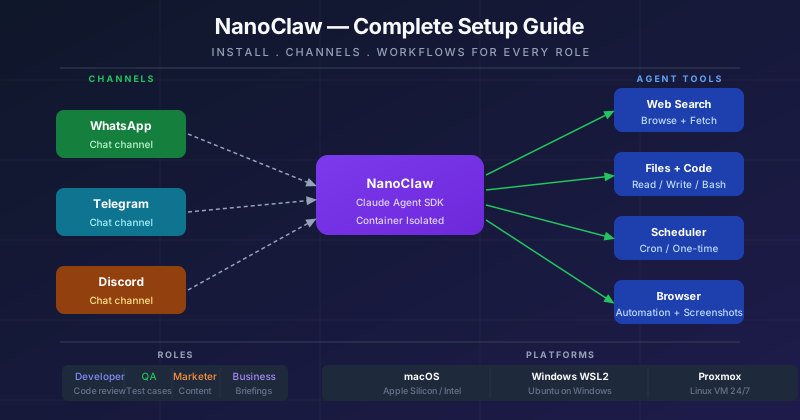
NanoClaw is a self-hosted personal Claude AI assistant that runs every agent in its own secure container. You talk to it through WhatsApp or Telegram — and it can search the web, run code, manage files, schedule tasks, and a lot more.
This guide walks you through everything from zero: installing on macOS, WSL Windows, or a Proxmox Linux VM — then shows real workflows for four different roles.
What Is NanoClaw?
NanoClaw is not a chatbot. It is an AI agent — meaning it can take actions, not just answer questions.
graph LR
    subgraph You["You"]
        WA[WhatsApp]
        TG[Telegram]
    end

    subgraph Host["Your Computer"]
        NC[NanoClaw<br/>Node.js process]
        DB[(SQLite)]
    end

    subgraph Container["Isolated Container"]
        AG[Claude Agent SDK]
        T1[Web Search]
        T2[File Read/Write]
        T3[Bash Commands]
        T4[Browser]
        T5[Scheduler]
    end

    WA --> NC
    TG --> NC
    NC --> DB
    NC --> AG
    AG --> T1
    AG --> T2
    AG --> T3
    AG --> T4
    AG --> T5
    AG --> NC
    NC --> WA
    NC --> TG

    classDef you fill:#1e40af,stroke:#1d4ed8,color:#fff
    classDef host fill:#15803d,stroke:#166534,color:#fff
    classDef container fill:#7c3aed,stroke:#6d28d9,color:#fff
    class WA,TG you
    class NC,DB host
    class AG,T1,T2,T3,T4,T5 container
Key differences from a regular chatbot:
| Feature | Chatbot | NanoClaw Agent |
|---|---|---|
| Memory | Resets each session | Persistent per group |
| Actions | Text only | Web, files, code, API calls |
| Scheduling | None | Recurring tasks |
| Security | Application-level | Container-isolated |
| Customizable | Config only | Code-level, full control |
Prerequisites
Before installing, you need these four things:
1. Claude API Key Go to console.anthropic.com → Create an API key. You need a paid Anthropic account (or free trial credits).
2. Claude Code Claude Code is the CLI tool that powers NanoClaw’s setup and agents.
npm install -g @anthropic-ai/claude-codeThen log in:
claude login3. GitHub Account You will fork the NanoClaw repo. Go to github.com and create a free account if you don’t have one.
4. Container Runtime
- macOS: Docker Desktop or Apple Container (Apple Silicon only)
- Windows WSL: Docker Desktop for Windows
- Linux/Proxmox: Docker
Platform Setup
macOS (Apple Silicon / Intel)
# 1. Install Homebrew (macOS package manager)
/bin/bash -c "$(curl -fsSL https://raw.githubusercontent.com/Homebrew/install/HEAD/install.sh)"

# 2. Install Node.js 20+
brew install node@20
echo 'export PATH="/opt/homebrew/opt/node@20/bin:$PATH"' >> ~/.zshrc
source ~/.zshrc

# 3. Install GitHub CLI
brew install gh
gh auth login

# 4. Install Docker Desktop
brew install --cask docker
# Open Docker Desktop app and wait for it to start

# 5. Verify everything
node --version   # should say v20.x.x or higher
docker --version # should say Docker version 24+
claude --version # should respond after login
Apple Silicon bonus: After setup, you can switch to Apple Container (lighter, faster, native): Inside
claude, run the skill/convert-to-apple-container
Windows (WSL2)
WSL2 (Windows Subsystem for Linux) lets you run a full Linux environment inside Windows. This is the recommended path for Windows users.
# Step 1: Open PowerShell as Administrator and enable WSL2
wsl --install
# Restart your computer when prompted

# Step 2: Install Ubuntu from Microsoft Store (search "Ubuntu 22.04")
# Then open Ubuntu terminal and update it:
sudo apt update && sudo apt upgrade -y

# Step 3: Install Node.js 20 inside Ubuntu
curl -fsSL https://deb.nodesource.com/setup_20.x | sudo -E bash -
sudo apt install -y nodejs

# Step 4: Install GitHub CLI inside Ubuntu
type -p curl >/dev/null || (sudo apt update && sudo apt install curl -y)
curl -fsSL https://cli.github.com/packages/githubcli-archive-keyring.gpg | sudo dd of=/usr/share/keyrings/githubcli-archive-keyring.gpg
echo "deb [arch=$(dpkg --print-architecture) signed-by=/usr/share/keyrings/githubcli-archive-keyring.gpg] https://cli.github.com/packages stable main" | sudo tee /etc/apt/sources.list.d/github-cli.list > /dev/null
sudo apt update && sudo apt install gh -y
gh auth login

# Step 5: Install Docker Desktop for Windows
# Download from: https://www.docker.com/products/docker-desktop/
# Enable "WSL 2 backend" in Docker Desktop settings
# In Docker Desktop > Settings > Resources > WSL Integration > enable your Ubuntu distro

# Step 6: Install Claude Code inside Ubuntu
npm install -g @anthropic-ai/claude-code
claude login

# Verify
node --version && docker --version && claude --version
Proxmox / Linux Server
Proxmox is a server hypervisor. You create a Linux VM on it, then install NanoClaw inside that VM.
# In Proxmox: create a new VM
# - OS: Ubuntu 22.04 LTS (download ISO from ubuntu.com)
# - CPU: 2 cores minimum
# - RAM: 2GB minimum (4GB recommended)
# - Disk: 20GB minimum
# Then SSH into the VM:

# Step 1: Update system
sudo apt update && sudo apt upgrade -y

# Step 2: Install Node.js 20
curl -fsSL https://deb.nodesource.com/setup_20.x | sudo -E bash -
sudo apt install -y nodejs git curl

# Step 3: Install Docker
curl -fsSL https://get.docker.com | sh
sudo usermod -aG docker $USER
newgrp docker

# Step 4: Install GitHub CLI
sudo apt install gh -y
gh auth login

# Step 5: Install Claude Code
npm install -g @anthropic-ai/claude-code
claude login

# Verify
node --version && docker --version && claude --version
Installing NanoClaw
Once your platform is ready, the actual NanoClaw installation takes about 10 minutes.
flowchart TD
    A[Fork NanoClaw on GitHub] --> B[Clone to your computer]
    B --> C[Open Claude Code: run 'claude']
    C --> D[Run /setup skill]
    D --> E[Claude installs dependencies]
    E --> F[Claude sets up Docker container]
    F --> G[Claude configures service]
    G --> H[Add a channel: WhatsApp or Telegram]
    H --> I[Send your first message!]

    classDef step fill:#1e40af,stroke:#1d4ed8,color:#fff
    classDef done fill:#15803d,stroke:#166534,color:#fff
    class A,B,C,D,E,F,G,H step
    class I done
Step 1: Fork the repository
Go to github.com/qwibitai/nanoclaw and click Fork (top right). This creates your own copy.
Step 2: Clone and open
# With GitHub CLI (recommended):
gh repo fork qwibitai/nanoclaw --clone
cd nanoclaw
claude
# Without GitHub CLI:
git clone https://github.com/YOUR-USERNAME/nanoclaw.git
cd nanoclaw
claudeStep 3: Run /setup
You are now inside Claude Code. Type:
/setupClaude will automatically:
- Install all npm dependencies
- Set up your
.envfile with your Anthropic API key - Build the Docker container image
- Configure the service (launchd on macOS, systemd on Linux)
- Start NanoClaw in the background
If Claude asks you questions during setup, just answer them in plain English. It handles everything.
Adding Channels
After setup, you need to connect a messaging channel so you can actually talk to NanoClaw.
Add WhatsApp
Inside Claude Code (run claude in the nanoclaw folder), type:
/add-whatsappClaude will:
- Ask which phone number to connect
- Display a QR code in your terminal
- Open WhatsApp on your phone → Settings → Linked Devices → Link a Device
- Scan the QR code
Done. Your NanoClaw number is now linked. Message @Andy hello to test it.
Add Telegram
/add-telegramClaude will guide you to:
- Create a Telegram bot via @BotFather (message it:
/newbot) - Get your bot token
- Add the token to your
.env - Restart NanoClaw
Then message your new bot: @Andy hello
Talking to NanoClaw
By default, the trigger word is @Andy. You can change it later.
@Andy what is today's weather in Ho Chi Minh City?
@Andy summarize this article: https://example.com/article
@Andy every morning at 8am, send me the top 5 AI news from Hacker News
@Andy create a file called meeting-notes.md with today's date as title
NanoClaw responds back in the same chat.
Workflow Guides
For Developers
graph TB
    DEV[Developer] --> Q1[Code review?]
    DEV --> Q2[Research?]
    DEV --> Q3[Automate?]
    DEV --> Q4[Debug?]

    Q1 --> A1[Ask NanoClaw to review<br/>a GitHub PR link]
    Q2 --> A2[Search docs, summarize<br/>StackOverflow threads]
    Q3 --> A3[Schedule daily git log<br/>reports, CI notifications]
    Q4 --> A4[Paste error log,<br/>get root cause + fix]

    classDef task fill:#1e40af,stroke:#1d4ed8,color:#fff
    classDef action fill:#15803d,stroke:#166534,color:#fff
    class Q1,Q2,Q3,Q4 task
    class A1,A2,A3,A4 action
Practical commands for developers:
@Andy review the code at https://github.com/me/project/pull/42
@Andy every Friday at 5pm, summarize git commits from this week
@Andy search for the best way to implement rate limiting in Node.js
@Andy explain this error: TypeError: Cannot read property 'map' of undefined
@Andy write a bash script to backup my PostgreSQL database daily
Power tip: Mount your project folder to NanoClaw’s group workspace:
Inside Claude Code, tell it:
“Add my projects folder /Users/me/projects to the developer group workspace as extra mount”
Now NanoClaw can read your actual code files.
For QA / QC Engineers
graph TB
    QA[QA Engineer] --> T1[Test Planning]
    QA --> T2[Bug Reporting]
    QA --> T3[Regression Tracking]
    QA --> T4[Daily Reports]

    T1 --> A1[Generate test cases<br/>from requirements doc URL]
    T2 --> A2[Auto-format bug reports<br/>with steps, expected, actual]
    T3 --> A3[Schedule nightly summary<br/>of open bugs from Jira]
    T4 --> A4[Every morning: fetch<br/>CI build status, send briefing]

    classDef task fill:#0e7490,stroke:#0891b2,color:#fff
    classDef action fill:#15803d,stroke:#166534,color:#fff
    class T1,T2,T3,T4 task
    class A1,A2,A3,A4 action
Practical commands for QA:
@Andy read this requirements doc and generate a test case list: https://docs.example.com/feature-spec
@Andy I found a bug: login button doesn't work on Safari iOS 17. Format it as a bug report.
@Andy every Monday 9am, fetch https://jira.example.com/open-bugs and summarize the top 5 critical ones
@Andy compare these two test results and tell me what regressed: [paste result 1] vs [paste result 2]
@Andy write acceptance criteria for: users should be able to reset their password via email
Setup tip: Give NanoClaw your test documentation folder as an extra mount, so it can read and reference your test plans directly.
For Marketers & Researchers
graph TB
    MK[Marketer / Researcher] --> T1[Content Research]
    MK --> T2[Trend Monitoring]
    MK --> T3[Content Writing]
    MK --> T4[Competitor Analysis]

    T1 --> A1[Search web for topic,<br/>summarize top 10 sources]
    T2 --> A2[Schedule weekly scan<br/>of industry news]
    T3 --> A3[Draft blog outlines,<br/>social posts, email campaigns]
    T4 --> A4[Fetch competitor URLs,<br/>extract key messages]

    classDef task fill:#92400e,stroke:#b45309,color:#fff
    classDef action fill:#15803d,stroke:#166534,color:#fff
    class T1,T2,T3,T4 task
    class A1,A2,A3,A4 action
Practical commands for marketers:
@Andy research the latest trends in AI-powered marketing tools in 2026
@Andy every Monday at 8am, summarize top 5 AI marketing news from TechCrunch and MarketingWeek
@Andy write a LinkedIn post about our new product launch. Keep it under 200 words and professional.
@Andy analyze this competitor's homepage https://competitor.com and tell me their main value propositions
@Andy create a content calendar for the topic "AI in ecommerce" with 10 post ideas
@Andy summarize this 50-page market research report: [paste URL or text]
Setup tip: Create a dedicated group for marketing. Give NanoClaw a CLAUDE.md memory file with your brand voice, target audience, and key product facts.
For Business Owners
graph TB
    BIZ[Business Owner] --> T1[Morning Briefings]
    BIZ --> T2[Meeting Prep]
    BIZ --> T3[Communication]
    BIZ --> T4[Decision Support]

    T1 --> A1[Daily: news digest,<br/>key metrics, schedule]
    T2 --> A2[Summarize background on<br/>people or companies before meetings]
    T3 --> A3[Draft emails, proposals,<br/>follow-up messages]
    T4 --> A4[Research options,<br/>pros and cons analysis]

    classDef task fill:#7c3aed,stroke:#6d28d9,color:#fff
    classDef action fill:#15803d,stroke:#166534,color:#fff
    class T1,T2,T3,T4 task
    class A1,A2,A3,A4 action
Practical commands for business:
@Andy every weekday at 7:30am, give me a 5-point morning briefing: weather, news, my calendar for today
@Andy I have a meeting with Nguyen Van A from ABC Corp tomorrow. Research them and prepare talking points.
@Andy draft a professional follow-up email after a sales meeting. We discussed cloud migration pricing.
@Andy analyze pros and cons of opening a second office in Da Nang vs staying in HCMC
@Andy translate this contract clause to plain English: [paste legal text]
@Andy send me a summary of all conversations we've had about the XYZ project
Setup tip: Connect NanoClaw to your Gmail using /add-gmail so it can read your emails and help draft replies — all without leaving WhatsApp or Telegram.
Pro Tips
1. Customize the trigger word
Inside claude, tell it:
“Change the trigger word from @Andy to @Nano”
2. Add memory to each group
Each group has its own CLAUDE.md file. Tell NanoClaw what to remember:
@Andy remember: I am a senior developer working in TypeScript. Always give me concise technical answers.3. Schedule recurring tasks
@Andy every Sunday at 8pm, summarize this week's Hacker News top posts and send me a briefing
@Andy on the 1st of every month, remind me to review my subscriptions
4. Use multiple groups
Create separate WhatsApp/Telegram groups for different purposes:
- Personal group: daily briefings, reminders
- Work group: developer tools, code review
- Research group: trend monitoring, article summaries
Each group has completely isolated memory and context.
5. Self-host on Proxmox for 24/7 uptime
Running NanoClaw on a Proxmox server means it runs even when your laptop is closed. The systemd service auto-restarts on reboot:
# Enable auto-start on Linux
systemctl --user enable nanoclaw
systemctl --user start nanoclaw

# Check status
systemctl --user status nanoclaw
6. Debug with Claude
If something isn’t working, just ask:
claudeThen type: why isn't my scheduler running? or show me recent error logs — Claude Code will diagnose and fix it for you.
Troubleshooting
“Message not getting a response”
- Check that NanoClaw service is running:
systemctl --user status nanoclaw(Linux) or check Console.app (macOS) - Verify your Anthropic API key has credits
- Make sure you’re using the correct trigger word
“Docker container fails to start”
- Make sure Docker Desktop is running
- Run
docker psto check if containers are running - Inside
claude, run/debugfor automated diagnosis
“WhatsApp keeps disconnecting”
- WhatsApp may require re-authentication after updates
- Run
claude→/add-whatsappagain to re-scan QR code
“Setup fails halfway”
- Inside
claude, run/setupagain — it’s safe to re-run - Or run
/debugto find and fix the specific issue