
JOURNAL
NanoClaw Complete Guide 2026: Install, Setup & Real Workflows for Every Role
Step-by-step guide to install NanoClaw on macOS, WSL Windows, and Proxmox. Includes real workflows for developers, QA engineers, marketers, and business users. Built on Claude AI.
On this page
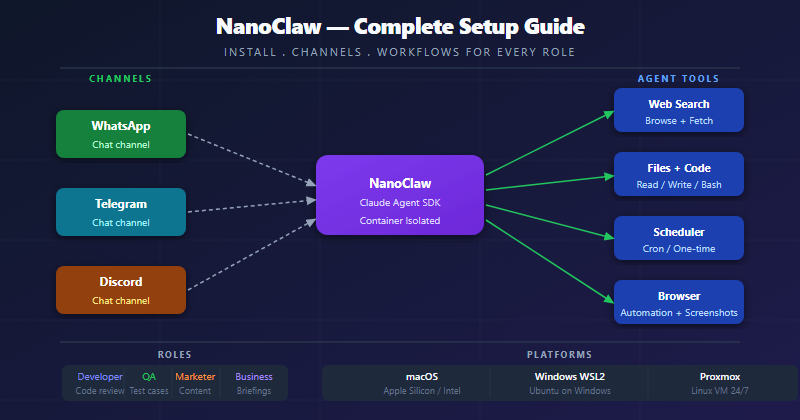
NanoClaw is a self-hosted personal Claude AI assistant that runs every agent in its own secure container. You talk to it through WhatsApp or Telegram — and it can search the web, run code, manage files, schedule tasks, and a lot more.
This guide walks you through everything from zero: installing on macOS, WSL Windows, or a Proxmox Linux VM — then shows real workflows for four different roles.
What Is NanoClaw?
NanoClaw is not a chatbot. It is an AI agent — meaning it can take actions, not just answer questions.
graph LR
    subgraph You["You"]
        WA[WhatsApp]
        TG[Telegram]
    end

    subgraph Host["Your Computer"]
        NC[NanoClaw<br/>Node.js process]
        DB[(SQLite)]
    end

    subgraph Container["Isolated Container"]
        AG[Claude Agent SDK]
        T1[Web Search]
        T2[File Read/Write]
        T3[Bash Commands]
        T4[Browser]
        T5[Scheduler]
    end

    WA --> NC
    TG --> NC
    NC --> DB
    NC --> AG
    AG --> T1
    AG --> T2
    AG --> T3
    AG --> T4
    AG --> T5
    AG --> NC
    NC --> WA
    NC --> TG

    classDef you fill:#1e40af,stroke:#1d4ed8,color:#fff
    classDef host fill:#15803d,stroke:#166534,color:#fff
    classDef container fill:#7c3aed,stroke:#6d28d9,color:#fff
    class WA,TG you
    class NC,DB host
    class AG,T1,T2,T3,T4,T5 container
Key differences from a regular chatbot:
| Feature | Chatbot | NanoClaw Agent |
|---|---|---|
| Memory | Resets each session | Persistent per group |
| Actions | Text only | Web, files, code, API calls |
| Scheduling | None | Recurring tasks |
| Security | Application-level | Container-isolated |
| Customizable | Config only | Code-level, full control |
Prerequisites
Before installing, you need these four things:
1. Claude API Key Go to console.anthropic.com → Create an API key. You need a paid Anthropic account (or free trial credits).
2. Claude Code Claude Code is the CLI tool that powers NanoClaw’s setup and agents.
npm install -g @anthropic-ai/claude-code
Then log in:
claude login
3. GitHub Account You will fork the NanoClaw repo. Go to github.com and create a free account if you don’t have one.
4. Container Runtime
- macOS: Docker Desktop or Apple Container (Apple Silicon only)
- Windows WSL: Docker Desktop for Windows
- Linux/Proxmox: Docker
Platform Setup
macOS (Apple Silicon / Intel)
# 1. Install Homebrew (macOS package manager)
/bin/bash -c "$(curl -fsSL https://raw.githubusercontent.com/Homebrew/install/HEAD/install.sh)"

# 2. Install Node.js 20+
brew install node@20
echo 'export PATH="/opt/homebrew/opt/node@20/bin:$PATH"' >> ~/.zshrc
source ~/.zshrc

# 3. Install GitHub CLI
brew install gh
gh auth login

# 4. Install Docker Desktop
brew install --cask docker
# Open Docker Desktop app and wait for it to start

# 5. Verify everything
node --version   # should say v20.x.x or higher
docker --version # should say Docker version 24+
claude --version # should respond after login
Apple Silicon bonus: After setup, you can switch to Apple Container (lighter, faster, native): Inside
claude, run the skill/convert-to-apple-container
Windows (WSL2)
WSL2 (Windows Subsystem for Linux) lets you run a full Linux environment inside Windows. This is the recommended path for Windows users.
# Step 1: Open PowerShell as Administrator and enable WSL2
wsl --install
# Restart your computer when prompted

# Step 2: Install Ubuntu from Microsoft Store (search "Ubuntu 22.04")
# Then open Ubuntu terminal and update it:
sudo apt update && sudo apt upgrade -y

# Step 3: Install Node.js 20 inside Ubuntu
curl -fsSL https://deb.nodesource.com/setup_20.x | sudo -E bash -
sudo apt install -y nodejs

# Step 4: Install GitHub CLI inside Ubuntu
type -p curl >/dev/null || (sudo apt update && sudo apt install curl -y)
curl -fsSL https://cli.github.com/packages/githubcli-archive-keyring.gpg | sudo dd of=/usr/share/keyrings/githubcli-archive-keyring.gpg
echo "deb [arch=$(dpkg --print-architecture) signed-by=/usr/share/keyrings/githubcli-archive-keyring.gpg] https://cli.github.com/packages stable main" | sudo tee /etc/apt/sources.list.d/github-cli.list > /dev/null
sudo apt update && sudo apt install gh -y
gh auth login

# Step 5: Install Docker Desktop for Windows
# Download from: https://www.docker.com/products/docker-desktop/
# Enable "WSL 2 backend" in Docker Desktop settings
# In Docker Desktop > Settings > Resources > WSL Integration > enable your Ubuntu distro

# Step 6: Install Claude Code inside Ubuntu
npm install -g @anthropic-ai/claude-code
claude login

# Verify
node --version && docker --version && claude --version
Proxmox / Linux Server
Proxmox is a server hypervisor. You create a Linux VM on it, then install NanoClaw inside that VM.
# In Proxmox: create a new VM
# - OS: Ubuntu 22.04 LTS (download ISO from ubuntu.com)
# - CPU: 2 cores minimum
# - RAM: 2GB minimum (4GB recommended)
# - Disk: 20GB minimum
# Then SSH into the VM:

# Step 1: Update system
sudo apt update && sudo apt upgrade -y

# Step 2: Install Node.js 20
curl -fsSL https://deb.nodesource.com/setup_20.x | sudo -E bash -
sudo apt install -y nodejs git curl

# Step 3: Install Docker
curl -fsSL https://get.docker.com | sh
sudo usermod -aG docker $USER
newgrp docker

# Step 4: Install GitHub CLI
sudo apt install gh -y
gh auth login

# Step 5: Install Claude Code
npm install -g @anthropic-ai/claude-code
claude login

# Verify
node --version && docker --version && claude --version
Installing NanoClaw
Once your platform is ready, the actual NanoClaw installation takes about 10 minutes.
flowchart TD
    A[Fork NanoClaw on GitHub] --> B[Clone to your computer]
    B --> C[Open Claude Code: run 'claude']
    C --> D[Run /setup skill]
    D --> E[Claude installs dependencies]
    E --> F[Claude sets up Docker container]
    F --> G[Claude configures service]
    G --> H[Add a channel: WhatsApp or Telegram]
    H --> I[Send your first message!]

    classDef step fill:#1e40af,stroke:#1d4ed8,color:#fff
    classDef done fill:#15803d,stroke:#166534,color:#fff
    class A,B,C,D,E,F,G,H step
    class I done
Step 1: Fork the repository
Go to github.com/qwibitai/nanoclaw and click Fork (top right). This creates your own copy.
Step 2: Clone and open
# With GitHub CLI (recommended):
gh repo fork qwibitai/nanoclaw --clone
cd nanoclaw
claude
# Without GitHub CLI:
git clone https://github.com/YOUR-USERNAME/nanoclaw.git
cd nanoclaw
claude
Step 3: Run /setup
You are now inside Claude Code. Type:
/setup
Claude will automatically:
- Install all npm dependencies
- Set up your
.envfile with your Anthropic API key - Build the Docker container image
- Configure the service (launchd on macOS, systemd on Linux)
- Start NanoClaw in the background
If Claude asks you questions during setup, just answer them in plain English. It handles everything.
Adding Channels
After setup, you need to connect a messaging channel so you can actually talk to NanoClaw.
Add WhatsApp
Inside Claude Code (run claude in the nanoclaw folder), type:
/add-whatsapp
Claude will:
- Ask which phone number to connect
- Display a QR code in your terminal
- Open WhatsApp on your phone → Settings → Linked Devices → Link a Device
- Scan the QR code
Done. Your NanoClaw number is now linked. Message @Andy hello to test it.
Add Telegram
/add-telegram
Claude will guide you to:
- Create a Telegram bot via @BotFather (message it:
/newbot) - Get your bot token
- Add the token to your
.env - Restart NanoClaw
Then message your new bot: @Andy hello
Talking to NanoClaw
By default, the trigger word is @Andy. You can change it later.
@Andy what is today's weather in Ho Chi Minh City?
@Andy summarize this article: https://example.com/article
@Andy every morning at 8am, send me the top 5 AI news from Hacker News
@Andy create a file called meeting-notes.md with today's date as title
NanoClaw responds back in the same chat.
Workflow Guides
For Developers
graph TB
    DEV[Developer] --> Q1[Code review?]
    DEV --> Q2[Research?]
    DEV --> Q3[Automate?]
    DEV --> Q4[Debug?]

    Q1 --> A1[Ask NanoClaw to review<br/>a GitHub PR link]
    Q2 --> A2[Search docs, summarize<br/>StackOverflow threads]
    Q3 --> A3[Schedule daily git log<br/>reports, CI notifications]
    Q4 --> A4[Paste error log,<br/>get root cause + fix]

    classDef task fill:#1e40af,stroke:#1d4ed8,color:#fff
    classDef action fill:#15803d,stroke:#166534,color:#fff
    class Q1,Q2,Q3,Q4 task
    class A1,A2,A3,A4 action
Practical commands for developers:
@Andy review the code at https://github.com/me/project/pull/42
@Andy every Friday at 5pm, summarize git commits from this week
@Andy search for the best way to implement rate limiting in Node.js
@Andy explain this error: TypeError: Cannot read property 'map' of undefined
@Andy write a bash script to backup my PostgreSQL database daily
Power tip: Mount your project folder to NanoClaw’s group workspace:
Inside Claude Code, tell it:
“Add my projects folder /Users/me/projects to the developer group workspace as extra mount”
Now NanoClaw can read your actual code files.
For QA / QC Engineers
graph TB
    QA[QA Engineer] --> T1[Test Planning]
    QA --> T2[Bug Reporting]
    QA --> T3[Regression Tracking]
    QA --> T4[Daily Reports]

    T1 --> A1[Generate test cases<br/>from requirements doc URL]
    T2 --> A2[Auto-format bug reports<br/>with steps, expected, actual]
    T3 --> A3[Schedule nightly summary<br/>of open bugs from Jira]
    T4 --> A4[Every morning: fetch<br/>CI build status, send briefing]

    classDef task fill:#0e7490,stroke:#0891b2,color:#fff
    classDef action fill:#15803d,stroke:#166534,color:#fff
    class T1,T2,T3,T4 task
    class A1,A2,A3,A4 action
Practical commands for QA:
@Andy read this requirements doc and generate a test case list: https://docs.example.com/feature-spec
@Andy I found a bug: login button doesn't work on Safari iOS 17. Format it as a bug report.
@Andy every Monday 9am, fetch https://jira.example.com/open-bugs and summarize the top 5 critical ones
@Andy compare these two test results and tell me what regressed: [paste result 1] vs [paste result 2]
@Andy write acceptance criteria for: users should be able to reset their password via email
Setup tip: Give NanoClaw your test documentation folder as an extra mount, so it can read and reference your test plans directly.
For Marketers & Researchers
graph TB
    MK[Marketer / Researcher] --> T1[Content Research]
    MK --> T2[Trend Monitoring]
    MK --> T3[Content Writing]
    MK --> T4[Competitor Analysis]

    T1 --> A1[Search web for topic,<br/>summarize top 10 sources]
    T2 --> A2[Schedule weekly scan<br/>of industry news]
    T3 --> A3[Draft blog outlines,<br/>social posts, email campaigns]
    T4 --> A4[Fetch competitor URLs,<br/>extract key messages]

    classDef task fill:#92400e,stroke:#b45309,color:#fff
    classDef action fill:#15803d,stroke:#166534,color:#fff
    class T1,T2,T3,T4 task
    class A1,A2,A3,A4 action
Practical commands for marketers:
@Andy research the latest trends in AI-powered marketing tools in 2026
@Andy every Monday at 8am, summarize top 5 AI marketing news from TechCrunch and MarketingWeek
@Andy write a LinkedIn post about our new product launch. Keep it under 200 words and professional.
@Andy analyze this competitor's homepage https://competitor.com and tell me their main value propositions
@Andy create a content calendar for the topic "AI in ecommerce" with 10 post ideas
@Andy summarize this 50-page market research report: [paste URL or text]
Setup tip: Create a dedicated group for marketing. Give NanoClaw a CLAUDE.md memory file with your brand voice, target audience, and key product facts.
For Business Owners
graph TB
    BIZ[Business Owner] --> T1[Morning Briefings]
    BIZ --> T2[Meeting Prep]
    BIZ --> T3[Communication]
    BIZ --> T4[Decision Support]

    T1 --> A1[Daily: news digest,<br/>key metrics, schedule]
    T2 --> A2[Summarize background on<br/>people or companies before meetings]
    T3 --> A3[Draft emails, proposals,<br/>follow-up messages]
    T4 --> A4[Research options,<br/>pros and cons analysis]

    classDef task fill:#7c3aed,stroke:#6d28d9,color:#fff
    classDef action fill:#15803d,stroke:#166534,color:#fff
    class T1,T2,T3,T4 task
    class A1,A2,A3,A4 action
Practical commands for business:
@Andy every weekday at 7:30am, give me a 5-point morning briefing: weather, news, my calendar for today
@Andy I have a meeting with Nguyen Van A from ABC Corp tomorrow. Research them and prepare talking points.
@Andy draft a professional follow-up email after a sales meeting. We discussed cloud migration pricing.
@Andy analyze pros and cons of opening a second office in Da Nang vs staying in HCMC
@Andy translate this contract clause to plain English: [paste legal text]
@Andy send me a summary of all conversations we've had about the XYZ project
Setup tip: Connect NanoClaw to your Gmail using /add-gmail so it can read your emails and help draft replies — all without leaving WhatsApp or Telegram.
Pro Tips
1. Customize the trigger word
Inside claude, tell it:
“Change the trigger word from @Andy to @Nano”
2. Add memory to each group
Each group has its own CLAUDE.md file. Tell NanoClaw what to remember:
@Andy remember: I am a senior developer working in TypeScript. Always give me concise technical answers.
3. Schedule recurring tasks
@Andy every Sunday at 8pm, summarize this week's Hacker News top posts and send me a briefing
@Andy on the 1st of every month, remind me to review my subscriptions
4. Use multiple groups
Create separate WhatsApp/Telegram groups for different purposes:
- Personal group: daily briefings, reminders
- Work group: developer tools, code review
- Research group: trend monitoring, article summaries
Each group has completely isolated memory and context.
5. Self-host on Proxmox for 24/7 uptime
Running NanoClaw on a Proxmox server means it runs even when your laptop is closed. The systemd service auto-restarts on reboot:
# Enable auto-start on Linux
systemctl --user enable nanoclaw
systemctl --user start nanoclaw

# Check status
systemctl --user status nanoclaw
6. Debug with Claude
If something isn’t working, just ask:
claude
Then type: why isn't my scheduler running? or show me recent error logs — Claude Code will diagnose and fix it for you.
Troubleshooting
“Message not getting a response”
- Check that NanoClaw service is running:
systemctl --user status nanoclaw(Linux) or check Console.app (macOS) - Verify your Anthropic API key has credits
- Make sure you’re using the correct trigger word
“Docker container fails to start”
- Make sure Docker Desktop is running
- Run
docker psto check if containers are running - Inside
claude, run/debugfor automated diagnosis
“WhatsApp keeps disconnecting”
- WhatsApp may require re-authentication after updates
- Run
claude→/add-whatsappagain to re-scan QR code
“Setup fails halfway”
- Inside
claude, run/setupagain — it’s safe to re-run - Or run
/debugto find and fix the specific issue
References
Related reading
08 Oct 2026 · 4 min read
ai-agents
Claude Haiku 5.5 and the Real Math Behind Cheap Model Routing
Haiku 5.5 is 75% cheaper and far sharper at agent tasks, but a token-efficiency tax means the real savings aren't the headline number.
Read more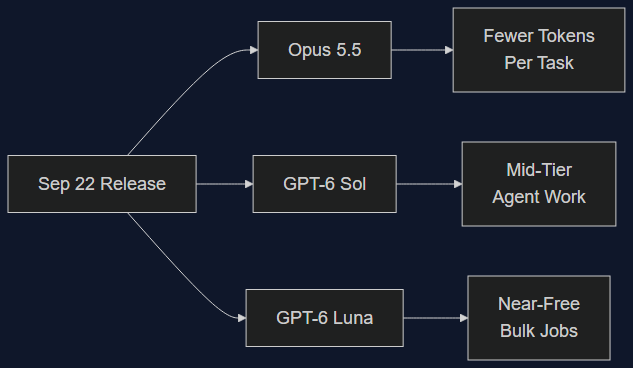
22 Sep 2026 · 4 min read
ai
Opus 5.5 vs. GPT-6 Sol/Luna: Two Labs, Same Day, Opposite Bets
Anthropic and OpenAI released within minutes of each other on September 22 — one chasing fewer tokens per task, the other chasing a hundredth of the cost. Both numbers are real, and they point at different production workloads.
Read more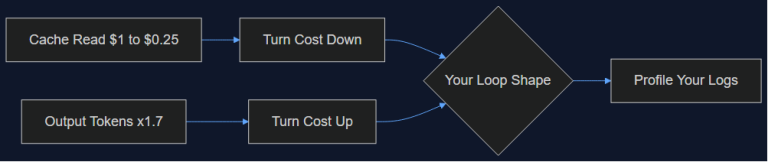
19 Sep 2026 · 5 min read
agents
Fable 5.1's Cache Reads Dropped to $0.25 — But My Agent Loop Still Got More Expensive
Anthropic cut Claude Fable 5.1 cache reads 75%. Artificial Analysis found max-effort runs cost 20% more anyway, because output tokens jumped 1.7x. I ran the math on our own agent loop to find out which story was true for us.
Read more
Discussion
Comments are reviewed before publication. Your email is kept private.