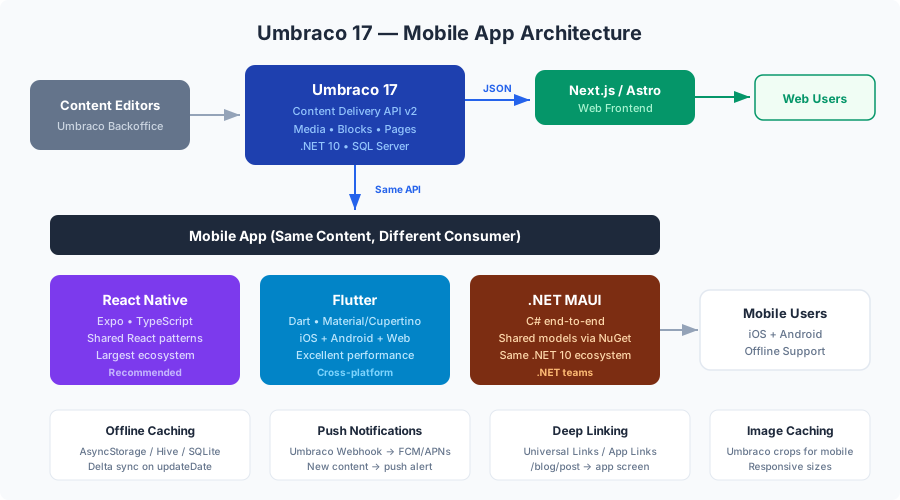
The email came in on a Thursday at 4:47 PM, because that’s when these emails always come in.
“Hey Thuan — the team loves the marketing website. Quick question: how hard would it be to build a mobile app? Same content — blog posts, services, company info. Our sales team wants to show the portfolio on iPads at trade shows, and our CEO saw a competitor with an app and now he wants one too.”
I’ve been in this industry long enough to know that “how hard would it be” is never a quick question. But this time, I opened the Umbraco 17 Content Delivery API documentation, looked at the endpoints we’d already configured for the Next.js frontend in the MarketingOS series, and had a realization that genuinely surprised me: we could power a native mobile app with the exact same API. No new backend code. No new endpoints. No additional infrastructure. The JSON we were serving to the Next.js frontend would work unchanged in React Native, Flutter, or .NET MAUI.
Six weeks later, the client had an iOS and Android app in the App Store and Google Play. Content editors were updating blog posts from the same Umbraco backoffice, and those changes appeared on both the website and the mobile app within seconds. One CMS, two channels, zero duplicated content.
This post covers everything I learned building that mobile app — three framework options with production-ready code, offline support, push notifications, deep linking, and the honest truth about when Umbraco makes sense as a mobile backend and when it doesn’t.
Why Umbraco Works as a Mobile Backend
If you’ve read Part 1 and Part 2 of the MarketingOS series, you already know that Umbraco 17’s Content Delivery API exposes all your content as structured JSON over REST. Here’s why that translates directly to mobile:
JSON is JSON. The Content Delivery API doesn’t care whether the HTTP request comes from a Next.js server component, a React Native app on an iPhone, or a Flutter app on a Samsung Galaxy. It returns the same JSON payload. The same content model, the same block structures, the same media URLs. There’s no web-specific rendering baked into the response — it’s pure content data.
One backoffice for every channel. This is the genuine productivity win. Your marketing team logs into one Umbraco backoffice. They edit a blog post, update a service description, swap out a hero image. Those changes are instantly available to the website, the mobile app, a potential digital signage display — any consumer of the Content Delivery API. No syncing, no duplicating content across platforms, no “did someone update the mobile version too?” conversations.
Same content model, same blocks, same media. The document types and compositions we built in Part 2 — the hero sections, feature grids, FAQ blocks, testimonials — they all come through the API as typed JSON objects. A heroBlock in the mobile app has the same properties as a heroBlock on the website: heading, subheading, backgroundImage, overlayOpacity, alignment. The only difference is how you render them.
No separate mobile API. This is the cost argument. Building and maintaining a dedicated mobile API — with its own authentication, its own content models, its own deployment pipeline — is easily $20,000-$40,000 in development and $500-$1,000/month in hosting and maintenance. With Umbraco’s Content Delivery API, you’re adding zero backend cost to support mobile.
Existing webhook infrastructure. In the MarketingOS series, we set up webhooks for ISR cache invalidation — when content changes in Umbraco, a webhook fires and the Next.js frontend revalidates. That same webhook infrastructure can trigger push notifications to mobile devices. New blog post published? Fire a webhook, send a push notification, done.
When does this make sense? When your mobile app is primarily a content consumption experience — reading blog posts, browsing services, viewing company information, watching embedded videos. Think of it as a native reading experience for your CMS content. If your app needs complex user-generated content, real-time chat, transaction processing, or heavy computation, you need a dedicated backend. Umbraco is a content management system, not an application backend.
Architecture: Umbraco + Mobile App
Here’s the architecture at a high level:
                     +-----------------------+
                     |   Umbraco 17 CMS      |
                     |   (Content Backoffice) |
                     +-----------+-----------+
                                 |
                     +-----------v-----------+
                     | Content Delivery API  |
                     | (REST + JSON)         |
                     +-----------+-----------+
                                 |
              +------------------+------------------+
              |                  |                   |
    +---------v------+  +-------v--------+  +-------v--------+
    | Next.js Website|  | Mobile App     |  | Future Channel |
    | (existing)     |  | (iOS/Android)  |  | (signage, etc) |
    +----------------+  +----------------+  +----------------+
Shared content model. The mobile app consumes the same content tree as the website. Blog posts, landing pages, service pages — everything is accessible via /umbraco/delivery/api/v2/content. The difference is purely in how each consumer renders the blocks.
Media handling. Umbraco serves images through its media system. The website uses next/image for optimization. The mobile app needs its own image caching strategy — downloading images on first load, caching them locally, and serving cached versions when offline. All three frameworks have excellent libraries for this.
Authentication. For published content (which is most marketing content), an API key is sufficient. Umbraco 17 supports API key authentication on the Content Delivery API, and you can configure separate keys for different consumers. For gated content — member-only areas, premium blog posts — you’ll need Umbraco’s member authentication, which works through standard JWT tokens.
// appsettings.json — Content Delivery API with API key
{
  "Umbraco": {
    "CMS": {
      "DeliveryApi": {
        "Enabled": true,
        "PublicAccess": true,
        "ApiKey": "mobile-app-api-key-here",
        "RichTextOutputAsJson": true,
        "OutputExpansion": {
          "MaxDepth": 3
        }
      }
    }
  }
}
Option 1: React Native / Expo (Recommended)
If your team has React experience — and if you’ve been following the MarketingOS series with Next.js, they do — React Native with Expo is the natural choice. The component mental model transfers directly, and if you squint hard enough, the block renderer pattern from the Next.js frontend looks almost identical in React Native.
Why React Native
Code sharing with the web. React hooks, state management patterns, API clients — a significant portion of your Next.js code translates. The fetchContent function from the web frontend works unchanged in React Native.
Expo simplifies everything. Expo provides managed builds, over-the-air updates, push notifications, and image handling out of the box. You don’t need to touch Xcode or Android Studio for most development workflows.
Largest ecosystem. React Native has the most npm packages, the most Stack Overflow answers, and the most production apps in the wild. When you run into a problem, someone has already solved it.
Project Setup
# Create a new Expo project
npx create-expo-app@latest umbraco-mobile --template blank-typescript

# Install dependencies
cd umbraco-mobile
npx expo install expo-image expo-linking expo-notifications
npm install @react-navigation/native @react-navigation/native-stack
npm install react-native-screens react-native-safe-area-context
npm install @tanstack/react-query
npm install react-native-mmkv
Umbraco API Client
This client is almost identical to the one we built for the Next.js frontend. The only difference is that we’re using react-native-mmkv for caching instead of the Next.js fetch cache.
// src/api/umbracoClient.ts
import { MMKV } from 'react-native-mmkv';

const storage = new MMKV();

const BASE_URL = process.env.EXPO_PUBLIC_UMBRACO_URL
  || 'https://cms.example.com';
const API_KEY = process.env.EXPO_PUBLIC_UMBRACO_API_KEY || '';

interface UmbracoContent {
  id: string;
  name: string;
  contentType: string;
  route: { path: string };
  properties: Record<string, any>;
  updateDate: string;
  createDate: string;
}

interface UmbracoListResponse {
  total: number;
  items: UmbracoContent[];
}

async function fetchFromUmbraco<T>(
  endpoint: string,
  params?: Record<string, string>
): Promise<T> {
  const url = new URL(
    `/umbraco/delivery/api/v2${endpoint}`,
    BASE_URL
  );

  if (params) {
    Object.entries(params).forEach(([key, value]) => {
      url.searchParams.set(key, value);
    });
  }

  const cacheKey = url.toString();
  const cached = storage.getString(cacheKey);
  const cachedTimestamp = storage.getNumber(`${cacheKey}_ts`);

  // Serve cached content if less than 5 minutes old
  if (cached && cachedTimestamp) {
    const age = Date.now() - cachedTimestamp;
    if (age < 5 * 60 * 1000) {
      return JSON.parse(cached);
    }
  }

  try {
    const response = await fetch(url.toString(), {
      headers: {
        'Api-Key': API_KEY,
        'Accept': 'application/json',
        'Start-Item': '',
      },
    });

    if (!response.ok) {
      throw new Error(
        `Umbraco API error: ${response.status}`
      );
    }

    const data = await response.json();

    // Cache the response
    storage.set(cacheKey, JSON.stringify(data));
    storage.set(`${cacheKey}_ts`, Date.now());

    return data as T;
  } catch (error) {
    // If network fails, return cached content (even if stale)
    if (cached) {
      console.warn(
        'Network error, serving stale cache:',
        error
      );
      return JSON.parse(cached);
    }
    throw error;
  }
}

export async function getContentByRoute(
  route: string
): Promise<UmbracoContent> {
  return fetchFromUmbraco<UmbracoContent>(
    '/content/item',
    { path: route }
  );
}

export async function getContentByType(
  contentType: string,
  page: number = 1,
  pageSize: number = 10
): Promise<UmbracoListResponse> {
  return fetchFromUmbraco<UmbracoListResponse>(
    '/content',
    {
      filter: `contentType:${contentType}`,
      skip: String((page - 1) * pageSize),
      take: String(pageSize),
      sort: 'updateDate:desc',
    }
  );
}

export async function getBlogPosts(
  page: number = 1,
  pageSize: number = 10
): Promise<UmbracoListResponse> {
  return getContentByType('blogPost', page, pageSize);
}

export async function getServicePages(): Promise<
  UmbracoListResponse
> {
  return getContentByType('servicePage', 1, 50);
}
Block Renderer Pattern
This is where it gets interesting. The block renderer pattern from the Next.js frontend maps almost 1:1 to React Native — we just swap HTML elements for React Native components.
// src/components/blocks/BlockRenderer.tsx
import React from 'react';
import { View, Text, StyleSheet } from 'react-native';
import { HeroBlock } from './HeroBlock';
import { FeatureGridBlock } from './FeatureGridBlock';
import { FaqBlock } from './FaqBlock';
import { CtaSectionBlock } from './CtaSectionBlock';
import { TestimonialBlock } from './TestimonialBlock';
import { RichTextBlock } from './RichTextBlock';

interface Block {
  content: {
    contentType: string;
    properties: Record<string, any>;
  };
  settings?: {
    contentType: string;
    properties: Record<string, any>;
  };
}

interface BlockRendererProps {
  blocks: Block[];
}

const BLOCK_COMPONENTS: Record<
  string,
  React.ComponentType<{ properties: Record<string, any> }>
> = {
  heroBlock: HeroBlock,
  featureGridBlock: FeatureGridBlock,
  faqBlock: FaqBlock,
  ctaSectionBlock: CtaSectionBlock,
  testimonialBlock: TestimonialBlock,
  richTextBlock: RichTextBlock,
};

export function BlockRenderer({ blocks }: BlockRendererProps) {
  return (
    <View style={styles.container}>
      {blocks.map((block, index) => {
        const Component =
          BLOCK_COMPONENTS[block.content.contentType];

        if (!Component) {
          if (__DEV__) {
            return (
              <View key={index} style={styles.unknown}>
                <Text style={styles.unknownText}>
                  Unknown block: {block.content.contentType}
                </Text>
              </View>
            );
          }
          return null;
        }

        return (
          <Component
            key={`${block.content.contentType}-${index}`}
            properties={block.content.properties}
          />
        );
      })}
    </View>
  );
}

const styles = StyleSheet.create({
  container: {
    flex: 1,
  },
  unknown: {
    padding: 16,
    backgroundColor: '#FEF3C7',
    margin: 8,
    borderRadius: 8,
  },
  unknownText: {
    color: '#92400E',
    fontSize: 14,
  },
});
HeroBlock Adapted for Mobile
The web HeroBlock uses CSS positioning for image overlays and viewport height for sizing. On mobile, we adapt this to use React Native’s ImageBackground and percentages of screen dimensions.
// src/components/blocks/HeroBlock.tsx
import React from 'react';
import {
  View,
  Text,
  Pressable,
  StyleSheet,
  Dimensions,
} from 'react-native';
import { Image } from 'expo-image';
import { useNavigation } from '@react-navigation/native';

const { width: SCREEN_WIDTH } = Dimensions.get('window');

interface HeroBlockProps {
  properties: {
    heading: string;
    subheading?: string;
    ctaText?: string;
    ctaUrl?: string;
    backgroundImage?: Array<{
      url: string;
      crops?: Array<{
        alias: string;
        width: number;
        height: number;
        coordinates: {
          x1: number;
          y1: number;
          x2: number;
          y2: number;
        };
      }>;
    }>;
    overlayOpacity?: number;
    alignment?: 'left' | 'center' | 'right';
    height?: 'full' | 'large' | 'medium';
  };
}

const HEIGHT_MAP = {
  full: 400,
  large: 320,
  medium: 240,
};

export function HeroBlock({ properties }: HeroBlockProps) {
  const {
    heading,
    subheading,
    ctaText,
    ctaUrl,
    backgroundImage,
    overlayOpacity = 40,
    alignment = 'center',
    height = 'large',
  } = properties;

  const navigation = useNavigation();
  const imageUrl = backgroundImage?.[0]?.url;

  // Use the 'mobile' crop if available,
  // fall back to original
  const mobileCrop = backgroundImage?.[0]?.crops?.find(
    (c) => c.alias === 'mobile'
  );
  const finalImageUrl = mobileCrop
    ? `${imageUrl}?rxy=${mobileCrop.coordinates.x1},${mobileCrop.coordinates.y1}&width=${SCREEN_WIDTH * 2}&height=${HEIGHT_MAP[height] * 2}`
    : `${imageUrl}?width=${SCREEN_WIDTH * 2}&height=${HEIGHT_MAP[height] * 2}&rmode=crop`;

  const textAlign =
    alignment === 'left'
      ? 'flex-start'
      : alignment === 'right'
        ? 'flex-end'
        : 'center';

  return (
    <View
      style={[styles.container, { height: HEIGHT_MAP[height] }]}
    >
      {imageUrl && (
        <Image
          source={{ uri: finalImageUrl }}
          style={StyleSheet.absoluteFill}
          contentFit="cover"
          transition={300}
          cachePolicy="disk"
        />
      )}

      <View
        style={[
          StyleSheet.absoluteFill,
          styles.overlay,
          { opacity: overlayOpacity / 100 },
        ]}
      />

      <View style={[styles.content, { alignItems: textAlign }]}>
        <Text
          style={[styles.heading, { textAlign: alignment }]}
        >
          {heading}
        </Text>

        {subheading && (
          <Text
            style={[
              styles.subheading,
              { textAlign: alignment },
            ]}
          >
            {subheading}
          </Text>
        )}

        {ctaText && ctaUrl && (
          <Pressable
            style={styles.ctaButton}
            onPress={() => {
              // Navigate to internal route or open external URL
              if (ctaUrl.startsWith('/')) {
                navigation.navigate(
                  'Content' as never,
                  { route: ctaUrl } as never
                );
              }
            }}
          >
            <Text style={styles.ctaText}>{ctaText}</Text>
          </Pressable>
        )}
      </View>
    </View>
  );
}

const styles = StyleSheet.create({
  container: {
    position: 'relative',
    justifyContent: 'center',
    overflow: 'hidden',
  },
  overlay: {
    backgroundColor: '#000',
  },
  content: {
    padding: 24,
    zIndex: 1,
  },
  heading: {
    fontSize: 28,
    fontWeight: '800',
    color: '#FFFFFF',
    marginBottom: 8,
    letterSpacing: -0.5,
  },
  subheading: {
    fontSize: 16,
    color: '#E5E7EB',
    marginBottom: 16,
    lineHeight: 24,
  },
  ctaButton: {
    backgroundColor: '#2563EB',
    paddingHorizontal: 24,
    paddingVertical: 12,
    borderRadius: 8,
    marginTop: 8,
  },
  ctaText: {
    color: '#FFFFFF',
    fontSize: 16,
    fontWeight: '600',
  },
});
FeatureGrid as FlatList
On the web, the FeatureGrid renders as a CSS Grid. On mobile, we use FlatList with two columns. Same data, same properties, completely different rendering.
// src/components/blocks/FeatureGridBlock.tsx
import React from 'react';
import {
  View,
  Text,
  FlatList,
  StyleSheet,
  Dimensions,
} from 'react-native';
import { Image } from 'expo-image';

const { width: SCREEN_WIDTH } = Dimensions.get('window');
const COLUMN_WIDTH = (SCREEN_WIDTH - 48) / 2;

interface Feature {
  content: {
    contentType: string;
    properties: {
      title: string;
      description: string;
      icon?: Array<{ url: string }>;
    };
  };
}

interface FeatureGridBlockProps {
  properties: {
    heading?: string;
    subheading?: string;
    features: Feature[];
    columns?: number;
  };
}

export function FeatureGridBlock({
  properties,
}: FeatureGridBlockProps) {
  const { heading, subheading, features } = properties;

  const renderFeature = ({
    item,
  }: {
    item: Feature;
  }) => (
    <View style={styles.featureCard}>
      {item.content.properties.icon?.[0]?.url && (
        <Image
          source={{
            uri: item.content.properties.icon[0].url,
          }}
          style={styles.featureIcon}
          contentFit="contain"
          cachePolicy="disk"
        />
      )}
      <Text style={styles.featureTitle}>
        {item.content.properties.title}
      </Text>
      <Text style={styles.featureDescription}>
        {item.content.properties.description}
      </Text>
    </View>
  );

  return (
    <View style={styles.container}>
      {heading && (
        <Text style={styles.heading}>{heading}</Text>
      )}
      {subheading && (
        <Text style={styles.subheading}>{subheading}</Text>
      )}
      <FlatList
        data={features}
        renderItem={renderFeature}
        keyExtractor={(_, index) => String(index)}
        numColumns={2}
        columnWrapperStyle={styles.row}
        scrollEnabled={false}
      />
    </View>
  );
}

const styles = StyleSheet.create({
  container: {
    padding: 16,
  },
  heading: {
    fontSize: 24,
    fontWeight: '700',
    textAlign: 'center',
    marginBottom: 4,
    color: '#111827',
  },
  subheading: {
    fontSize: 15,
    color: '#6B7280',
    textAlign: 'center',
    marginBottom: 16,
  },
  row: {
    justifyContent: 'space-between',
  },
  featureCard: {
    width: COLUMN_WIDTH,
    backgroundColor: '#F9FAFB',
    borderRadius: 12,
    padding: 16,
    marginBottom: 12,
  },
  featureIcon: {
    width: 40,
    height: 40,
    marginBottom: 12,
  },
  featureTitle: {
    fontSize: 16,
    fontWeight: '600',
    color: '#111827',
    marginBottom: 4,
  },
  featureDescription: {
    fontSize: 14,
    color: '#6B7280',
    lineHeight: 20,
  },
});
Blog Listing Screen
This is the screen that lists blog posts from Umbraco with pagination and pull-to-refresh. The data comes from the exact same API endpoint the Next.js blog listing uses.
// src/screens/BlogListScreen.tsx
import React from 'react';
import {
  View,
  Text,
  FlatList,
  Pressable,
  StyleSheet,
  ActivityIndicator,
  RefreshControl,
} from 'react-native';
import { Image } from 'expo-image';
import { useInfiniteQuery } from '@tanstack/react-query';
import { getBlogPosts } from '../api/umbracoClient';
import type { NativeStackScreenProps } from
  '@react-navigation/native-stack';

type Props = NativeStackScreenProps<
  RootStackParamList,
  'BlogList'
>;

export function BlogListScreen({ navigation }: Props) {
  const {
    data,
    fetchNextPage,
    hasNextPage,
    isFetchingNextPage,
    isLoading,
    refetch,
    isRefetching,
  } = useInfiniteQuery({
    queryKey: ['blogPosts'],
    queryFn: ({ pageParam = 1 }) =>
      getBlogPosts(pageParam, 10),
    getNextPageParam: (lastPage, allPages) => {
      const loaded = allPages.reduce(
        (sum, p) => sum + p.items.length,
        0
      );
      return loaded < lastPage.total
        ? allPages.length + 1
        : undefined;
    },
    initialPageParam: 1,
  });

  const posts =
    data?.pages.flatMap((page) => page.items) ?? [];

  const renderPost = ({
    item,
  }: {
    item: (typeof posts)[0];
  }) => {
    const featuredImage =
      item.properties.featuredImage?.[0]?.url;
    const excerpt = item.properties.excerpt || '';
    const publishDate = new Date(
      item.properties.publishDate || item.createDate
    ).toLocaleDateString('en-US', {
      year: 'numeric',
      month: 'long',
      day: 'numeric',
    });

    return (
      <Pressable
        style={styles.postCard}
        onPress={() =>
          navigation.navigate('BlogPost', {
            id: item.id,
            route: item.route.path,
          })
        }
      >
        {featuredImage && (
          <Image
            source={{
              uri: `${featuredImage}?width=600&height=340&rmode=crop`,
            }}
            style={styles.postImage}
            contentFit="cover"
            transition={200}
            cachePolicy="disk"
          />
        )}
        <View style={styles.postContent}>
          <Text style={styles.postDate}>{publishDate}</Text>
          <Text style={styles.postTitle}>{item.name}</Text>
          {excerpt ? (
            <Text
              style={styles.postExcerpt}
              numberOfLines={2}
            >
              {excerpt}
            </Text>
          ) : null}
        </View>
      </Pressable>
    );
  };

  if (isLoading) {
    return (
      <View style={styles.loading}>
        <ActivityIndicator size="large" color="#2563EB" />
      </View>
    );
  }

  return (
    <FlatList
      data={posts}
      renderItem={renderPost}
      keyExtractor={(item) => item.id}
      contentContainerStyle={styles.list}
      refreshControl={
        <RefreshControl
          refreshing={isRefetching}
          onRefresh={refetch}
          tintColor="#2563EB"
        />
      }
      onEndReached={() => {
        if (hasNextPage && !isFetchingNextPage) {
          fetchNextPage();
        }
      }}
      onEndReachedThreshold={0.5}
      ListFooterComponent={
        isFetchingNextPage ? (
          <ActivityIndicator
            style={styles.footerLoader}
            color="#2563EB"
          />
        ) : null
      }
      ListEmptyComponent={
        <View style={styles.empty}>
          <Text style={styles.emptyText}>
            No blog posts yet.
          </Text>
        </View>
      }
    />
  );
}

const styles = StyleSheet.create({
  list: {
    padding: 16,
  },
  loading: {
    flex: 1,
    justifyContent: 'center',
    alignItems: 'center',
  },
  postCard: {
    backgroundColor: '#FFFFFF',
    borderRadius: 12,
    marginBottom: 16,
    overflow: 'hidden',
    shadowColor: '#000',
    shadowOffset: { width: 0, height: 2 },
    shadowOpacity: 0.08,
    shadowRadius: 8,
    elevation: 3,
  },
  postImage: {
    width: '100%',
    height: 180,
  },
  postContent: {
    padding: 16,
  },
  postDate: {
    fontSize: 12,
    color: '#9CA3AF',
    marginBottom: 4,
    textTransform: 'uppercase',
    letterSpacing: 0.5,
  },
  postTitle: {
    fontSize: 18,
    fontWeight: '700',
    color: '#111827',
    marginBottom: 6,
    lineHeight: 24,
  },
  postExcerpt: {
    fontSize: 14,
    color: '#6B7280',
    lineHeight: 20,
  },
  footerLoader: {
    paddingVertical: 16,
  },
  empty: {
    padding: 32,
    alignItems: 'center',
  },
  emptyText: {
    fontSize: 16,
    color: '#9CA3AF',
  },
});
Content Detail Screen with Block Rendering
This screen fetches a single content item and renders its blocks. It’s the mobile equivalent of the [...slug].astro or [...slug]/page.tsx route.
// src/screens/ContentScreen.tsx
import React from 'react';
import {
  ScrollView,
  StyleSheet,
  ActivityIndicator,
  View,
  RefreshControl,
} from 'react-native';
import { useQuery } from '@tanstack/react-query';
import { getContentByRoute } from '../api/umbracoClient';
import { BlockRenderer } from
  '../components/blocks/BlockRenderer';
import type { NativeStackScreenProps } from
  '@react-navigation/native-stack';

type Props = NativeStackScreenProps<
  RootStackParamList,
  'Content'
>;

export function ContentScreen({ route }: Props) {
  const { route: contentRoute } = route.params;

  const {
    data: content,
    isLoading,
    refetch,
    isRefetching,
  } = useQuery({
    queryKey: ['content', contentRoute],
    queryFn: () => getContentByRoute(contentRoute),
    staleTime: 5 * 60 * 1000,
  });

  if (isLoading) {
    return (
      <View style={styles.loading}>
        <ActivityIndicator size="large" color="#2563EB" />
      </View>
    );
  }

  const blocks =
    content?.properties.pageBlocks?.items ?? [];

  return (
    <ScrollView
      style={styles.container}
      refreshControl={
        <RefreshControl
          refreshing={isRefetching}
          onRefresh={refetch}
          tintColor="#2563EB"
        />
      }
    >
      <BlockRenderer blocks={blocks} />
    </ScrollView>
  );
}

const styles = StyleSheet.create({
  container: {
    flex: 1,
    backgroundColor: '#FFFFFF',
  },
  loading: {
    flex: 1,
    justifyContent: 'center',
    alignItems: 'center',
  },
});
The beauty of this pattern is its simplicity. The ContentScreen doesn’t know what blocks exist. It fetches content, extracts the block list, and hands it to the BlockRenderer. Adding a new block type to Umbraco and rendering it in the mobile app means creating one new component and adding one line to the BLOCK_COMPONENTS map.
Option 2: Flutter
Flutter is my recommendation when you don’t have React experience on the team, or when you want a single codebase that also compiles to web and desktop. The widget system is different from React’s component model, but the pattern for consuming the Umbraco API is remarkably similar.
Why Flutter
True native performance. Flutter doesn’t use a bridge to communicate with native components. It renders directly to a Skia canvas, which means consistent 60fps on both platforms. For content-heavy apps with lots of images and scrolling, this matters.
Single codebase for everything. iOS, Android, Web, macOS, Windows, Linux. The same Dart code runs on all of them. If the client later says “can we get a desktop version too?” the answer is yes, with minimal additional work.
Material and Cupertino widgets. Flutter ships with both Material Design and iOS-style widgets. You can build an app that looks native on both platforms or use a consistent Material design across both.
Project Setup
flutter create umbraco_mobile --platforms=ios,android
cd umbraco_mobile

# Add dependencies
flutter pub add http
flutter pub add provider
flutter pub add cached_network_image
flutter pub add hive_flutter
flutter pub add url_launcher
flutter pub add pull_to_refresh
Umbraco API Client in Dart
// lib/services/umbraco_client.dart
import 'dart:convert';
import 'package:http/http.dart' as http;
import 'package:hive_flutter/hive_flutter.dart';

class UmbracoClient {
  final String baseUrl;
  final String apiKey;
  final Box _cacheBox;

  UmbracoClient({
    required this.baseUrl,
    required this.apiKey,
    required Box cacheBox,
  }) : _cacheBox = cacheBox;

  static Future<UmbracoClient> create({
    required String baseUrl,
    required String apiKey,
  }) async {
    await Hive.initFlutter();
    final cacheBox = await Hive.openBox('umbraco_cache');
    return UmbracoClient(
      baseUrl: baseUrl,
      apiKey: apiKey,
      cacheBox: cacheBox,
    );
  }

  Future<Map<String, dynamic>> fetchContent(
    String endpoint, {
    Map<String, String>? params,
  }) async {
    final uri = Uri.parse(
      '$baseUrl/umbraco/delivery/api/v2$endpoint',
    ).replace(queryParameters: params);

    final cacheKey = uri.toString();
    final cached = _cacheBox.get(cacheKey);
    final cachedTime = _cacheBox.get('${cacheKey}_ts');

    // Return cached if less than 5 minutes old
    if (cached != null && cachedTime != null) {
      final age = DateTime.now().millisecondsSinceEpoch
          - (cachedTime as int);
      if (age < 5 * 60 * 1000) {
        return jsonDecode(cached as String);
      }
    }

    try {
      final response = await http.get(
        uri,
        headers: {
          'Api-Key': apiKey,
          'Accept': 'application/json',
        },
      );

      if (response.statusCode != 200) {
        throw UmbracoApiException(
          'API error: ${response.statusCode}',
          response.statusCode,
        );
      }

      final data = jsonDecode(response.body);

      // Cache the response
      await _cacheBox.put(cacheKey, response.body);
      await _cacheBox.put(
        '${cacheKey}_ts',
        DateTime.now().millisecondsSinceEpoch,
      );

      return data;
    } catch (e) {
      // Return stale cache on network failure
      if (cached != null) {
        return jsonDecode(cached as String);
      }
      rethrow;
    }
  }

  Future<Map<String, dynamic>> getContentByRoute(
    String route,
  ) {
    return fetchContent(
      '/content/item',
      params: {'path': route},
    );
  }

  Future<Map<String, dynamic>> getBlogPosts({
    int page = 1,
    int pageSize = 10,
  }) {
    return fetchContent(
      '/content',
      params: {
        'filter': 'contentType:blogPost',
        'skip': '${(page - 1) * pageSize}',
        'take': '$pageSize',
        'sort': 'updateDate:desc',
      },
    );
  }
}

class UmbracoApiException implements Exception {
  final String message;
  final int statusCode;

  UmbracoApiException(this.message, this.statusCode);

  @override
  String toString() =>
      'UmbracoApiException: $message (HTTP $statusCode)';
}
Block Renderer Widget
Flutter uses a factory pattern instead of a component map. The concept is identical — map content types to widgets.
// lib/widgets/block_renderer.dart
import 'package:flutter/material.dart';
import 'blocks/hero_block.dart';
import 'blocks/feature_grid_block.dart';
import 'blocks/faq_block.dart';
import 'blocks/cta_section_block.dart';
import 'blocks/testimonial_block.dart';
import 'blocks/rich_text_block.dart';

class BlockRenderer extends StatelessWidget {
  final List<dynamic> blocks;

  const BlockRenderer({
    super.key,
    required this.blocks,
  });

  Widget _buildBlock(Map<String, dynamic> block) {
    final contentType =
        block['content']['contentType'] as String;
    final properties = block['content']['properties']
        as Map<String, dynamic>;

    switch (contentType) {
      case 'heroBlock':
        return HeroBlockWidget(properties: properties);
      case 'featureGridBlock':
        return FeatureGridBlockWidget(
          properties: properties,
        );
      case 'faqBlock':
        return FaqBlockWidget(properties: properties);
      case 'ctaSectionBlock':
        return CtaSectionBlockWidget(
          properties: properties,
        );
      case 'testimonialBlock':
        return TestimonialBlockWidget(
          properties: properties,
        );
      case 'richTextBlock':
        return RichTextBlockWidget(
          properties: properties,
        );
      default:
        return const SizedBox.shrink();
    }
  }

  @override
  Widget build(BuildContext context) {
    return Column(
      crossAxisAlignment: CrossAxisAlignment.stretch,
      children: blocks.map(_buildBlock).toList(),
    );
  }
}
HeroBlock Widget
// lib/widgets/blocks/hero_block.dart
import 'package:flutter/material.dart';
import 'package:cached_network_image/cached_network_image.dart';

class HeroBlockWidget extends StatelessWidget {
  final Map<String, dynamic> properties;

  const HeroBlockWidget({
    super.key,
    required this.properties,
  });

  @override
  Widget build(BuildContext context) {
    final heading = properties['heading'] as String? ?? '';
    final subheading = properties['subheading'] as String?;
    final ctaText = properties['ctaText'] as String?;
    final overlayOpacity =
        (properties['overlayOpacity'] as num?)?.toDouble()
        ?? 40.0;
    final alignment =
        properties['alignment'] as String? ?? 'center';

    final bgImages = properties['backgroundImage']
        as List<dynamic>?;
    final imageUrl = bgImages?.isNotEmpty == true
        ? bgImages![0]['url'] as String
        : null;

    final screenWidth = MediaQuery.of(context).size.width;

    return SizedBox(
      height: 320,
      child: Stack(
        fit: StackFit.expand,
        children: [
          // Background image
          if (imageUrl != null)
            CachedNetworkImage(
              imageUrl:
                  '$imageUrl?width=${(screenWidth * 2).toInt()}'
                  '&height=640&rmode=crop',
              fit: BoxFit.cover,
              placeholder: (context, url) => Container(
                color: Colors.grey[200],
              ),
              errorWidget: (context, url, error) =>
                  Container(
                color: Colors.grey[300],
                child: const Icon(Icons.image_not_supported),
              ),
            ),

          // Overlay
          Container(
            color: Colors.black.withValues(
              alpha: overlayOpacity / 100,
            ),
          ),

          // Content
          Padding(
            padding: const EdgeInsets.all(24),
            child: Column(
              mainAxisAlignment: MainAxisAlignment.center,
              crossAxisAlignment: alignment == 'left'
                  ? CrossAxisAlignment.start
                  : alignment == 'right'
                      ? CrossAxisAlignment.end
                      : CrossAxisAlignment.center,
              children: [
                Text(
                  heading,
                  style: const TextStyle(
                    fontSize: 28,
                    fontWeight: FontWeight.w800,
                    color: Colors.white,
                    letterSpacing: -0.5,
                  ),
                  textAlign: alignment == 'center'
                      ? TextAlign.center
                      : TextAlign.start,
                ),
                if (subheading != null) ...[
                  const SizedBox(height: 8),
                  Text(
                    subheading,
                    style: TextStyle(
                      fontSize: 16,
                      color: Colors.white.withValues(
                        alpha: 0.9,
                      ),
                      height: 1.5,
                    ),
                    textAlign: alignment == 'center'
                        ? TextAlign.center
                        : TextAlign.start,
                  ),
                ],
                if (ctaText != null) ...[
                  const SizedBox(height: 16),
                  ElevatedButton(
                    onPressed: () {
                      // Handle navigation
                    },
                    style: ElevatedButton.styleFrom(
                      backgroundColor:
                          const Color(0xFF2563EB),
                      foregroundColor: Colors.white,
                      padding: const EdgeInsets.symmetric(
                        horizontal: 24,
                        vertical: 12,
                      ),
                      shape: RoundedRectangleBorder(
                        borderRadius:
                            BorderRadius.circular(8),
                      ),
                    ),
                    child: Text(ctaText),
                  ),
                ],
              ],
            ),
          ),
        ],
      ),
    );
  }
}
Content List with Pull-to-Refresh
// lib/screens/blog_list_screen.dart
import 'package:flutter/material.dart';
import 'package:cached_network_image/cached_network_image.dart';
import '../services/umbraco_client.dart';

class BlogListScreen extends StatefulWidget {
  final UmbracoClient client;

  const BlogListScreen({
    super.key,
    required this.client,
  });

  @override
  State<BlogListScreen> createState() =>
      _BlogListScreenState();
}

class _BlogListScreenState extends State<BlogListScreen> {
  List<dynamic> _posts = [];
  bool _isLoading = true;
  bool _isLoadingMore = false;
  int _currentPage = 1;
  int _total = 0;

  @override
  void initState() {
    super.initState();
    _loadPosts();
  }

  Future<void> _loadPosts({bool refresh = false}) async {
    if (refresh) {
      setState(() {
        _currentPage = 1;
        _isLoading = true;
      });
    }

    try {
      final response = await widget.client.getBlogPosts(
        page: _currentPage,
      );
      setState(() {
        if (refresh || _currentPage == 1) {
          _posts = response['items'] as List<dynamic>;
        } else {
          _posts.addAll(
            response['items'] as List<dynamic>,
          );
        }
        _total = response['total'] as int;
        _isLoading = false;
        _isLoadingMore = false;
      });
    } catch (e) {
      setState(() {
        _isLoading = false;
        _isLoadingMore = false;
      });
      if (mounted) {
        ScaffoldMessenger.of(context).showSnackBar(
          SnackBar(content: Text('Error: $e')),
        );
      }
    }
  }

  Future<void> _loadMore() async {
    if (_isLoadingMore || _posts.length >= _total) return;

    setState(() {
      _isLoadingMore = true;
      _currentPage++;
    });

    await _loadPosts();
  }

  @override
  Widget build(BuildContext context) {
    if (_isLoading) {
      return const Center(
        child: CircularProgressIndicator(),
      );
    }

    return RefreshIndicator(
      onRefresh: () => _loadPosts(refresh: true),
      child: ListView.builder(
        padding: const EdgeInsets.all(16),
        itemCount: _posts.length + (_posts.length < _total ? 1 : 0),
        itemBuilder: (context, index) {
          if (index == _posts.length) {
            _loadMore();
            return const Padding(
              padding: EdgeInsets.all(16),
              child: Center(
                child: CircularProgressIndicator(),
              ),
            );
          }

          final post =
              _posts[index] as Map<String, dynamic>;
          final props = post['properties']
              as Map<String, dynamic>;
          final images =
              props['featuredImage'] as List<dynamic>?;
          final imageUrl = images?.isNotEmpty == true
              ? images![0]['url'] as String
              : null;

          return Card(
            margin: const EdgeInsets.only(bottom: 16),
            clipBehavior: Clip.antiAlias,
            shape: RoundedRectangleBorder(
              borderRadius: BorderRadius.circular(12),
            ),
            elevation: 2,
            child: InkWell(
              onTap: () {
                Navigator.pushNamed(
                  context,
                  '/content',
                  arguments: post['route']['path'],
                );
              },
              child: Column(
                crossAxisAlignment:
                    CrossAxisAlignment.start,
                children: [
                  if (imageUrl != null)
                    CachedNetworkImage(
                      imageUrl:
                          '$imageUrl?width=600'
                          '&height=340&rmode=crop',
                      height: 180,
                      width: double.infinity,
                      fit: BoxFit.cover,
                    ),
                  Padding(
                    padding: const EdgeInsets.all(16),
                    child: Column(
                      crossAxisAlignment:
                          CrossAxisAlignment.start,
                      children: [
                        Text(
                          post['name'] as String,
                          style: const TextStyle(
                            fontSize: 18,
                            fontWeight: FontWeight.w700,
                          ),
                        ),
                        if (props['excerpt'] != null) ...[
                          const SizedBox(height: 6),
                          Text(
                            props['excerpt'] as String,
                            maxLines: 2,
                            overflow: TextOverflow.ellipsis,
                            style: TextStyle(
                              fontSize: 14,
                              color: Colors.grey[600],
                              height: 1.4,
                            ),
                          ),
                        ],
                      ],
                    ),
                  ),
                ],
              ),
            ),
          );
        },
      ),
    );
  }
}
Option 3: .NET MAUI
Here’s where it gets interesting. Umbraco 17 runs on .NET 10. .NET MAUI runs on .NET 10. They speak the same language — literally. This means you can share C# models, services, and validation logic between your CMS backend and your mobile app via a shared NuGet package.
Why .NET MAUI
Same ecosystem, end to end. Your Umbraco backend developers already know C#, .NET, dependency injection, HttpClient patterns, and async/await. They can contribute to the mobile app without learning a new language or framework.
Shared domain models. This is the killer advantage. Create a shared class library with your content models, put it in a NuGet package, and reference it from both the Umbraco backend and the MAUI app. When a content type changes, you update one model, publish the package, and both projects pick up the change. No more JSON deserialization bugs because the mobile team used Title instead of title.
Native access. MAUI provides direct access to platform APIs — camera, GPS, Bluetooth, push notifications, local storage — through a unified C# API. If the mobile app eventually needs features beyond content display, the foundation is there.
Shared Models Project
This is the project that both Umbraco and MAUI reference. It defines the content types as C# classes.
// MarketingOS.Shared/Models/UmbracoContent.cs
namespace MarketingOS.Shared.Models;

public record UmbracoContent
{
    public required string Id { get; init; }
    public required string Name { get; init; }
    public required string ContentType { get; init; }
    public required ContentRoute Route { get; init; }
    public required Dictionary<string, object?> Properties
        { get; init; }
    public required DateTime UpdateDate { get; init; }
    public required DateTime CreateDate { get; init; }
}

public record ContentRoute
{
    public required string Path { get; init; }
}

public record ContentListResponse
{
    public required int Total { get; init; }
    public required List<UmbracoContent> Items
        { get; init; }
}

public record ContentBlock
{
    public required BlockContent Content { get; init; }
    public BlockContent? Settings { get; init; }
}

public record BlockContent
{
    public required string ContentType { get; init; }
    public required Dictionary<string, object?> Properties
        { get; init; }
}
Umbraco Content Service in C#
// MarketingOS.Mobile/Services/UmbracoContentService.cs
using System.Net.Http.Json;
using System.Text.Json;
using MarketingOS.Shared.Models;

namespace MarketingOS.Mobile.Services;

public class UmbracoContentService
{
    private readonly HttpClient _httpClient;
    private readonly IPreferences _preferences;
    private readonly JsonSerializerOptions _jsonOptions;

    public UmbracoContentService(
        HttpClient httpClient,
        IPreferences preferences)
    {
        _httpClient = httpClient;
        _preferences = preferences;
        _jsonOptions = new JsonSerializerOptions
        {
            PropertyNamingPolicy =
                JsonNamingPolicy.CamelCase,
        };
    }

    public async Task<UmbracoContent?> GetContentByRoute(
        string route,
        CancellationToken ct = default)
    {
        var cacheKey = $"content_{route}";
        var cacheTimestampKey = $"{cacheKey}_ts";

        // Check cache first
        var cached = _preferences.Get<string>(
            cacheKey, null!);
        var cachedTimestamp = _preferences.Get<long>(
            cacheTimestampKey, 0);

        if (cached is not null && cachedTimestamp > 0)
        {
            var age = DateTimeOffset.UtcNow
                .ToUnixTimeMilliseconds()
                - cachedTimestamp;
            if (age < 5 * 60 * 1000)
            {
                return JsonSerializer
                    .Deserialize<UmbracoContent>(
                        cached, _jsonOptions);
            }
        }

        try
        {
            var content = await _httpClient
                .GetFromJsonAsync<UmbracoContent>(
                    $"/umbraco/delivery/api/v2"
                    + $"/content/item?path={route}",
                    _jsonOptions, ct);

            if (content is not null)
            {
                var json = JsonSerializer.Serialize(
                    content, _jsonOptions);
                _preferences.Set(cacheKey, json);
                _preferences.Set(
                    cacheTimestampKey,
                    DateTimeOffset.UtcNow
                        .ToUnixTimeMilliseconds());
            }

            return content;
        }
        catch (HttpRequestException)
        {
            // Return stale cache on network failure
            if (cached is not null)
            {
                return JsonSerializer
                    .Deserialize<UmbracoContent>(
                        cached, _jsonOptions);
            }
            throw;
        }
    }

    public async Task<ContentListResponse> GetBlogPosts(
        int page = 1,
        int pageSize = 10,
        CancellationToken ct = default)
    {
        var skip = (page - 1) * pageSize;
        var response = await _httpClient
            .GetFromJsonAsync<ContentListResponse>(
                $"/umbraco/delivery/api/v2/content"
                + $"?filter=contentType:blogPost"
                + $"&skip={skip}&take={pageSize}"
                + $"&sort=updateDate:desc",
                _jsonOptions, ct);

        return response
            ?? new ContentListResponse
            {
                Total = 0,
                Items = [],
            };
    }
}
Block Renderer as ContentView
// MarketingOS.Mobile/Views/BlockRendererView.cs
using MarketingOS.Shared.Models;

namespace MarketingOS.Mobile.Views;

public class BlockRendererView : ContentView
{
    public static readonly BindableProperty BlocksProperty =
        BindableProperty.Create(
            nameof(Blocks),
            typeof(IList<ContentBlock>),
            typeof(BlockRendererView),
            propertyChanged: OnBlocksChanged);

    public IList<ContentBlock>? Blocks
    {
        get => (IList<ContentBlock>?)
            GetValue(BlocksProperty);
        set => SetValue(BlocksProperty, value);
    }

    private static void OnBlocksChanged(
        BindableObject bindable,
        object oldValue,
        object newValue)
    {
        var view = (BlockRendererView)bindable;
        view.RenderBlocks();
    }

    private void RenderBlocks()
    {
        if (Blocks is null || Blocks.Count == 0)
        {
            Content = new Label
            {
                Text = "No content available.",
                HorizontalTextAlignment =
                    TextAlignment.Center,
                Padding = new Thickness(16),
            };
            return;
        }

        var stack = new VerticalStackLayout();

        foreach (var block in Blocks)
        {
            var widget = CreateBlockView(block);
            if (widget is not null)
            {
                stack.Children.Add(widget);
            }
        }

        Content = stack;
    }

    private static View? CreateBlockView(
        ContentBlock block)
    {
        return block.Content.ContentType switch
        {
            "heroBlock" =>
                new HeroBlockView(
                    block.Content.Properties),
            "featureGridBlock" =>
                new FeatureGridBlockView(
                    block.Content.Properties),
            "ctaSectionBlock" =>
                new CtaSectionBlockView(
                    block.Content.Properties),
            _ => null,
        };
    }
}
CollectionView for Content Lists
<!-- MarketingOS.Mobile/Views/BlogListPage.xaml -->
<?xml version="1.0" encoding="utf-8" ?>
<ContentPage
    xmlns="http://schemas.microsoft.com/dotnet/2021/maui"
    xmlns:x="http://schemas.microsoft.com/winfx/2009/xaml"
    x:Class="MarketingOS.Mobile.Views.BlogListPage"
    Title="Blog">

    <RefreshView
        IsRefreshing="{Binding IsRefreshing}"
        Command="{Binding RefreshCommand}">

        <CollectionView
            ItemsSource="{Binding Posts}"
            RemainingItemsThreshold="3"
            RemainingItemsThresholdReachedCommand=
                "{Binding LoadMoreCommand}">

            <CollectionView.ItemTemplate>
                <DataTemplate>
                    <Frame
                        Margin="16,8"
                        Padding="0"
                        CornerRadius="12"
                        HasShadow="True"
                        BorderColor="Transparent">
                        <Frame.GestureRecognizers>
                            <TapGestureRecognizer
                                Command=
                                    "{Binding Source=
                                    {RelativeSource
                                    AncestorType=
                                    {x:Type ContentPage}},
                                    Path=BindingContext
                                    .NavigateCommand}"
                                CommandParameter=
                                    "{Binding .}" />
                        </Frame.GestureRecognizers>

                        <VerticalStackLayout>
                            <Image
                                Source="{Binding ImageUrl}"
                                Aspect="AspectFill"
                                HeightRequest="180" />

                            <VerticalStackLayout
                                Padding="16">
                                <Label
                                    Text=
                                        "{Binding Title}"
                                    FontSize="18"
                                    FontAttributes="Bold"
                                    TextColor="#111827" />
                                <Label
                                    Text=
                                        "{Binding Excerpt}"
                                    FontSize="14"
                                    TextColor="#6B7280"
                                    MaxLines="2"
                                    LineBreakMode=
                                        "TailTruncation"
                                    Margin="0,6,0,0" />
                            </VerticalStackLayout>
                        </VerticalStackLayout>
                    </Frame>
                </DataTemplate>
            </CollectionView.ItemTemplate>

            <CollectionView.EmptyView>
                <Label
                    Text="No blog posts available."
                    HorizontalTextAlignment="Center"
                    Padding="32"
                    TextColor="#9CA3AF" />
            </CollectionView.EmptyView>

        </CollectionView>
    </RefreshView>
</ContentPage>
Connectivity-Aware Caching
One of the nice things about .NET MAUI is that Connectivity is a built-in API. No third-party packages needed.
// MarketingOS.Mobile/Services/ConnectivityAwareCache.cs
using System.Text.Json;

namespace MarketingOS.Mobile.Services;

public class ConnectivityAwareCache<T>
{
    private readonly string _cacheDirectory;
    private readonly JsonSerializerOptions _jsonOptions;

    public ConnectivityAwareCache(string cacheName)
    {
        _cacheDirectory = Path.Combine(
            FileSystem.CacheDirectory, cacheName);
        Directory.CreateDirectory(_cacheDirectory);
        _jsonOptions = new JsonSerializerOptions
        {
            PropertyNamingPolicy =
                JsonNamingPolicy.CamelCase,
        };
    }

    public async Task<T?> GetOrFetchAsync(
        string key,
        Func<Task<T>> fetchFunc,
        TimeSpan maxAge)
    {
        var filePath = Path.Combine(
            _cacheDirectory, $"{key}.json");

        // If offline, always return cache
        if (Connectivity.Current.NetworkAccess
            != NetworkAccess.Internet)
        {
            return await ReadFromCache(filePath);
        }

        // If online and cache is fresh, return cache
        if (File.Exists(filePath))
        {
            var fileInfo = new FileInfo(filePath);
            if (DateTime.UtcNow - fileInfo.LastWriteTimeUtc
                < maxAge)
            {
                return await ReadFromCache(filePath);
            }
        }

        // Fetch fresh data
        try
        {
            var data = await fetchFunc();
            await WriteToCache(filePath, data);
            return data;
        }
        catch (Exception)
        {
            // Fall back to stale cache
            return await ReadFromCache(filePath);
        }
    }

    private async Task<T?> ReadFromCache(string path)
    {
        if (!File.Exists(path)) return default;

        var json = await File.ReadAllTextAsync(path);
        return JsonSerializer.Deserialize<T>(
            json, _jsonOptions);
    }

    private async Task WriteToCache(
        string path, T? data)
    {
        if (data is null) return;

        var json = JsonSerializer.Serialize(
            data, _jsonOptions);
        await File.WriteAllTextAsync(path, json);
    }
}
Content Syncing and Offline Support
Regardless of which framework you choose, the offline strategy is the same. Mobile users expect content to be available even when they’re in a subway tunnel, on a plane, or in a building with terrible reception. Here’s the strategy I use.
The Sync Strategy
Fetch on launch. When the app opens, check for new content. If the network is available, fetch the latest. If not, show cached content immediately.
Delta sync. Don’t re-download everything. Use Umbraco’s updateDate field to only fetch content that’s changed since the last sync. The Content Delivery API supports sorting and filtering by date, so you can request only items modified after your last sync timestamp.
Image caching. Download and cache images locally. All three frameworks have excellent image caching libraries (expo-image, cached_network_image, MAUI’s image handling). Set disk cache limits appropriate for mobile — 100MB is usually plenty for a marketing app.
Background sync. On iOS, use Background App Refresh. On Android, use WorkManager. When the OS gives your app a few seconds of background execution time, use it to sync content. This way, content is always fresh when the user opens the app.
// src/services/syncManager.ts (React Native)
import { MMKV } from 'react-native-mmkv';
import NetInfo from '@react-native-community/netinfo';

const storage = new MMKV();

interface SyncState {
  lastSyncTimestamp: string | null;
  syncInProgress: boolean;
}

class ContentSyncManager {
  private state: SyncState = {
    lastSyncTimestamp: storage.getString('lastSync')
      || null,
    syncInProgress: false,
  };

  async sync(): Promise<{
    updated: number;
    errors: number;
  }> {
    if (this.state.syncInProgress) {
      return { updated: 0, errors: 0 };
    }

    const netState = await NetInfo.fetch();
    if (!netState.isConnected) {
      return { updated: 0, errors: 0 };
    }

    this.state.syncInProgress = true;
    let updated = 0;
    let errors = 0;

    try {
      // Fetch content modified since last sync
      const params: Record<string, string> = {
        take: '100',
        sort: 'updateDate:desc',
      };

      if (this.state.lastSyncTimestamp) {
        params.filter =
          `updateDate>${this.state.lastSyncTimestamp}`;
      }

      const response = await fetch(
        buildUrl('/content', params),
        { headers: getHeaders() }
      );

      if (!response.ok) {
        throw new Error(`Sync failed: ${response.status}`);
      }

      const data = await response.json();

      // Cache each updated content item
      for (const item of data.items) {
        try {
          const key = `content_${item.route.path}`;
          storage.set(key, JSON.stringify(item));
          updated++;
        } catch {
          errors++;
        }
      }

      // Update sync timestamp
      const now = new Date().toISOString();
      this.state.lastSyncTimestamp = now;
      storage.set('lastSync', now);
    } catch (error) {
      console.error('Sync error:', error);
      errors++;
    } finally {
      this.state.syncInProgress = false;
    }

    return { updated, errors };
  }

  getLastSyncTime(): string | null {
    return this.state.lastSyncTimestamp;
  }
}

export const syncManager = new ContentSyncManager();
Push Notifications
This is where the Umbraco webhook infrastructure we built for ISR revalidation pays off again. The same webhook that tells the Next.js frontend “this content changed, revalidate” can tell a notification service “this blog post was published, notify subscribers.”
Architecture
Content Editor publishes blog post in Umbraco
    |
    v
Umbraco fires ContentPublished webhook
    |
    v
Azure Function / AWS Lambda receives webhook
    |
    v
Function sends push notification via FCM / APNs
    |
    v
Mobile app receives notification
    |
    v
User taps notification, app opens to blog post
Webhook Handler
// functions/NotifyMobileApp.cs (Azure Function)
using System.Text.Json;
using Microsoft.Azure.Functions.Worker;
using Microsoft.Azure.Functions.Worker.Http;
using FirebaseAdmin;
using FirebaseAdmin.Messaging;

public class NotifyMobileApp
{
    private readonly FirebaseMessaging _messaging;

    public NotifyMobileApp()
    {
        if (FirebaseApp.DefaultInstance is null)
        {
            FirebaseApp.Create();
        }
        _messaging = FirebaseMessaging.DefaultInstance;
    }

    [Function("NotifyMobileApp")]
    public async Task<HttpResponseData> Run(
        [HttpTrigger(
            AuthorizationLevel.Function,
            "post")] HttpRequestData req)
    {
        var body = await JsonSerializer
            .DeserializeAsync<UmbracoWebhookPayload>(
                req.Body);

        if (body is null
            || body.ContentType != "blogPost")
        {
            var skip = req.CreateResponse(
                System.Net.HttpStatusCode.OK);
            return skip;
        }

        // Build the notification
        var message = new Message
        {
            Topic = "blog_updates",
            Notification = new Notification
            {
                Title = "New Blog Post",
                Body = body.Name,
            },
            Data = new Dictionary<string, string>
            {
                ["route"] = body.Route,
                ["contentId"] = body.Id,
                ["type"] = "blogPost",
            },
            Android = new AndroidConfig
            {
                Priority = Priority.High,
                Notification = new AndroidNotification
                {
                    ClickAction =
                        "OPEN_BLOG_POST",
                    ChannelId = "blog_updates",
                },
            },
            Apns = new ApnsConfig
            {
                Aps = new Aps
                {
                    Badge = 1,
                    Sound = "default",
                    Category = "BLOG_POST",
                },
            },
        };

        await _messaging.SendAsync(message);

        var response = req.CreateResponse(
            System.Net.HttpStatusCode.OK);
        return response;
    }
}

public record UmbracoWebhookPayload
{
    public required string Id { get; init; }
    public required string Name { get; init; }
    public required string ContentType { get; init; }
    public required string Route { get; init; }
}
In the Umbraco backoffice, you configure a webhook that fires on ContentPublished events, pointed at your Azure Function URL. The function checks if the published content is a blog post, and if so, sends a push notification to all devices subscribed to the blog_updates topic. Simple, effective, and it uses infrastructure you already have.
Deep Linking
Deep linking lets users tap a link to your website — in an email, a social media post, or a Google search result — and land directly in the mobile app instead of the browser. If the app isn’t installed, the link opens in the browser as normal.
Mapping Umbraco Routes to App Screens
The Content Delivery API returns a route.path for every content item. We map these to app screens:
// src/navigation/deepLinkConfig.ts (React Native)
import * as Linking from 'expo-linking';

export const linking = {
  prefixes: [
    'https://example.com',
    'example://',
  ],
  config: {
    screens: {
      Home: '',
      BlogList: 'blog',
      BlogPost: 'blog/:slug',
      Content: '*',
    },
  },
};

// In your navigation container:
// <NavigationContainer linking={linking}>
//   ...
// </NavigationContainer>
For iOS, you configure Universal Links by adding an apple-app-site-association file to your Umbraco website’s domain. For Android, you add intent filters to your AndroidManifest.xml and verify App Links through Google’s Digital Asset Links.
The key insight is that Umbraco’s content routing is hierarchical and predictable. A blog post at /blog/my-post in Umbraco maps to a BlogPost screen with slug: "my-post" in the app. A service page at /services/consulting maps to a Content screen with route: "/services/consulting". The content tree structure drives both the website navigation and the app navigation.
When NOT to Use Umbraco as Mobile Backend
I’ve been enthusiastic about this approach, but honesty matters more than enthusiasm. Here’s when you should build a dedicated mobile backend instead:
Real-time data. If your app needs WebSocket connections, live chat, real-time collaboration, or sub-second data updates, Umbraco’s REST API isn’t the right tool. Use a dedicated backend with SignalR, Socket.io, or Firebase Realtime Database.
Complex user-generated content. If users are creating, editing, and sharing their own content — think social media, review platforms, or collaborative tools — you need a backend designed for multi-user concurrent writes. Umbraco is a content management system for editorial teams, not a user-generated content platform.
Transactional operations. E-commerce transactions, payment processing, booking systems, inventory management — these need a dedicated API with proper transaction handling, idempotency, and compensation logic. Don’t try to shoehorn this into a CMS.
Heavy computation. Image processing, machine learning inference, data analytics — these need compute resources that a CMS shouldn’t be responsible for.
The hybrid approach. In practice, most mobile apps that start as “just show our CMS content” eventually need app-specific features. The answer is a hybrid architecture: Umbraco for content (blog posts, pages, marketing content), a dedicated API for app-specific features (user profiles, favorites, notifications preferences), and a BFF (Backend for Frontend) layer that aggregates both. Start with Umbraco only, add the dedicated API when you need it.
Performance Considerations
Pagination
Never fetch all content at once. Use the Content Delivery API’s skip and take parameters. For mobile, 10-15 items per page is the sweet spot — enough to fill the screen without over-fetching.
GET /umbraco/delivery/api/v2/content
  ?filter=contentType:blogPost
  &skip=0
  &take=10
  &sort=updateDate:desc
Image Size Optimization
Mobile screens are smaller than desktop screens. Request appropriately sized images. Umbraco’s image processing supports width, height, and crop mode parameters.
// Don't do this — full-size image on a phone
const imageUrl = `${baseUrl}${image.url}`;

// Do this — request a mobile-appropriate size
const imageUrl =
  `${baseUrl}${image.url}?width=750&height=420&rmode=crop`;

// Even better — use device pixel ratio
import { PixelRatio } from 'react-native';
const scale = PixelRatio.get();
const imageUrl =
  `${baseUrl}${image.url}`
  + `?width=${Math.round(375 * scale)}`
  + `&rmode=crop`;
Caching Strategy
I recommend a stale-while-revalidate approach:
- Serve cached content immediately — the user sees content instantly
- Fetch fresh content in the background — check if the API has newer data
- Update the UI if content changed — seamlessly swap in new content
This gives you the best of both worlds: instant loading and fresh content. All three framework examples above implement this pattern.
API Key Management
Your API key is embedded in the mobile app binary. This is inherently less secure than a server-side API key. Mitigations:
- Use a read-only API key with access to published content only
- Rotate keys periodically and push updates via app store releases
- Implement certificate pinning to prevent man-in-the-middle attacks
- Monitor API usage for unusual patterns (scraping, excessive requests)
- Rate limit per key at the Umbraco or reverse proxy level
Don’t use the same API key for the website and the mobile app. If the mobile key is compromised, you can revoke it without affecting the website.
What’s Next
If you’re building a mobile app on top of an existing Umbraco website, start simple. Pick the framework your team knows best, implement the API client and block renderer, get the blog listing working, and iterate from there.
Some ideas for taking this further:
Build a shared content SDK. Wrap the API client, caching logic, and sync manager into a reusable package — a TypeScript package for React Native, a Dart package for Flutter, a NuGet package for MAUI. If you’re building multiple apps against Umbraco, this pays for itself quickly.
Rich push notifications. Include images in push notifications, add action buttons (“Read” and “Share”), and support notification categories for different content types.
Analytics integration. Track which content gets the most views in the mobile app. Feed that data back to the Umbraco backoffice so content editors know what’s performing on mobile versus web.
Offline-first architecture. For apps that need to work extensively offline (field sales teams, trade show demos), invest in a proper sync engine with conflict resolution. Libraries like WatermelonDB (React Native) or Isar (Flutter) are designed for this.
The point isn’t to build everything at once. The point is that the headless architecture gives you the foundation. The Content Delivery API is the contract between your CMS and your consumers. Add consumers as you need them — website first, mobile app second, digital signage third, voice assistant fourth. The content model stays the same. The editorial workflow stays the same. Only the rendering changes.
This is a companion post to the 9-part MarketingOS series on building a reusable marketing website template with Umbraco 17. The Umbraco backend and Content Delivery API work unchanged — the mobile app is just another consumer of the same content.