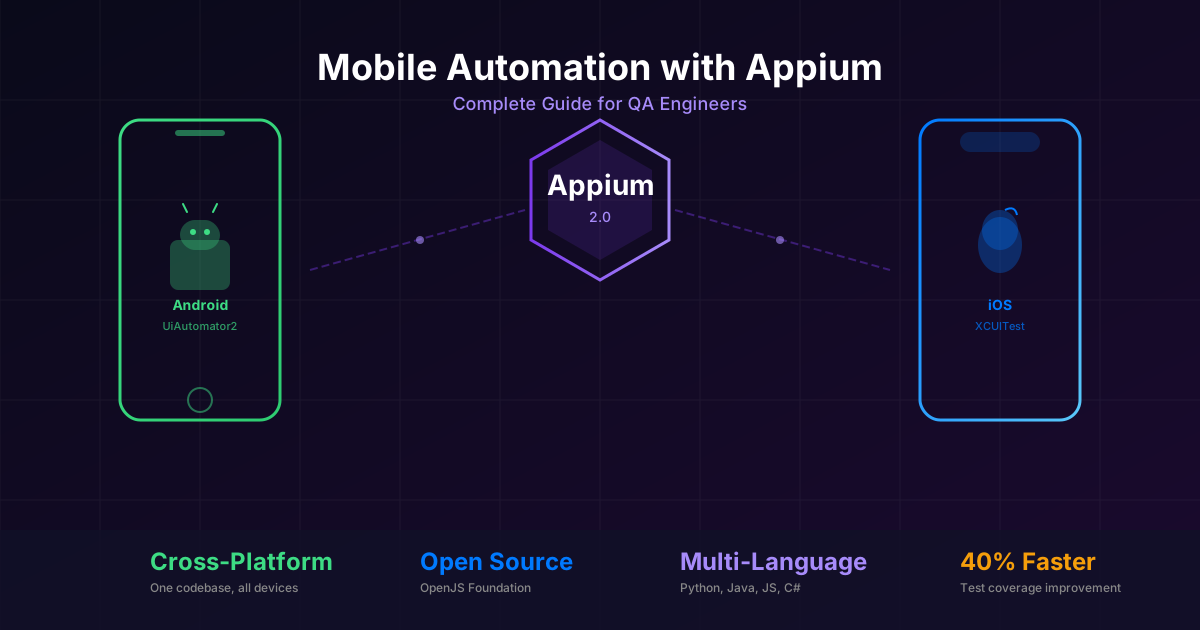
Who Is This Guide For?
You are a manual QC tester. You tap through apps every day, file bugs, retest fixes, and repeat. You know the product inside out, but the word “automation” still feels distant. This guide is written specifically for you.
By the end of this post, you will have Appium installed, your first test script running, and a clear roadmap for what comes next.
Why Appium?
Before diving into setup, let us answer the obvious question: why Appium over other tools?
Cross-platform from day one. Write one set of tests that work on both Android and iOS. You do not need separate tools or separate skill sets.
No app modification required. Unlike some frameworks that need you to embed an SDK inside the app, Appium works with the same APK or IPA file your users download. You test the real thing.
Use any programming language. Appium speaks the WebDriver protocol. That means you can write tests in Python, Java, JavaScript, C-sharp, Ruby, or any language with a WebDriver client. Pick the one your team already knows.
Open source with a massive community. Backed by the OpenJS Foundation, Appium has thousands of contributors, active forums, and plugins for almost every need. If you hit a problem, someone has solved it before.
Industry standard. Most job postings for mobile QA automation mention Appium. Learning it is a direct investment in your career.
Appium 2.0 Architecture
Appium 2.0 introduced a major architectural shift. Understanding it will save you hours of confusion later.
graph TB
    A["Test Script<br/>(Python / Java / JS)"] -->|WebDriver Protocol| B["Appium Server<br/>(Node.js)"]
    B -->|UiAutomator2 Driver| C["Android Device<br/>or Emulator"]
    B -->|XCUITest Driver| D["iOS Device<br/>or Simulator"]
    B -->|Plugin System| E["Plugins<br/>(images, gestures, wait)"]

    style A fill:#4A90D9,stroke:#2C5F8A,color:#fff
    style B fill:#50C878,stroke:#2E8B57,color:#fff
    style C fill:#FF8C42,stroke:#CC6F35,color:#fff
    style D fill:#FF8C42,stroke:#CC6F35,color:#fff
    style E fill:#9B59B6,stroke:#7D3C98,color:#fff
Key concepts in Appium 2.0:
- Client-Server model. Your test script is the client. It sends commands over HTTP to the Appium server. The server translates those commands into actions on the device.
- Driver-based architecture. Appium no longer bundles drivers. You install only what you need:
uiautomator2for Android,xcuitestfor iOS,espressofor Android Espresso, and more. - Plugin system. Need image comparison? Install the images plugin. Need custom wait strategies? There is a plugin for that. The server stays lightweight.
- Decoupled versioning. Drivers and plugins update independently from the server. No more waiting for a full Appium release to get a driver fix.
Setup from A to Z
Prerequisites
You need the following installed before touching Appium:
| Tool | Purpose | Required On |
|---|---|---|
| Node.js 18+ | Runs the Appium server | All platforms |
| JDK 11 or 17 | Android toolchain | All platforms |
| Android Studio | Android SDK, emulators | All platforms |
| Xcode 15+ | iOS Simulator, build tools | macOS only |
| Python 3.10+ | Writing test scripts | All platforms |
Step 1: Install Node.js
Download from nodejs.org or use a version manager:
# macOS with Homebrew
brew install node

# Windows with Chocolatey
choco install nodejs-lts

# Verify installation
node --version
npm --version
Step 2: Install JDK
# macOS
brew install openjdk@17

# Windows -- download from https://adoptium.net
# Then set JAVA_HOME in System Environment Variables
Step 3: Set Up Android SDK
- Download and install Android Studio.
- Open Android Studio, go to SDK Manager.
- Install Android SDK Platform 34, SDK Build-Tools, and SDK Platform-Tools.
- Create an emulator via AVD Manager (Pixel 7, API 34 recommended).
Step 4: Environment Variables
This is where most beginners get stuck. Set these permanently.
macOS / Linux — add to ~/.zshrc or ~/.bashrc:
export JAVA_HOME=$(/usr/libexec/java_home)
export ANDROID_HOME=$HOME/Library/Android/sdk
export PATH=$PATH:$ANDROID_HOME/platform-tools
export PATH=$PATH:$ANDROID_HOME/tools
Windows — set in System Environment Variables:
JAVA_HOME = C:\Program Files\Eclipse Adoptium\jdk-17
ANDROID_HOME = C:\Users\YourName\AppData\Local\Android\Sdk
PATH += %ANDROID_HOME%\platform-tools
Verify everything works:
java -version
adb devices
echo $ANDROID_HOME   # macOS/Linux
echo %ANDROID_HOME%  # Windows
Step 5: Install Appium 2.x
# Install the Appium server globally
npm install -g appium

# Verify
appium --version
# Should show 2.x.x

# Install the Android driver
appium driver install uiautomator2

# Install the iOS driver (macOS only)
appium driver install xcuitest

# List installed drivers
appium driver list --installed
Step 6: Appium Doctor (Health Check)
# Install the doctor plugin
npm install -g @appium/doctor

# Run the check
appium-doctor --android
# On macOS, also run:
appium-doctor --ios
Fix every red item before proceeding. Green across the board means you are ready.
Step 7: Appium Inspector
Appium Inspector is your best friend. It lets you visually explore the app and find element locators.
- Download from github.com/appium/appium-inspector/releases.
- Launch it and configure the remote host:
127.0.0.1, port4723, path/. - Set desired capabilities (see next section).
- Click Start Session and start clicking around the app to see element trees.
Your First Test Script
Let us write a real test. We will automate the Android Settings app — no APK needed.
Install the Python Client
pip install Appium-Python-ClientThe Test Script
"""first_appium_test.py -- Your first Appium test."""
import unittest
from appium import webdriver
from appium.options import UiAutomator2Options
from appium.webdriver.common.appiumby import AppiumBy


class TestAndroidSettings(unittest.TestCase):
    """Open Android Settings and verify the search bar."""

    def setUp(self):
        options = UiAutomator2Options()
        options.platform_name = "Android"
        options.device_name = "emulator-5554"
        options.app_package = "com.android.settings"
        options.app_activity = ".Settings"
        options.automation_name = "UiAutomator2"
        options.no_reset = True

        self.driver = webdriver.Remote(
            command_executor="http://127.0.0.1:4723",
            options=options,
        )
        self.driver.implicitly_wait(10)

    def test_search_bar_exists(self):
        """Verify the search bar is present on Settings."""
        search = self.driver.find_element(
            AppiumBy.ACCESSIBILITY_ID,
            "Search settings",
        )
        self.assertTrue(search.is_displayed())
        search.click()

        # Type in search
        search_field = self.driver.find_element(
            AppiumBy.ID,
            "com.android.settings:id/search_src_text",
        )
        search_field.send_keys("Wi-Fi")

        # Verify results appear
        results = self.driver.find_elements(
            AppiumBy.CLASS_NAME,
            "android.widget.TextView",
        )
        self.assertTrue(len(results) > 0)

    def tearDown(self):
        if self.driver:
            self.driver.quit()


if __name__ == "__main__":
    unittest.main()
Running the Test
# Terminal 1: Start Appium server
appium

# Terminal 2: Start the emulator
emulator -avd Pixel_7_API_34

# Terminal 3: Run the test
python first_appium_test.py
Test Execution Flow
sequenceDiagram
    participant T as Test Script
    participant S as Appium Server
    participant D as UiAutomator2 Driver
    participant E as Android Emulator

    T->>S: POST /session (capabilities)
    S->>D: Initialize driver
    D->>E: Install UiAutomator2 server
    E-->>D: Ready
    D-->>S: Session created
    S-->>T: Session ID

    T->>S: Find element (Accessibility ID)
    S->>D: Locate element
    D->>E: UiAutomator2 query
    E-->>D: Element reference
    D-->>S: Element found
    S-->>T: Element ID

    T->>S: Click element
    S->>D: Perform tap
    D->>E: Input event
    E-->>T: Action completed

    T->>S: DELETE /session
    S->>D: Cleanup
    D->>E: Remove server
Page Object Model (POM)
Once your first test works, immediately adopt the Page Object Model. This is non-negotiable for maintainable tests.
Why POM?
- One place to update. If a button ID changes, you update one file, not 50 tests.
- Readable tests.
login_page.enter_username("john")reads like English. - Reusable components. The same page object works across different test scenarios.
POM Structure
graph TB
    A["Test Cases<br/>test_login.py<br/>test_search.py"] --> B["Page Objects<br/>LoginPage<br/>SearchPage<br/>HomePage"]
    B --> C["Base Page<br/>Common actions:<br/>click, type, wait, swipe"]
    C --> D["Appium Driver<br/>WebDriver instance"]

    style A fill:#E74C3C,stroke:#C0392B,color:#fff
    style B fill:#3498DB,stroke:#2980B9,color:#fff
    style C fill:#2ECC71,stroke:#27AE60,color:#fff
    style D fill:#F39C12,stroke:#D68910,color:#fff
Implementation
base_page.py — shared actions:
"""base_page.py -- Base class for all page objects."""
from appium.webdriver.common.appiumby import AppiumBy


class BasePage:
    """Provides common actions for all pages."""

    def __init__(self, driver):
        self.driver = driver

    def find(self, locator_type, locator_value):
        return self.driver.find_element(locator_type, locator_value)

    def click(self, locator_type, locator_value):
        self.find(locator_type, locator_value).click()

    def type_text(self, locator_type, locator_value, text):
        element = self.find(locator_type, locator_value)
        element.clear()
        element.send_keys(text)

    def is_displayed(self, locator_type, locator_value):
        try:
            return self.find(locator_type, locator_value).is_displayed()
        except Exception:
            return False
login_page.py — specific page:
"""login_page.py -- Page object for the Login screen."""
from appium.webdriver.common.appiumby import AppiumBy
from pages.base_page import BasePage


class LoginPage(BasePage):
    """Represents the Login screen of the app."""

    # Locators
    USERNAME_FIELD = (AppiumBy.ACCESSIBILITY_ID, "username_input")
    PASSWORD_FIELD = (AppiumBy.ACCESSIBILITY_ID, "password_input")
    LOGIN_BUTTON = (AppiumBy.ACCESSIBILITY_ID, "login_button")
    ERROR_MESSAGE = (AppiumBy.ID, "com.app:id/error_text")

    def enter_username(self, username):
        self.type_text(*self.USERNAME_FIELD, username)

    def enter_password(self, password):
        self.type_text(*self.PASSWORD_FIELD, password)

    def tap_login(self):
        self.click(*self.LOGIN_BUTTON)

    def login(self, username, password):
        self.enter_username(username)
        self.enter_password(password)
        self.tap_login()

    def get_error_message(self):
        return self.find(*self.ERROR_MESSAGE).text
test_login.py — clean test:
"""test_login.py -- Tests for the login flow."""
import unittest
from pages.login_page import LoginPage


class TestLogin(unittest.TestCase):
    """Login feature tests."""

    def test_successful_login(self):
        login = LoginPage(self.driver)
        login.login("testuser", "password123")
        # Assert navigation to home page

    def test_invalid_password(self):
        login = LoginPage(self.driver)
        login.login("testuser", "wrong")
        error = login.get_error_message()
        self.assertEqual(error, "Invalid credentials")
Project Folder Structure
project/
  pages/
    __init__.py
    base_page.py
    login_page.py
    home_page.py
    search_page.py
  tests/
    __init__.py
    conftest.py
    test_login.py
    test_search.py
  config/
    capabilities.json
  requirements.txt
  pytest.ini
Locator Strategies — Ranked by Reliability
Not all locators are created equal. Here is the definitive ranking:
1. Accessibility ID (Best)
driver.find_element(AppiumBy.ACCESSIBILITY_ID, "submit_button")Works on both Android (content-desc) and iOS (accessibilityIdentifier). Fast, stable, cross-platform. Ask your developers to add accessibility labels — it helps both testing and real users with screen readers.
2. ID
driver.find_element(AppiumBy.ID, "com.myapp:id/submit_btn")Android resource IDs. Reliable but platform-specific.
3. Class Name
driver.find_element(AppiumBy.CLASS_NAME, "android.widget.Button")Useful for finding groups of similar elements. Too generic for single elements.
4. XPath (Use with Caution)
# Relative XPath -- acceptable
driver.find_element(
    AppiumBy.XPATH,
    '//android.widget.Button[@text="Submit"]'
)

# Absolute XPath -- NEVER use this
# Breaks when any parent element changes
driver.find_element(
    AppiumBy.XPATH,
    '/hierarchy/android.widget.FrameLayout/...'
)
XPath is slow and fragile. Use it only as a last resort, and always use relative paths.
5. Android UIAutomator (Advanced)
driver.find_element(
    AppiumBy.ANDROID_UIAUTOMATOR,
    'new UiSelector().textContains("Submit")'
)
Powerful for complex queries but Android-only.
Pro tip: Open Appium Inspector, tap on any element, and check which locator strategies are available. Always prefer Accessibility ID.
Real Project Integration: CI/CD with Appium
Manual test execution does not scale. Here is how to integrate Appium into your delivery pipeline.
CI/CD Pipeline Architecture
graph LR
    A["Developer<br/>Push Code"] --> B["GitHub Actions<br/>/ Jenkins"]
    B --> C["Build App<br/>(APK / IPA)"]
    C --> D["Appium Tests<br/>in Docker"]
    D --> E{"Tests Pass?"}
    E -->|Yes| F["Deploy to<br/>Staging"]
    E -->|No| G["Notify Team<br/>Block Release"]
    D --> H["Cloud Devices<br/>BrowserStack<br/>Sauce Labs"]

    style A fill:#4A90D9,stroke:#2C5F8A,color:#fff
    style B fill:#50C878,stroke:#2E8B57,color:#fff
    style C fill:#FF8C42,stroke:#CC6F35,color:#fff
    style D fill:#9B59B6,stroke:#7D3C98,color:#fff
    style F fill:#2ECC71,stroke:#27AE60,color:#fff
    style G fill:#E74C3C,stroke:#C0392B,color:#fff
    style H fill:#F39C12,stroke:#D68910,color:#fff
GitHub Actions Example
name: Mobile Tests
on:
  pull_request:
    branches: [main]

jobs:
  appium-tests:
    runs-on: ubuntu-latest
    steps:
      - uses: actions/checkout@v4

      - name: Set up JDK 17
        uses: actions/setup-java@v4
        with:
          java-version: "17"
          distribution: "temurin"

      - name: Set up Node.js
        uses: actions/setup-node@v4
        with:
          node-version: "20"

      - name: Install Appium
        run: |
          npm install -g appium
          appium driver install uiautomator2

      - name: Start Android Emulator
        uses: reactivecircus/android-emulator-runner@v2
        with:
          api-level: 34
          script: |
            appium &
            sleep 10
            python -m pytest tests/ --junitxml=results.xml

      - name: Upload Results
        uses: actions/upload-artifact@v4
        with:
          name: test-results
          path: results.xml
Running on BrowserStack (Cloud Devices)
"""browserstack_config.py -- Run tests on real cloud devices."""
from appium.options import UiAutomator2Options

options = UiAutomator2Options()
options.platform_name = "Android"
options.device_name = "Samsung Galaxy S24"
options.platform_version = "14.0"

# BrowserStack specific
options.set_capability("bstack:options", {
    "userName": "YOUR_USERNAME",
    "accessKey": "YOUR_ACCESS_KEY",
    "appUrl": "bs://your-uploaded-app-hash",
    "projectName": "My App Tests",
    "buildName": "Sprint 42",
})

# Connect to BrowserStack hub
driver = webdriver.Remote(
    command_executor="https://hub.browserstack.com/wd/hub",
    options=options,
)
Docker Setup for Consistent Environments
FROM node:20-slim

RUN npm install -g appium \
    && appium driver install uiautomator2

RUN apt-get update && apt-get install -y \
    python3 python3-pip openjdk-17-jdk

COPY requirements.txt .
RUN pip3 install -r requirements.txt

COPY . /tests
WORKDIR /tests

CMD ["python3", "-m", "pytest", "tests/", "-v"]
Tips for Manual QC Transitioning to Automation
This section is the heart of the guide. I have seen dozens of QC testers make this transition. Here is what works.
Start Small, Win Early
Do not try to automate your entire regression suite in week one. Pick one happy-path test — the login flow, or opening the home screen. Get it green. Celebrate. Then add one more.
Master Appium Inspector First
Before writing a single line of code, spend two hours just clicking around your app in Appium Inspector. Learn how the element tree looks. Understand why some elements have IDs and others do not. This visual understanding is worth more than any tutorial.
Adopt POM from Day One
I know it feels like “extra work” when you only have three tests. Trust me — by test number 20, you will either have POM and be productive, or have spaghetti code and be rewriting everything.
Learn Python Basics Before Appium
You do not need to become a software engineer. But you do need to understand:
- Variables, strings, lists
- Functions and classes (basic)
if/for/whileimportand file structure- How to read error messages
Two weeks of Python basics on any free platform is enough.
Pair with a Developer
Ask a developer on your team to pair with you for one hour per week. They can help you with:
- Understanding the app structure
- Asking developers to add accessibility IDs
- Debugging test failures
- Code review for your test scripts
Automate What Hurts Most
What test do you hate running manually? The one with 47 steps that takes 30 minutes? That is your first automation candidate after login.
Keep a Locator Inventory
Maintain a simple spreadsheet: Screen, Element, Best Locator, Backup Locator. This becomes your reference guide and saves time when writing new tests.
Common Pitfalls and Solutions
Flaky Tests
Symptom: Test passes sometimes, fails sometimes, with no code changes.
Causes and fixes:
- Timing issues. Replace
time.sleep()with explicit waits:
from selenium.webdriver.support.ui import WebDriverWait
from selenium.webdriver.support import expected_conditions as EC

wait = WebDriverWait(driver, 15)
element = wait.until(
    EC.presence_of_element_located(
        (AppiumBy.ACCESSIBILITY_ID, "submit_button")
    )
)- Animation interference. Disable animations on the device: Settings, Developer Options, set all animation scales to OFF.
- Network dependency. Mock API responses for tests that depend on backend data.
Element Not Found
Symptom: NoSuchElementException even though you can see the element.
Fixes:
- The element might be in a different view hierarchy (webview vs native). Check context:
driver.contexts. - The element might need scrolling. Use
driver.find_element(AppiumBy.ANDROID_UIAUTOMATOR, 'new UiScrollable(...).scrollIntoView(...)'). - The locator might have changed. Re-inspect with Appium Inspector.
Slow Test Execution
Symptom: Each test takes minutes to run.
Fixes:
- Use
noReset: Trueto avoid reinstalling the app between tests. - Use
skipServerInstallation: Trueif the UiAutomator2 server is already on the device. - Run tests in parallel using
pytest-xdistwith multiple emulators. - Prefer Accessibility ID and ID over XPath.
Emulator vs Real Device
| Aspect | Emulator | Real Device |
|---|---|---|
| Cost | Free | Requires device or cloud service |
| Speed | Depends on host machine | Consistent |
| Reliability | Occasional crashes | Very stable |
| Camera, GPS, Sensors | Simulated (limited) | Real hardware |
| Recommended for | Development, CI | Final validation |
Best practice: Develop and debug on emulators. Run the full suite on real devices (or cloud) before release.
The “Works on My Machine” Problem
This is why Docker and cloud device farms exist. Your local emulator might have different settings than CI. Solutions:
- Use Docker containers for consistent Appium environments.
- Use BrowserStack or Sauce Labs for real device testing.
- Version-lock all dependencies in
requirements.txtandpackage.json.
Putting It All Together: Your 30-Day Plan
| Week | Goal | Actions |
|---|---|---|
| 1 | Setup and Explore | Install everything, run Appium Inspector, explore your app |
| 2 | First Tests | Write 3 tests for the login flow using POM |
| 3 | Expand Coverage | Add tests for 2 more screens, handle edge cases |
| 4 | CI Integration | Set up GitHub Actions, run tests on every PR |
References
- Appium Official Documentation
- Appium 2.0 Migration Guide
- Appium Python Client on PyPI
- Appium Inspector Releases
- UiAutomator2 Driver Documentation
- XCUITest Driver Documentation
- Selenium WebDriverWait Documentation
- BrowserStack Appium Integration
- Sauce Labs Mobile Testing
- Android Developer - UI Automator
- Page Object Model Pattern
Mobile test automation is not a destination — it is a skill you build one test at a time. You already understand the app better than any developer. Now you have the tools to prove it in code. Start today, start small, and keep going.