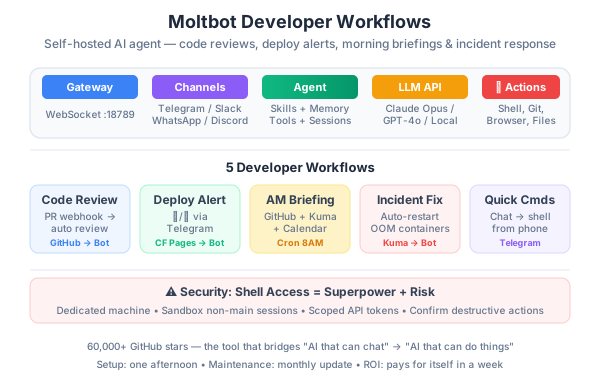
You’ve probably seen the GitHub repo. Moltbot (formerly Clawdbot, briefly OpenClaw — long naming story) went from zero to 60,000+ stars in about a week. That kind of hype usually means the tool is either genuinely useful or the demo video had great music. After running it for a few weeks, I can confirm: it’s genuinely useful.
But most articles about Moltbot focus on the “send a WhatsApp message to your AI” angle. That’s cool for personal tasks, but I want to talk about something more interesting — using Moltbot to optimize actual developer workflows.
What Moltbot Actually Is
At its core, Moltbot is a self-hosted AI agent that runs on your own hardware. It connects to an LLM (Claude, GPT, or local models) and exposes that agent through messaging platforms you already use — WhatsApp, Telegram, Slack, Discord, Teams, and more.
The key difference from ChatGPT or Claude’s web interface:
- It runs locally. Your files, code, and conversations never leave your machine (except the LLM API calls).
- It can take actions. Terminal commands, browser automation, file management, Git operations — it has actual system access.
- It has persistent memory. Conversations, preferences, and context are stored as local files. It remembers your projects, your coding style, your team’s conventions.
- It’s proactive. Cron jobs, webhooks, and event triggers let it initiate actions without you asking.
The architecture is straightforward:
┌─────────────────────────────────────────────┐
│  Your Machine (Mac, Linux, RPi, VPS)        │
│                                             │
│  ┌───────────┐    ┌──────────────────────┐  │
│  │  Gateway   │───│  Agent Runtime       │  │
│  │ (WebSocket)│   │  - Sessions          │  │
│  │ port 18789 │   │  - Skills            │  │
│  └─────┬─────┘   │  - Memory            │  │
│        │         │  - Tool execution     │  │
│  ┌─────┴─────┐   └──────────┬───────────┘  │
│  │ Channels  │              │               │
│  │ WhatsApp  │    ┌─────────┴────────────┐  │
│  │ Telegram  │    │  LLM API             │  │
│  │ Slack     │    │  (Claude / GPT /     │  │
│  │ Discord   │    │   local models)      │  │
│  └───────────┘    └──────────────────────┘  │
└─────────────────────────────────────────────┘
Setting Up for Developer Workflows
Installation
# Node 22+ required
npm install -g moltbot@latest

# Run the onboarding wizard
moltbot onboard --install-daemon

# Start the gateway
moltbot gateway --port 18789 --verbose
The wizard walks you through connecting your LLM API key and pairing a messaging channel. I use Telegram for personal tasks and Slack for team-related workflows.
Model Selection
For developer workflows, model choice matters:
- Claude Opus 4.5 — Best for complex code tasks, architecture decisions, and long-context work. My default.
- Claude Sonnet 4.5 — Good balance of speed and quality for most tasks. Use this if Opus feels slow.
- GPT-4o — Works fine but I find Claude better for code generation.
- Local models (Ollama) — For privacy-sensitive projects. Quality varies.
Set your model in the workspace config:
# ~/clawd/workspace.yml
model:
  provider: anthropic
  model: claude-opus-4-5-20250929
  thinking: high
Developer Workflow #1: Automated Code Review
This is the workflow that sold me on Moltbot. I connected it to GitHub webhooks so it reviews every pull request in my repos.
Setup
Create a skill at ~/clawd/skills/code-review/SKILL.md:
# Code Review Skill

## Trigger
When a GitHub webhook fires for a new pull request or push to an existing PR.

## Behavior
1. Fetch the diff from the PR
2. Analyze for:
   - Security vulnerabilities (SQL injection, XSS, credential leaks)
   - Performance issues (N+1 queries, unnecessary re-renders, missing indexes)
   - Code style violations (based on project conventions)
   - Missing error handling
   - Test coverage gaps
3. Post a review comment on the PR with findings
4. If critical issues found, request changes. Otherwise, approve.

## Tone
Be specific and constructive. Reference line numbers. Suggest fixes, don't just point out problems.
Then configure the webhook:
# ~/clawd/webhooks.yml
webhooks:
  - name: github-pr-review
    path: /hooks/github
    secret: ${GITHUB_WEBHOOK_SECRET}
    skill: code-review
    filter:
      event: pull_request
      action: [opened, synchronize]
Now every PR gets an AI review within minutes. It catches things like:
- Hardcoded API keys in config files
- Missing
awaiton async functions - Database queries inside loops
- Unused imports and dead code
Is it as good as a senior dev reviewing the code? No. But it catches the mechanical stuff so the human reviewer can focus on architecture and logic.
Developer Workflow #2: Deploy Notifications via Telegram
I want to know when my deployments succeed or fail — without constantly checking dashboards.
# Webhook for Cloudflare Pages deploy events
webhooks:
  - name: deploy-notify
    path: /hooks/deploy
    skill: deploy-status
The skill:
# Deploy Status Skill

## Trigger
Cloudflare Pages deploy webhook.

## Behavior
1. Parse the deploy payload (status, commit, branch, URL)
2. Send me a Telegram message with:
   - ✅ or ❌ status
   - Commit message
   - Preview URL (for non-production deploys)
   - Build time
3. If deploy failed, fetch the build log and summarize the error
4. Suggest a fix if the error is obvious
Now I get messages like:
Deploy succeeded ✅ Branch:
main→ production Commit: “feat: add Cloudflare blog posts” Build time: 4.2s URL: https://luonghongthuan.com
Or when things break:
Deploy failed ❌ Branch:
feature/new-componentError:Cannot find module '../components/NewCard.astro'Suggestion: The import path looks wrong. The component might be at../../components/NewCard.astro(you’re in a nested page directory).
Developer Workflow #3: Morning Briefing
Every morning at 8 AM, Moltbot sends me a summary of what needs my attention.
# ~/clawd/cron.yml
cron:
  - name: morning-briefing
    schedule: "0 8 * * 1-5"  # 8 AM weekdays
    skill: daily-briefing
The briefing skill checks:
- GitHub: Open PRs needing my review, issues assigned to me, CI failures
- Uptime Kuma: Any services down or degraded
- Calendar: Meetings today (via Google Calendar integration)
- Todoist: Tasks due today
The message I get:
Good morning, Thuan 🌅
Code
- 2 PRs need your review (both from Minh)
- CI passing on all repos
Infra
- All 7 services healthy
- Portfolio site: 99.98% uptime (30d)
Today
- 10:00 Sprint planning
- 14:00 1:1 with Duc
- 3 tasks due in Todoist
This replaced a morning routine of checking 4-5 different dashboards.
Developer Workflow #4: On-Call Incident Response
For my homelab services, I configured Moltbot to respond to outages:
# Incident Response Skill

## Trigger
When Uptime Kuma webhook fires with status=down.

## Behavior
1. Identify which service is down
2. Check if the Docker container is running (via SSH)
3. Check container logs for errors
4. If it's a known issue (OOM, disk full, cert expired), attempt auto-fix:
   - OOM: Restart container
   - Disk full: Clear Docker build cache
   - Cert expired: Trigger renewal
5. Send me a Telegram message with status and action taken
6. If auto-fix fails, escalate with full diagnostic info
Last week, my Gitea instance went down at 2 AM because the container ran out of memory. Moltbot detected it, restarted the container, verified it was healthy, and sent me a message. I saw it when I woke up. Zero downtime impact.
Developer Workflow #5: Quick Commands via Chat
Sometimes I just want to do something fast without opening a terminal or switching context. From my phone:
Me: “What’s the disk usage on the homelab server?”
Moltbot: “Current disk usage on proxmox-01: 67% (402GB / 600GB). Largest directories: /var/lib/docker at 189GB, /home/thuan/media at 156GB. Docker build cache is 23GB — want me to prune it?”
Me: “Yes, prune docker cache”
Moltbot: “Done. Freed 23.1GB. Disk usage now at 63%.”
Or for code tasks:
Me: “Create a new blog post file called ‘testing-strategies-dotnet.md’ with the standard frontmatter, tagged with dotnet and testing”
Moltbot: “Created src/content/blog/testing-strategies-dotnet.md with frontmatter (title placeholder, today’s date, tags: dotnet, testing, draft: true). Want me to commit it?”
Security: The Elephant in the Room
Moltbot has shell access to your machine. This is simultaneously its superpower and its biggest risk. The docs are honest about it:
“No perfectly secure setup exists when operating an AI agent with shell access.”
Here’s how I mitigate the risks:
1. Dedicated Machine
Don’t run Moltbot on your primary development machine with SSH keys to production servers. I run it on a dedicated mini PC that only has access to:
- My homelab Docker network
- GitHub API (scoped tokens)
- Read-only access to production monitoring
2. Sandbox Non-Main Sessions
# ~/clawd/workspace.yml
agents:
  defaults:
    sandbox:
      mode: "non-main"  # Docker sandbox for group/channel sessions
This means only your personal (“main”) session has full host access. Team channels and group chats run in Docker containers.
3. Scoped API Tokens
Use GitHub fine-grained personal access tokens with minimal permissions:
- Read-only for repos
- Write only for PR comments
- No admin access
4. Review Before Destructive Actions
Configure the agent to confirm before running destructive commands:
tools:
  terminal:
    confirm_patterns:
      - "rm -rf"
      - "docker system prune"
      - "git push --force"
      - "DROP TABLE"
Tips From Running It Daily
Start small. Don’t try to automate everything on day one. Pick one workflow — code review or deploy notifications — and get that working well before adding more.
Write specific skills. Generic instructions produce generic results. “Review my code” is worse than “Check for SQL injection, missing error handling, and unused imports in TypeScript files following our team’s ESLint config.”
Use persistent memory intentionally. Moltbot remembers everything by default. Periodically review and clean up ~/clawd/memory/ to remove stale context that might confuse future interactions.
Monitor token usage. With Claude Opus, a code review can easily use 10,000+ tokens. Set up usage alerts so you don’t get a surprise API bill.
Keep skills versioned. Put your ~/clawd/skills/ directory in a Git repo. Skills are just markdown files — version them like any other config.
What I’m Not Using It For
- Writing production code. I use Claude Code or Cursor for that. Moltbot is for orchestration and automation, not active coding sessions.
- Anything with credentials. I don’t give it access to production databases, AWS root accounts, or financial systems.
- Team chat moderation. Technically possible, but the social dynamics of having an AI moderate your Slack are… complicated.
Is It Worth the Hype?
Mostly, yes. The 60,000 GitHub stars are partly viral momentum, but the tool genuinely solves a real problem: bridging the gap between “AI that can chat about code” and “AI that can actually do things with your code.”
The setup takes an afternoon. The ongoing maintenance is minimal (update once a month, check your skills still work). And the time saved — especially on the morning briefing and automated code review — pays for itself within a week.
If you’re already comfortable with self-hosted tools and have a homelab or dedicated server, Moltbot fits naturally into that ecosystem. If you’re looking for a managed solution that “just works,” you might want to wait for the ecosystem to mature a bit more.
But for developers who want AI that goes beyond a chat window? This is the most practical tool I’ve found.