Last month, a director at my company needed a competitor analysis across 12 SaaS tools — pricing tiers, feature comparisons, market positioning, and a recommendation slide deck for the board meeting on Friday. The old way: three days of Googling, copying data into spreadsheets, formatting 30 PowerPoint slides, and praying the numbers were still accurate by presentation day.
Instead, she opened Claude, uploaded the competitors’ pricing pages as PDFs, asked for a structured analysis, and told Claude to generate a PowerPoint deck. Thirty minutes later she had a 15-slide presentation with comparison tables, pricing matrices, and a recommendation summary. She spent another hour refining it. Done before lunch on day one.
This isn’t a post about coding. You won’t see a single line of JavaScript or Python. This is a hands-on guide for anyone who researches things, writes reports, or produces deliverables — and wants to do it dramatically faster with Claude.
Which Claude Should I Use?
Claude comes in three flavors. You don’t need all three — most people only need one. Here’s how to decide:
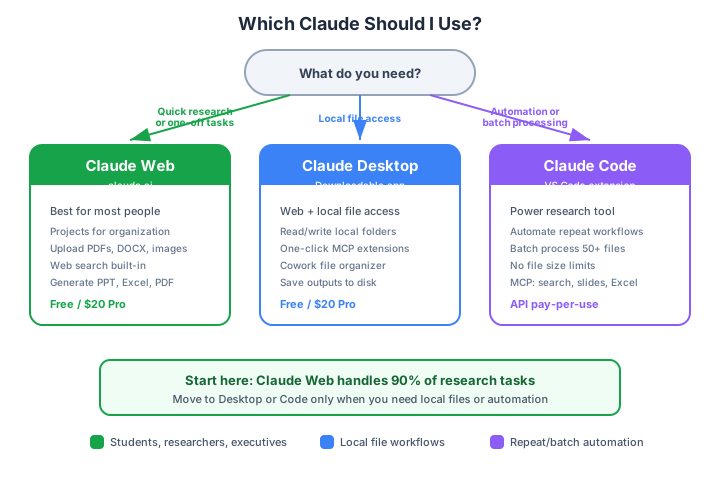
The short version:
| Claude Web | Claude Desktop | Claude Code | |
|---|---|---|---|
| Best for | Quick research, organized projects | Local file access, file organization | Automation, batch processing |
| Cost | Free / $20 Pro | Free / $20 Pro | API-based (pay per use) |
| Setup | None — just open claude.ai | Download the app | Install VS Code + extension |
| File output | Download from chat | Save directly to folders | Write files to disk automatically |
| Who uses it | Everyone | People who work with local files | Power users, repeat workflows |
My recommendation: Start with Claude Web. It handles 90% of research tasks with zero setup. Move to Desktop or Code only if you hit a specific limitation.
Claude Web — Your Research Home Base
Go to claude.ai and create an account. The free tier gives you access to Claude with limited usage. The Pro plan ($20/month) unlocks Projects, higher usage limits, and the latest models — it’s worth it if you use Claude daily.
Step 1: Start a Research Conversation
Type your research question naturally. Don’t overthink the prompt — start broad, then narrow down.
What are the current trends in renewable energy investment
in Southeast Asia? Focus on solar and wind energy,
government policies, and major projects from 2024-2026.
Claude responds with a structured analysis. But here’s the key difference from Google: you can ask follow-up questions. “Which countries have the most aggressive subsidies?” “Compare Vietnam and Thailand’s solar capacity.” “What are the risks?” Each answer builds on the previous context.
Step 2: Enable Web Search for Live Data
Claude can search the web for current information. When you need real-time data — stock prices, recent news, current policies — click the web search toggle or ask directly:
Search the web for the latest renewable energy investment
reports from IRENA and BloombergNEF published in 2026.
Summarize the key findings.
This is critical for research accuracy. Claude’s training data has a cutoff date, but web search gives it access to today’s information.
Step 3: Upload Your Source Documents
Claude reads PDFs, Word documents, images, and spreadsheets. Upload your sources directly:
- Research papers (PDF) — Claude summarizes, extracts key findings, identifies methodology
- Financial reports (PDF/Excel) — Claude analyzes data, spots trends, creates comparisons
- Meeting notes (DOCX/TXT) — Claude organizes, extracts action items, creates summaries
- Screenshots/charts (PNG/JPG) — Claude reads and interprets visual data
You can upload multiple files at once. Claude processes up to 200K tokens of context — roughly 500 pages of text in a single conversation.
I've uploaded 5 research papers on AI adoption in healthcare.
For each paper:
1. What was the research question?
2. What methodology did they use?
3. What were the key findings (with specific numbers)?
4. What limitations did they acknowledge?

Then write a synthesis identifying common themes and gaps
across all 5 papers.
Projects: Your Research Workspace
This is the feature that separates casual users from productive ones. Projects (available on Pro and Team plans) let you create dedicated workspaces for each research topic.
How to set up a Project:
- Click “Projects” in the Claude sidebar
- Create a new project: “Q1 2026 Market Analysis” (or whatever your research is)
- Add custom instructions that apply to every conversation in the project:
You are a senior market research analyst. When analyzing data:
- Always cite your sources with links or document names
- Present findings in structured format with headers
- Include confidence levels (high/medium/low) for each finding
- Flag any data that might be outdated
- Use tables for comparisons- Upload all your source documents into the project
- Start conversations — every chat has access to all uploaded documents and follows your custom instructions
This means you don’t re-upload files or repeat instructions. Every new conversation in the project starts with full context. It’s like having a research assistant who has already read everything.
Generate Professional Output
Here’s where Claude truly shines for non-technical users. Claude can create downloadable files directly in the conversation.
PowerPoint presentations:
Create a PowerPoint presentation from our research with:
- Title slide with project name and date
- Executive summary slide (3 key bullets)
- One slide per major finding (5 findings)
- A comparison table slide
- Recommendations slide
- Sources/references slide
Use a clean, professional layout.
Claude generates a .pptx file you download and open in PowerPoint or Google Slides. It includes proper slide layouts, text formatting, and data tables.
Excel spreadsheets:
Create an Excel spreadsheet with:
Sheet 1: "Competitor Comparison" — table with features down rows,
         competitors across columns, checkmarks for supported features
Sheet 2: "Pricing Analysis" — pricing tiers for each competitor
         with formulas calculating annual costs
Sheet 3: "Scoring Matrix" — weighted scoring model with
         auto-calculated totals and ranking
Claude generates a .xlsx file with working formulas, formatted headers, and multiple sheets.
PDF reports and markdown:
Write a 10-page research report in markdown format with:
- Executive Summary
- Methodology
- Key Findings (with data tables)
- Analysis
- Recommendations
- Appendix with sources
Claude produces well-structured markdown that you can copy into any document editor, or ask Claude to generate it as a downloadable PDF.
Claude Desktop — When You Need Local Files
Claude Desktop is the downloadable app for Mac and Windows. It has everything Claude Web has, plus the ability to read and write files on your computer.
Download: Visit claude.ai/download and install for your operating system.
Why Use Desktop Over Web?
- Read local files: Point Claude at a folder of reports and ask it to analyze them all
- Save outputs locally: Research reports, spreadsheets, and slides save directly to your folders
- MCP Extensions: One-click install of tools that extend Claude’s capabilities (no technical configuration needed)
- Cowork feature: Describe what you want organized in natural language — “Sort these 50 PDFs into folders by topic and create a summary index”
Filesystem Access (Simple Setup)
- Open Claude Desktop settings
- Go to Developer → Edit Config
- Grant Claude access to specific folders (e.g., your Research folder)
- Now Claude can read your documents and save output directly
The security model is straightforward: Claude can only access folders you explicitly allow. It won’t touch anything else.
MCP Extensions
MCP extensions are plug-and-play tools that give Claude new abilities. In Claude Desktop, many install with a single click — no command line needed.
Useful extensions for researchers:
- Brave Search — Web research from within Claude
- File organizer — Sort and categorize documents automatically
- Note-taking tools — Integration with Notion, Obsidian, or other note apps
Claude Code + VS Code — For Power Research
If you do the same type of research repeatedly — weekly reports, monthly analyses, regular literature reviews — Claude Code automates the entire pipeline. It requires a one-time setup in VS Code, but after that, you have a research automation system.
Step-by-Step Setup (15 minutes)
Step 1: Download Visual Studio Code (free, works on Windows/Mac/Linux)
- Go to code.visualstudio.com
- Download and install
Step 2: Install the Claude Code extension
- Open VS Code
- Press
Ctrl+Shift+X(Windows) orCmd+Shift+X(Mac) to open Extensions - Search “Claude Code”
- Click Install on the official Anthropic extension
Step 3: Create a research folder
- Create a folder on your computer:
My Research(or whatever you prefer) - Open it in VS Code: File → Open Folder → select your folder
Step 4: Start using Claude Code
- Click the spark icon in the VS Code sidebar
- Type your research request naturally
- Claude writes files directly into your folder
That’s it. No terminal commands, no configuration files. You now have Claude with direct access to your research folder.
Why Researchers Love Claude Code
It saves files automatically. When you ask Claude to write a report, it creates a real file on your computer — not a chat message you have to copy-paste.
No file size limits. Claude Web has upload restrictions. Claude Code reads any file on your machine, no matter how large.
Multi-hour sessions. Web conversations can lose context in long sessions. Claude Code maintains context for hours and can compress it when needed with /compact.
Batch processing. “Analyze all 50 PDFs in this folder and create a summary spreadsheet” — Claude Code processes them one by one and builds a comprehensive output.
MCP Servers for Researchers
MCP servers are tools that give Claude Code extra capabilities. Here are the ones that matter for research work:
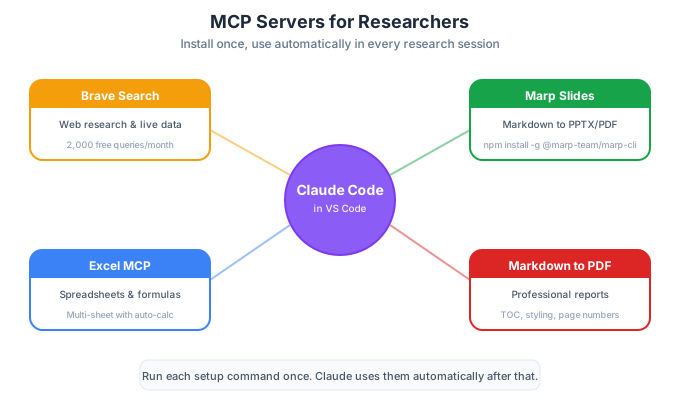
Brave Search — Research the web from Claude Code:
claude mcp add brave-search -- npx -y @anthropic-ai/mcp-server-braveThen ask: “Search for recent studies on remote work productivity published in 2026.”
Marp — Convert markdown notes into slide presentations:
npm install -g @marp-team/marp-cli
claude mcp add marp -- npx -y @masaki39/marp-mcp
Then ask: “Convert my research notes into a 15-slide presentation.”
Excel MCP — Generate spreadsheets with formulas and formatting:
claude mcp add excel -- npx -y excel-mcp-serverThen ask: “Create a comparison spreadsheet from this data with weighted scoring.”
Markdown-to-PDF — Turn reports into professional PDFs:
claude mcp add md2pdf -- npx -y markdown2pdf-mcpThen ask: “Convert my research report to PDF with a table of contents.”
Don’t worry if these commands look intimidating — you only run them once. After that, Claude uses these tools automatically when you ask for slides, spreadsheets, or PDFs.
Practical Example: From Question to Slide Deck
Here’s a real workflow using Claude Code. Let’s say you need to research “AI adoption in healthcare” and produce a slide deck.
Prompt 1 — Gather research:
Research AI adoption in healthcare in 2025-2026. Search for:
- Adoption rates by hospital size
- Most common AI applications (diagnostics, admin, drug discovery)
- ROI data from implementations
- Barriers to adoption
- Regional differences (US, EU, Asia)

Save the findings as research-notes.md in this folder.
Claude searches the web, compiles findings, and saves a markdown file to your folder.
Prompt 2 — Analyze and structure:
Read research-notes.md. Create a structured analysis:
1. Rank the top 5 AI applications by adoption rate
2. Create a comparison table: US vs EU vs Asia
3. Identify the 3 biggest barriers with evidence
4. Write 3 recommendations based on the data

Save as analysis.md
Claude reads its own research, analyzes it, and saves a structured report.
Prompt 3 — Generate the deliverable:
Based on analysis.md, create a 12-slide presentation:
- Title slide
- Executive summary (3 bullets)
- Slide for each top AI application (5 slides)
- Regional comparison table
- Barriers slide with data
- Recommendations slide
- Sources slide

Save as healthcare-ai-presentation.md using Marp format.
Then convert it to a PPTX slide deck.
Claude creates a Marp-formatted markdown file and converts it to a presentation. The whole process takes about 15 minutes.
For a deeper dive into Claude Code setup and MCP servers, see the Claude Code Guide series.
Prompt Techniques That Actually Work
The quality of Claude’s output depends entirely on how you ask. Here are five prompt templates you can copy and use immediately.
Template 1: The Deep Research Prompt
Use when you need comprehensive research on a topic.
Research [YOUR TOPIC]. For each source you find:
1. Extract the key finding in one sentence
2. Note the methodology or evidence type
3. Rate reliability: high (peer-reviewed/official),
   medium (industry report), or low (blog/opinion)

After gathering sources, synthesize the findings into:
- A 3-paragraph summary of the current state
- A table comparing different perspectives
- 3 open questions that need further investigation

Cite every claim with the source name.
Template 2: The Report Generator
Use when you’ve already gathered data and need a formatted report.
Based on everything we've discussed, create a professional
report with these sections:

1. **Executive Summary** (3 paragraphs, no jargon)
2. **Background** (why this research matters)
3. **Key Findings** (bulleted list, each with supporting evidence)
4. **Data Comparison** (table format, easy to scan)
5. **Analysis** (what the findings mean, implications)
6. **Recommendations** (prioritized, actionable, realistic)
7. **Appendix** (all sources with links/references)

Keep language clear and direct. This report is for
[senior leadership / academic committee / investors].
Template 3: The Slide Deck Builder
Use when you need a presentation from your research.
Create a presentation outline:

Slide 1: Title — [YOUR TITLE] + date + your name
Slide 2: "Why this matters" — 3 bullet points
Slides 3-7: One key finding per slide. Each slide has:
  - A headline (one sentence, bold)
  - 3 supporting bullet points
  - A relevant data point or statistic
Slide 8: Comparison table (keep it to 4-5 rows max)
Slide 9: Recommendations (3 items, prioritized)
Slide 10: Next steps with timeline

Each slide should have NO MORE than 30 words.
Audience: [describe who will see this]
Template 4: The Spreadsheet Builder
Use when you need structured data output.
Create a spreadsheet with these sheets:

Sheet 1 "Raw Data": Comparison table with [items] as rows
and [criteria] as columns. Fill with data from our research.

Sheet 2 "Analysis": Summary statistics — averages, ranges,
and counts for each criterion. Use formulas, not hardcoded values.

Sheet 3 "Ranking": Weighted scoring matrix.
Criteria weights: [criterion A: 30%, B: 25%, C: 25%, D: 20%]
Score each item 1-5 on each criterion.
Include auto-calculated weighted totals and final ranking.

Format with headers, borders, and conditional color coding.
Template 5: The Literature Review
Use for academic research and paper analysis.
I've uploaded [N] papers about [TOPIC]. For each paper, extract:

| Field | Details |
|-------|---------|
| Authors & Year | Full citation |
| Research Question | What they investigated |
| Methodology | How they studied it |
| Sample Size | How many participants/data points |
| Key Findings | Top 3 results with specific numbers |
| Limitations | What the authors acknowledged |
| Relevance | How it connects to [YOUR RESEARCH QUESTION] |

After analyzing all papers, write a synthesis section that:
1. Identifies 3-4 common themes across the literature
2. Notes contradictions or disagreements between studies
3. Identifies gaps — what hasn't been studied yet
4. Suggests directions for future research
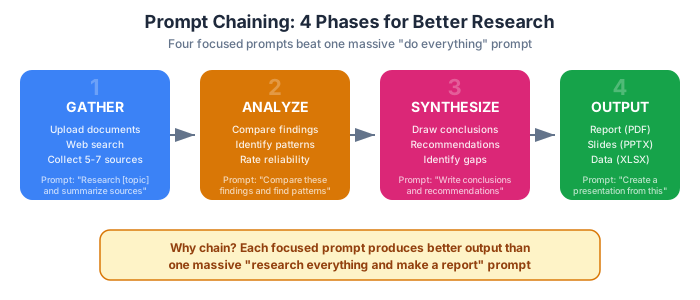
The Chaining Technique
Don’t try to get everything in one prompt. Chain your requests:
- Gather: “Research [topic] and give me a summary of sources”
- Analyze: “Now compare the findings and identify patterns”
- Synthesize: “Write conclusions and recommendations based on the analysis”
- Output: “Create a presentation / report / spreadsheet from the synthesis”
Each step builds on the previous one. Claude’s output improves dramatically when you give it focused tasks in sequence rather than asking for everything at once.
Save Money — Pick the Right Plan and Model
Claude offers multiple plans and AI models at different price points. Choosing wisely saves you hundreds of dollars a year without sacrificing quality.
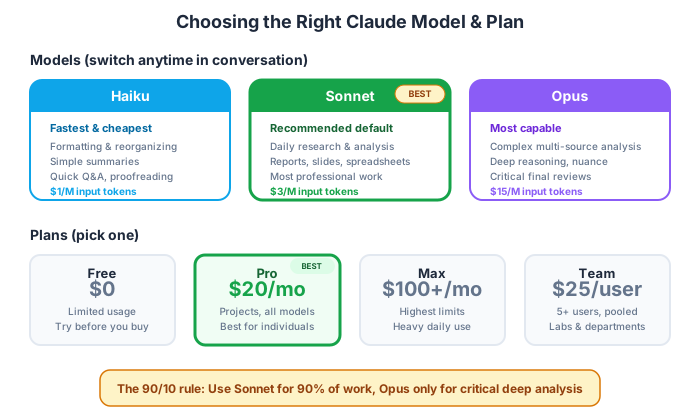
Which Plan?
| Your Situation | Recommended Plan | Monthly Cost |
|---|---|---|
| Student, occasional use | Free tier | $0 |
| Daily researcher, one person | Claude Pro | $20 |
| Heavy daily use, power features | Claude Max | $100-200 |
| Team of 5+ (lab, department) | Claude Team | $25 per person |
| Large organization | Enterprise | Custom pricing |
My recommendation for most researchers: Claude Pro at $20/month. It gives you access to all models, Projects, higher usage limits, and the latest features. If you use Claude less than 3-4 times per week, the free tier is fine.
Which Model?
Claude offers three model tiers. You can switch between them in any conversation.
Haiku (fastest, cheapest) — Use for:
- Formatting and reorganizing text
- Simple summaries of short documents
- Quick questions with straightforward answers
- Proofreading and editing
Sonnet (balanced, recommended default) — Use for:
- Daily research and analysis
- Writing reports and summaries
- Creating presentations and spreadsheets
- Most professional work
Opus (most capable, most expensive) — Use for:
- Complex multi-source analysis
- Deep reasoning about contradictory evidence
- Final review of critical deliverables
- Nuanced academic writing
The 90/10 rule: Use Sonnet for 90% of your work. Switch to Opus only for the final 10% — deep analysis and critical output that needs maximum quality.
Five Cost-Saving Tips
- Use Projects — Upload documents once, reference them across multiple conversations instead of re-uploading
- Be specific in prompts — Vague prompts generate long, unfocused responses that waste tokens. Specific prompts get concise, useful output
- Chain prompts — Four focused prompts cost less than one massive “do everything” prompt
- Use
/compact— In long conversations, type/compactto compress the context and free up space - Start with Haiku — For formatting, reorganizing, and simple tasks, Haiku is 5x cheaper and nearly as good
The 30-Minute Challenge
Here’s my challenge to you: pick a real research question from your work. Something you’ve been putting off because it feels like a three-day project. Then try this workflow:
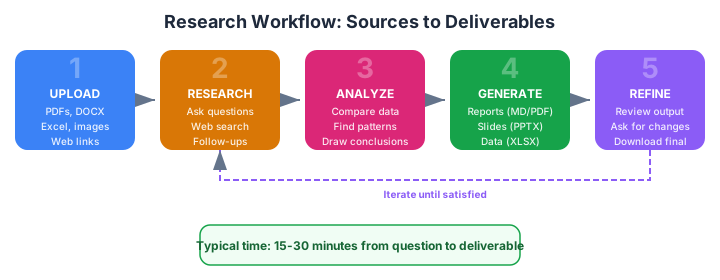
- Minutes 1-5: Open Claude (web, desktop, or code). Upload any source documents you have. Ask your research question with the Deep Research prompt template.
- Minutes 5-15: Ask follow-up questions. Narrow down. Ask Claude to compare, contrast, and identify patterns.
- Minutes 15-25: Use the Report Generator or Slide Deck Builder template to create your deliverable.
- Minutes 25-30: Review, refine, and download.
The first time will feel clunky — you’re learning a new workflow. By the third time, it’ll feel natural. By the tenth time, you won’t believe you ever did research without it.
For those who want to take Claude further — automating workflows, building custom research pipelines, and integrating with other tools — check out the 5-part Claude Code guide for the technical deep dive.
The tools are ready. The question is what you’ll research first.